
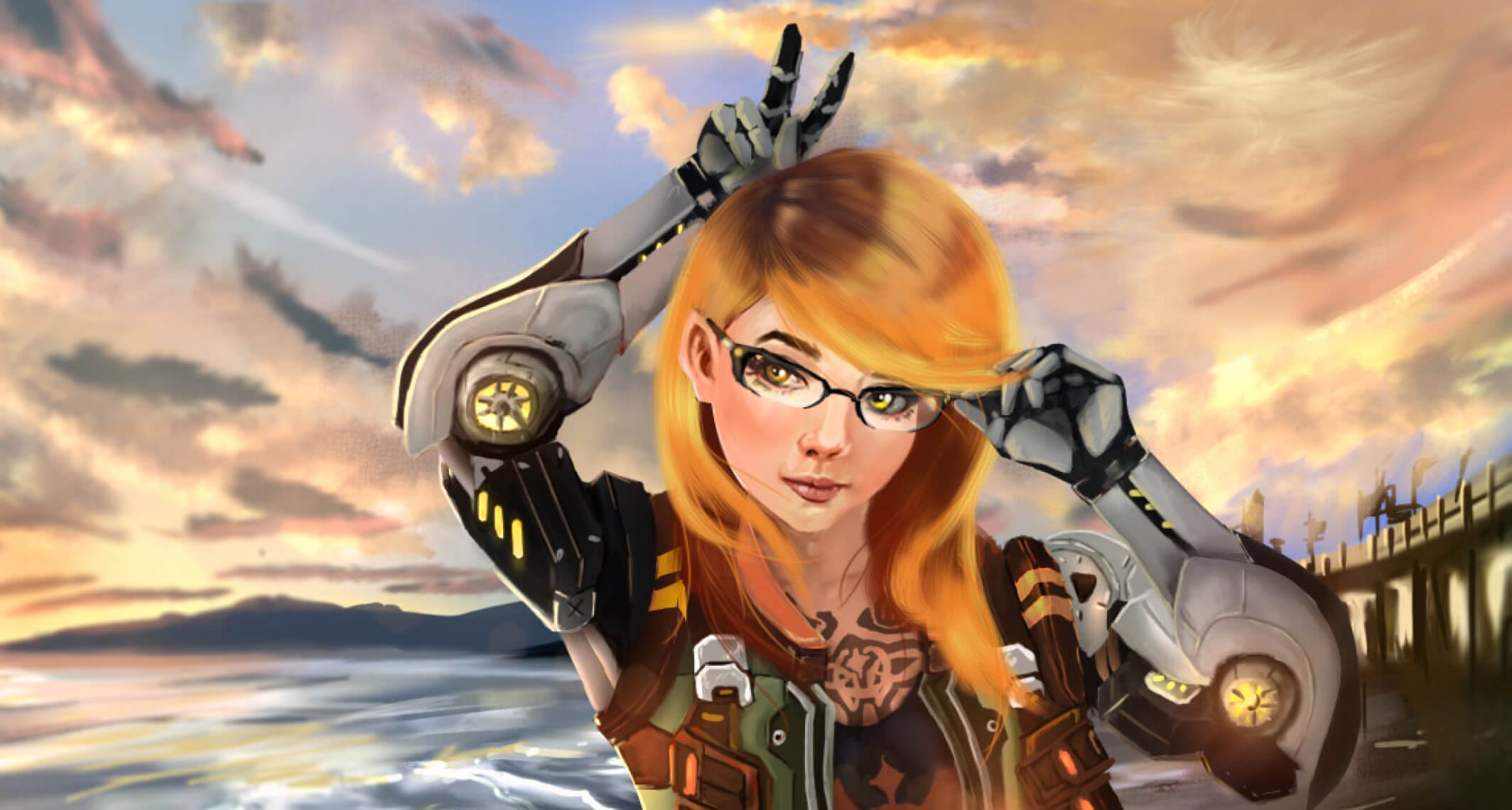
Let’s start simple.
Digital painting is basically traditional painting… but you’ve swapped oil paint, acrylics, and messy brushes for a computer, a tablet, and some software.
That’s it. That’s the secret.
Despite how mysterious or intimidating it can look from the outside, digital painting follows the exact same artistic process as traditional painting. You still choose a brush, pick a color, and put brushstrokes down on a canvas — it just happens inside a screen instead of on a physical surface.
And yes, it comes with a lot of conveniences. And no, it’s not cheating. But it does come with real trade-offs that nobody talks about enough.
After 5+ years working in digital illustration — everything from personal character work to commissioned pieces — here’s the honest version of what digital painting actually is, what it takes to get started, and what you should know before you spend a single peso on gear.
So… What Exactly Is Digital Painting?
Digital painting (sometimes called electronic painting) is the act of painting using digital tools instead of physical ones.
You still think like a painter:
- You build shapes and block in values
- You control edges — hard, soft, lost
- You work with color, light, and form
- You make mistakes and fix them (sometimes too easily)
The difference is that your canvas is virtual, your brushes are software, and your paint never dries unless you want it to. That last part alone feels like sorcery the first time you experience it.
The other thing that surprises people: digital painting doesn’t bypass fundamentals. You still need anatomy, perspective, composition, color theory, and an understanding of light and form. The medium makes the workflow more convenient — not the skill acquisition.
💬 From Allard:
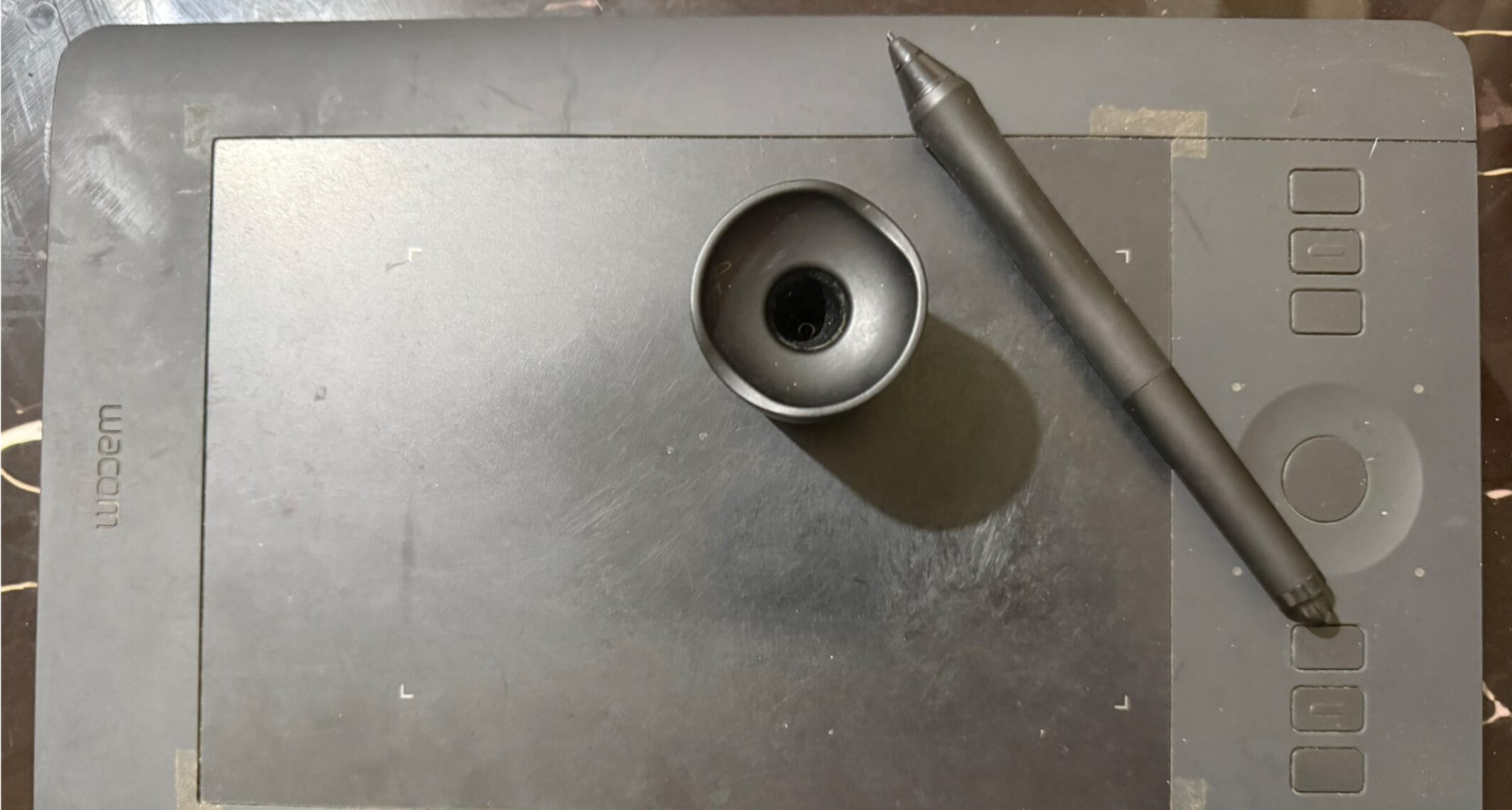
I started with pen and paper in grade school, made manga with a ballpoint pen in high school, and eventually moved to digital with my first developer paycheck — a Wacom Intuos Pro that still sits on my desk today. The transition wasn’t instant. It took months before digital painting felt natural and not like fighting the tools. But once it clicked, going back to traditional felt genuinely inconvenient in comparison. Not worse — just slower.
What Tools Do You Actually Need?
At its core, digital painting needs three things:
- A drawing tablet (also called a graphics tablet, digital tablet, or digitizer — the naming is chaos)
- Digital painting software
- A computer to run it all — or a single all-in-one device like an iPad
You can technically paint with a mouse. I wouldn’t wish that on my worst enemy. It’s awkward, stiff, and strips away most of the control that makes painting enjoyable.
Tablets: The One Feature That Actually Matters
Tablets come in all shapes, sizes, and price ranges — from budget beginner pads to high-end screen tablets. They all do the same fundamental job: translate the movement of your hand into brushstrokes on screen.
The one non-negotiable feature: pressure sensitivity. Without it, every stroke comes out at the same weight and opacity, which makes natural-looking painting nearly impossible. Don’t buy a tablet that doesn’t support it.
Beyond that, the tablet debate people agonize over — screen tablet vs. non-screen tablet — matters less than beginners think. I painted on a non-screen Wacom for years before ever touching a screen tablet, and the non-screen version taught me everything I needed. The disconnect between your hand position and your eye position is something you adapt to within a few weeks.
💬 From Allard:
My Wacom Intuos Pro lives on my desk permanently. Never put away, never packed up. Always ready. This is intentional — every extra step between me and starting to paint is a decision point where motivation gets to say no. Remove the setup friction entirely and the habit runs on its own inertia. That’s true for tablets, and it’s true for sketchbooks too.
Software: Your Virtual Paint Box
Every digital painting program gives you the same core toolkit: brushes, colors, and a canvas. Where they differ is in how they feel to use, what they cost, and which workflows they support best.
Think of software as a digital version of a traditional paint kit. Some programs try to closely replicate traditional media — textured canvas that looks like watercolor paper, palette knives, digital oil brushes. Others are more focused on flexibility and speed.
The programs I actually use professionally are Photoshop, Krita, and PaintTool SAI — each for a specific reason, and each with real trade-offs I’ll get into in the next section.
Deep Dive: Software Compared Honestly
The software question comes up constantly, so here’s my honest take — not from a review site, but from someone who’s been inside all three of these tools for years of actual production work.
Photoshop — The Industry Standard (With Strings Attached)
Most of my professional work lives in Photoshop. It’s the lingua franca of the industry — studios, clients, and collaborators all know it, which makes sharing files and layered PSDs basically frictionless.
What makes it worth it:
- Unbeatable compositing and non-destructive editing (Smart Objects, Adjustment Layers)
- Industry-standard compatibility across games, film, and publishing pipelines
- Highly customizable brush engine
- Best-in-class tools for photo integration and matte painting workflows
Where it falls short:
- Monthly Adobe subscription cost adds up fast — especially painful if you’re freelancing early on
- Can feel bloated if you only want to paint
- Linework feel is noticeably worse than SAI
If you’re serious about working in games, film, or illustration professionally, learning Photoshop is worth the investment. If you’re a hobbyist, the cost is harder to justify — especially when Krita exists.
Krita — The Best Free Option. Full Stop.
Krita is what I recommend to every beginner without hesitation. It’s completely free, open-source, and its brush engine is arguably better than Photoshop’s for pure painting purposes.
What it does well:
- Excellent, highly customizable brush variety
- Built-in line stabilizer — a huge deal for beginners struggling with shaky strokes
- Animation support (surprising for free software)
- Non-destructive layer effects
- Actively maintained and regularly updated
Where it’s weaker:
- Less professional file compatibility — doesn’t open every PSD perfectly
- Fewer tutorials online compared to Photoshop
- UI can feel cluttered until you take the time to customize your workspace
💬 From Allard:
Even after years of using Photoshop professionally, I still reach for Krita for personal projects. There’s something about its painting feel — especially for loose, expressive brushwork — that I find genuinely more enjoyable. If you’re starting out and don’t want to spend anything, Krita is the answer. No caveats.
PaintTool SAI — The Linework Secret Weapon
SAI was the first software I seriously learned digital painting in, and for one specific job — clean linework, anime-adjacent illustration, characters with crisp outlines — nothing else comes close to how it feels.
What makes it special:
- Pen stabilizer is exceptionally smooth — lines come out clean with minimal effort
- Extremely lightweight; runs comfortably on almost any machine
- Vector layer tools are excellent for precise, scalable linework
- Very cheap, one-time purchase
Where it’s limited:
- Limited export options
- No animation features
- Less versatile for complex, painterly or rendered work
- Development has slowed significantly in recent years
Most of my character linework starts in SAI before moving to Photoshop or Krita for rendering and color. It’s a one-trick pony — but that one trick is exceptional.
The Quick Comparison
| Software | Cost | Best For | Weakness |
|---|---|---|---|
| Photoshop | ~$55/mo (Adobe CC) | Professional work, compositing | Expensive subscription |
| Krita | Free | Beginners, pure painting | Less industry compatibility |
| PaintTool SAI | ~$55 one-time | Anime linework, clean lines | Very limited feature set |
| Clip Studio Paint | ~$50 one-time or sub | Comics, sequential art | Learning curve for painters |
| Procreate | ~$13 one-time (iPad only) | iPad workflow, portability | No desktop version |
My honest recommendation: start with Krita. It’s free, excellent, and everything you learn in it transfers directly to paid software if you upgrade later.
How Does Digital Painting Actually Work?
Here’s the practical version.
You plug your tablet into your computer (or use an iPad). Your stylus controls the cursor. Pressure controls the brush — press lightly for thin, soft strokes; press harder for thick, dark ones. Good software responds to that pressure and translates it into something that feels like real painting.
From there, it’s the same process as traditional art: pick a color, choose a brush, and paint.
Where it gets genuinely magical is the non-linear workflow. In traditional painting, every mark you make either commits or damages. In digital painting, nothing is permanent. Layers let you paint elements independently and rearrange them freely. Undo is always available. Blend modes — Multiply, Screen, Overlay — let you add shadow, light, and color in ways that would take hours with physical paint.
🎨 What digital painting actually gives you:
Unlimited undo · Layers · Blend modes · Infinite color palette · Resize and recolor without starting over · No drying time · No cleanup · Work from anywhere
My Actual Workflow — How I Paint a Piece From Start to Finish
People always want to know what the process looks like behind the scenes. Here’s an honest walkthrough of how I approach a digital painting — from nothing to done.
Step 1: Thumbnail and Composition
Before I touch a canvas at actual resolution, I thumbnail. Small, rough, fast — usually no bigger than a few hundred pixels. The goal is to solve composition, value structure, and mood before I’ve invested any real time. This step is where 80% of the actual decisions get made, even though it takes 5% of the total time.
Step 2: Rough Sketch
Once I have a thumbnail I like, I scale it up and start a rough sketch. Still loose — establishing proportions, gesture, and anatomical landmarks. I’m not drawing every line perfectly. I’m putting the roadmap in place. I start with simple shapes first, anatomy second, detail last.
Step 3: Linework (or Not)
If the final piece calls for clean linework — a lot of my character illustrations do — I’ll refine the sketch into cleaner lines here. This is often where I switch to SAI for the smoothest result. If I’m going for a painterly look where visible linework isn’t part of the final piece, I skip this step entirely and go straight to blocking color.
💬 From Allard:
My process looks unconventional to classically trained artists. I often start with a big brushstroke rather than linework. I think of the character as shapes first — blocking in the darkest color in each shape before anything else. The linework sometimes comes later, sometimes not at all. Most of my YouTube process videos show this if you want to see it in motion.
Step 4: Color Blocking
Flat colors first. No shading, no rendering — just establishing the local color of every element. This sounds tedious, but getting color relationships right here saves enormous time later. I work on separate layers: character, background, accessories. Staying organized during this stage pays off massively when you need to adjust things in the render phase.
Step 5: Value and Light
I block in the darkest value of each shape first, then work upward toward the light — midtones on top of dark foundation, lighter tones on top of midtones, highlights last. Color Dodge or Add blend modes for the most intensely lit areas. This approach forces you to think about form before surface detail, and when you start from dark and build toward light, every subsequent layer adds energy rather than removing it.
Step 6: Rendering and Detail
The longest stage. Building texture, refining edges, adding secondary light sources, pushing contrast where it matters. I zoom in and out constantly — beginners often get trapped zoomed in too far, rendering tiny details in areas that barely read at full view. Zoom out. Judge the whole image. Then go back in.
Step 7: Final Pass and Export
Before anything is “done,” I flip the canvas horizontally. Fresh eyes on a mirror image catch problems your brain has been filtering out for hours. I also desaturate temporarily to check the value structure one last time. Then flatten, sharpen slightly if needed, and export.
How to Actually Learn Digital Painting — A Step-by-Step Path
The biggest mistake beginners make is treating digital painting as a technology problem — spending weeks comparing software and tablets before painting a single thing. The learning path is simpler than you think.
Phase 1: Get Set Up (One Week Maximum)
Pick a tablet. For beginners, a basic Wacom or Huion pad in the $50–$80 USD range is more than enough. Don’t spend more until you know you’re committed. Pick a software — start with Krita, it’s free and excellent. Download it, make a canvas, and open a blank document. That’s Phase 1. Don’t overthink it.
Phase 2: Build the Fundamentals (Ongoing — Not Optional)
Before worrying about “digital painting,” worry about painting and art. The medium matters less than the foundation. Work on these in parallel, not in sequence:
- Drawing: Basic shapes first, then apply to simple objects, then more complex forms
- Value: Learn to see light and dark before color. Grayscale studies are enormously useful here
- Color theory: Understand hue, saturation, temperature, and how colors interact — my color theory guide covers this in depth
- Perspective: At minimum, understand basic 1-point and 2-point perspective before building scenes
✅ The honest truth about fundamentals:
These aren’t prerequisites you complete before “real” painting — they’re ongoing skills you develop through painting. The key is working on them intentionally, not hoping they improve passively.
Phase 3: Copy Masters and Use References
Pick work you admire and try to copy it — not to claim it, but to understand how it was made. What brush shapes? What color decisions? Where did the artist put detail and where did they simplify? Copying teaches faster than almost anything else in the early stages.
And use reference constantly. Reference isn’t cheating. Professional artists use reference on every serious piece. The idea that working from reference is somehow less valid is one of the most persistently damaging myths in the learning community.
Phase 4: Develop Your Process
By this point you’ve painted enough to notice preferences — you love the sketching phase and rush the render, or vice versa. You start to develop instincts. This is when experimenting with workflow makes sense. Try painting without linework. Try using only three brushes for an entire piece. Try a style you’ve never worked in before. The goal isn’t to lock in a permanent process — it’s to understand why different choices produce different results.
Phase 5: Build a Body of Finished Work
At some point, improvement becomes less about studies and more about finished pieces. Studies teach technique. Finished work teaches everything else — follow-through, decision-making under uncertainty, how to know when something is done. Aim for a portfolio of pieces you’re genuinely proud of, not a folder of 200 unfinished experiments. Finishing is a skill in itself, and it matters enormously if you ever want to work professionally.
Common Beginner Mistakes (And How to Avoid Them)
Mistake 1: Buying Too Much Gear Before You Know What You Need
There’s a version of this that never ends. You get a tablet, then you want a screen tablet, then a bigger one, then a different pen. Gear acquisition becomes a substitute for actually painting. Start small. A basic pen tablet and free software is genuinely enough to learn everything important. Upgrade when a specific limitation is actively slowing you down — not because something new came out.
Mistake 2: Working Without References
Working purely from imagination sounds like a skill, but in the early stages it mostly produces incorrect results that then get reinforced with practice. Use references for anatomy, lighting, texture, and color — for almost everything. Your imagination becomes more useful the more accurately it’s been trained by observation.
Mistake 3: Rendering Before the Whole Piece Is Established
It’s very tempting to zoom in and render one eye beautifully before the whole face is blocked in. Resist this. Work globally before locally, every time. Establish values, shapes, and proportions across the whole painting before rendering any single area. A beautifully rendered detail in a poorly composed painting doesn’t save the painting.
Mistake 4: Using Too Many Brushes
Beginners download enormous brush packs and cycle through them constantly, looking for the brush that will “make it work.” The brush isn’t the problem. Most professional artists do the majority of their work with a very small set of brushes. Learn a basic round brush deeply before chasing variety. The brush’s behavior becomes intuitive, and that intuition is where control comes from.
Mistake 5: Skipping the Thumbnail Stage
Thumbnails feel like wasted time when you’re excited to start painting. They’re not — they’re where compositions live or die. A bad composition can’t be rescued at the render stage no matter how skilled you are. Even five minutes of rough thumbnailing before you start changes the quality of the final piece.
💬 From Allard:
The comparison trap is real and I’ve fallen into it hard. When I discovered the work of Marc Brunet, Ash Thorp, and Maciej Kuciara early in my development, it nearly stopped me from drawing entirely. What pulled me out wasn’t ignoring their work — it was changing how I used it. I stopped measuring my output against theirs and started using their work as a study resource. What specific skill does this piece demonstrate that I could learn? That’s a question with an actionable answer. “Why isn’t my art as good as theirs?” is not.
Digital vs. Traditional: The Honest Trade-Offs
Digital painting isn’t better than traditional — it’s more convenient. Here’s what that actually means in practice:
| Digital Painting | Traditional Painting |
|---|---|
| Unlimited undo | Every mark is a commitment |
| No physical setup or cleanup | Supplies, mixing, drying, storage |
| Infinite colors and brushes | Physical constraints drive creative decisions |
| Easy to share and deliver | Physical original has intrinsic value |
| No original to sell (prints only) | Unique physical artwork can command premium prices |
| Choice paralysis — too many options | Constraints often force better decisions |
| Portable — work from anywhere with a laptop | Requires carrying physical supplies |
The biggest downside of digital painting that nobody warns beginners about: unlimited undo makes you worse at committing to decisions. When every stroke is reversible, you never develop the risk tolerance that makes traditional painters bold. It’s worth being aware of and deliberately working against.
If you want to dig deeper into this comparison, I have a full breakdown in Digital Art vs. Traditional Art: Which One Should You Choose?
Can Digital Painting Be a Career?
Absolutely — and it already is, for a lot of people.
Digital painting is the dominant medium in video games, film and TV, animation, publishing, board games, tabletop RPGs, and concept art. These industries need fast turnaround, painless revisions, and easy collaboration. Digital painting excels at all three.
Even private commissions increasingly prefer digital because revisions are simple and delivery is instant. There’s no waiting for paint to dry, no shipping, no risk of damage in transit.
That said, a career in digital illustration isn’t just about painting skill. It’s about consistency, communication, meeting deadlines, and building a body of work that demonstrates range. The painting is the starting point, not the whole thing.
If you’re wondering whether you’re already good enough to start taking commissions, I wrote about that honestly in How to Know If You’re “Good Enough” to Take Art Commissions — and the answer is probably not what you expect.
Frequently Asked Questions
What’s the best tablet for beginners?
A basic Wacom Intuos Small or a Huion Inspiroy in the $50–$80 USD range is more than enough to start. Both have pressure sensitivity, both are widely compatible, and both will teach you everything you need to know about working with a tablet. The non-screen format is fine for beginners — the hand-eye disconnect is something you adapt to within a few weeks of consistent use. Don’t spend more than this until you’ve been painting digitally for at least six months and have a specific reason to upgrade.
Is digital painting easier than traditional?
More convenient, not easier. The technical execution of digital painting has significant advantages — undo, layers, infinite colors — but the underlying skills are the same: anatomy, perspective, color theory, composition, light and form. Those skills take the same amount of deliberate practice to develop regardless of medium. Digital painting removes friction from the workflow; it doesn’t remove the work itself.
Do I need to know how to draw before learning digital painting?
You don’t need to be good at drawing first — but you’ll develop drawing skills alongside painting skills, and the two inform each other. Starting with gesture drawing and basic construction (learning to build forms from simple shapes) before diving into fully rendered digital paintings will accelerate your progress significantly. Think of it as learning to walk before running, not as a mandatory waiting period.
How long does it take to get good at digital painting?
With consistent, intentional practice — meaning you’re working on your specific weak areas, not just repeating what you’re already comfortable with — most people see significant, visible improvement within 6–12 months. A level of skill where your work reads as competent and professional typically takes 2–4 years of dedicated practice. These timelines assume consistent work (several sessions per week) and active study, not passive output. The artists who improve fastest are the ones who practice the things they can’t yet do, not the things they’re already good at.
What’s the difference between digital painting and digital illustration?
The terms are often used interchangeably, but there’s a loose distinction: digital painting usually refers to work that emphasizes painterly rendering — visible brushwork, blended edges, a look that references traditional painting. Digital illustration often implies cleaner linework, flatter color, or a more graphic aesthetic. In practice, most professional artists blend both approaches depending on the piece. The label matters less than the skill set, which overlaps heavily between the two.
Can I use an iPad instead of a computer and tablet?
Yes — with Procreate, an iPad Pro and Apple Pencil is a genuinely complete digital painting setup. The main trade-offs are software limitations (Procreate is powerful but has less professional compatibility than Photoshop), and the fact that you’re locked into Apple’s ecosystem. For beginners especially, an iPad + Procreate is an excellent and relatively affordable starting point. For professional work that needs to integrate into studio pipelines, a desktop setup with Photoshop will eventually become necessary.
Does digital painting count as “real” art?
Yes. The medium has no bearing on whether the result is art. The same skills, creative decisions, and artistic intention go into a digital painting as into a traditional one. The “is it real art” debate is largely generational and fading fast — digital painting is now a dominant professional medium across entertainment, publishing, and fine art. The more useful question is whether the work demonstrates skill, intention, and a unique creative voice. Medium is irrelevant to all three.
What brush should I start with as a beginner?
A basic round brush with pressure sensitivity applied to both size and opacity. That’s it. Resist the urge to download large brush packs early on — they create choice paralysis and give you the illusion of variety without building actual control. Learn one brush deeply enough that its behavior feels intuitive, then expand from there. Most experienced artists do the majority of their work with fewer brushes than you’d expect.
How do I make my digital art look less “digital”?
A few specific techniques help a lot: vary your brush opacity and size rather than painting at consistent settings; use a textured brush or canvas overlay to break up the “clean” digital look; avoid pure black and pure white — real shadows and lights have color in them; and be deliberate about edge quality (not every edge should be sharp). The “too digital” look usually comes from even, unvaried strokes and overuse of the eraser. Paint more, erase less, and vary your pressure constantly.
What to Read Next
- Color Theory Made Simple — one of the most powerful skills you can build as a digital painter, explained without the jargon
- Digital Art vs. Traditional Art — a full breakdown of the pros, cons, and career implications of both paths
- How to Find Your Art Style in 3 Steps — once you have the fundamentals, this is the next question every artist asks
- How to Know If You’re Good Enough to Take Art Commissions — the honest answer to whether you can start making money from digital painting yet
- Complete Anime Drawing Guide for Beginners — if anime and character illustration is the direction you’re heading, start here
Digital painting isn’t magic. It won’t bypass the fundamentals, fix a weak composition, or turn an inconsistent practice into a strong portfolio. But it will remove a lot of the friction that slows traditional painting down — and once you get used to unlimited undo, there’s really no going back. 🖊
Discover More Posts
Keep exploring stories, insights, and creative notes from my journey as an artist. Check out the latest blog entries and find topics that inspire your own process.
5 Hidden Art Career Killers That Stop Most Artists Before They Even Start — And How to Beat Them
Learn to draw anime-style clouds with this easy, step-by-step cloud tutorial. You’ll pick up tips on shapes, color, and composition—plus get free cloud brushes to use in your own art.

Sketching vs. Drawing: 5 Powerful Insights Every Artist Should Know
Learn the key differences between sketching and drawing—how detail, speed, tools, and intent separate the two and when to use each in your art practice.
How to Find Your Art Style in 3 Simple Steps
Learn how to find your unique art style through a clear three-step process. Discover how to collect inspiration, analyze your influences, and build your own signature look with deliberate practice.