
There are a lot of free drawing apps out there.
If you’re just getting started with digital art, it’s overwhelming. Every program claims to be powerful. Every YouTube comment says something different. And somehow everything is either “industry standard” or “underrated.”
So I decided to test a bunch of free drawing apps and rate them based on one simple question: Would I recommend this to someone starting digital art?
💬 From Allard — why I’m qualified to judge these:
I jumped straight into Photoshop when I started taking digital art seriously — bought a Wacom Intuos Pro with my first developer paycheck and learned on professional software from day one. I’ve been working in Photoshop and PaintTool SAI professionally for 5+ years. That means when I test these free apps, I’m not evaluating them as a beginner who doesn’t know what’s missing. I know exactly what good feels like — and I can tell you clearly when something falls short of it and when something genuinely punches above its weight. These ratings come from that perspective: an experienced digital artist testing free tools with honest expectations.
Even if you’re not a beginner, you might find something new worth trying. Here’s what actually happened.
Krita
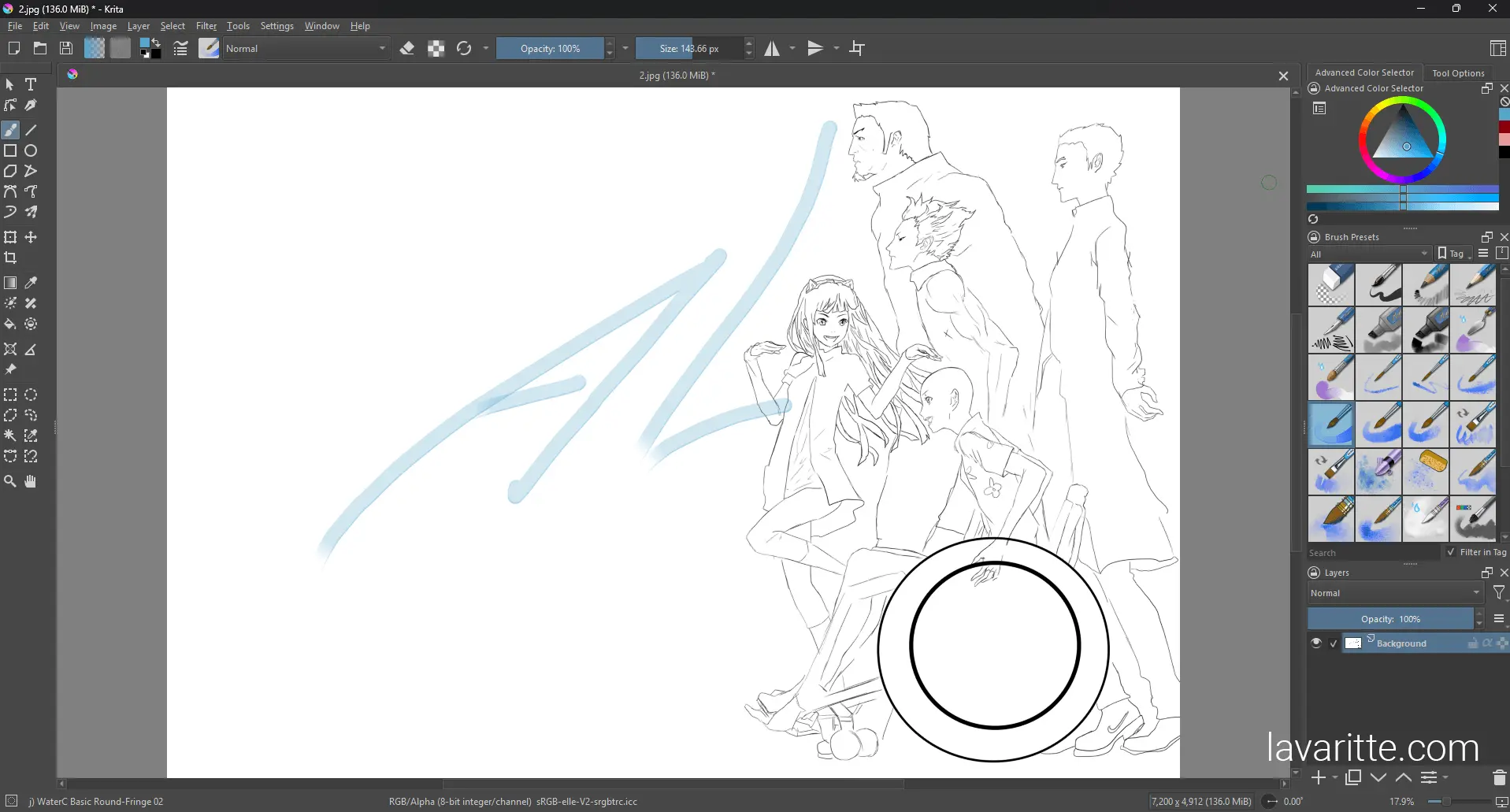
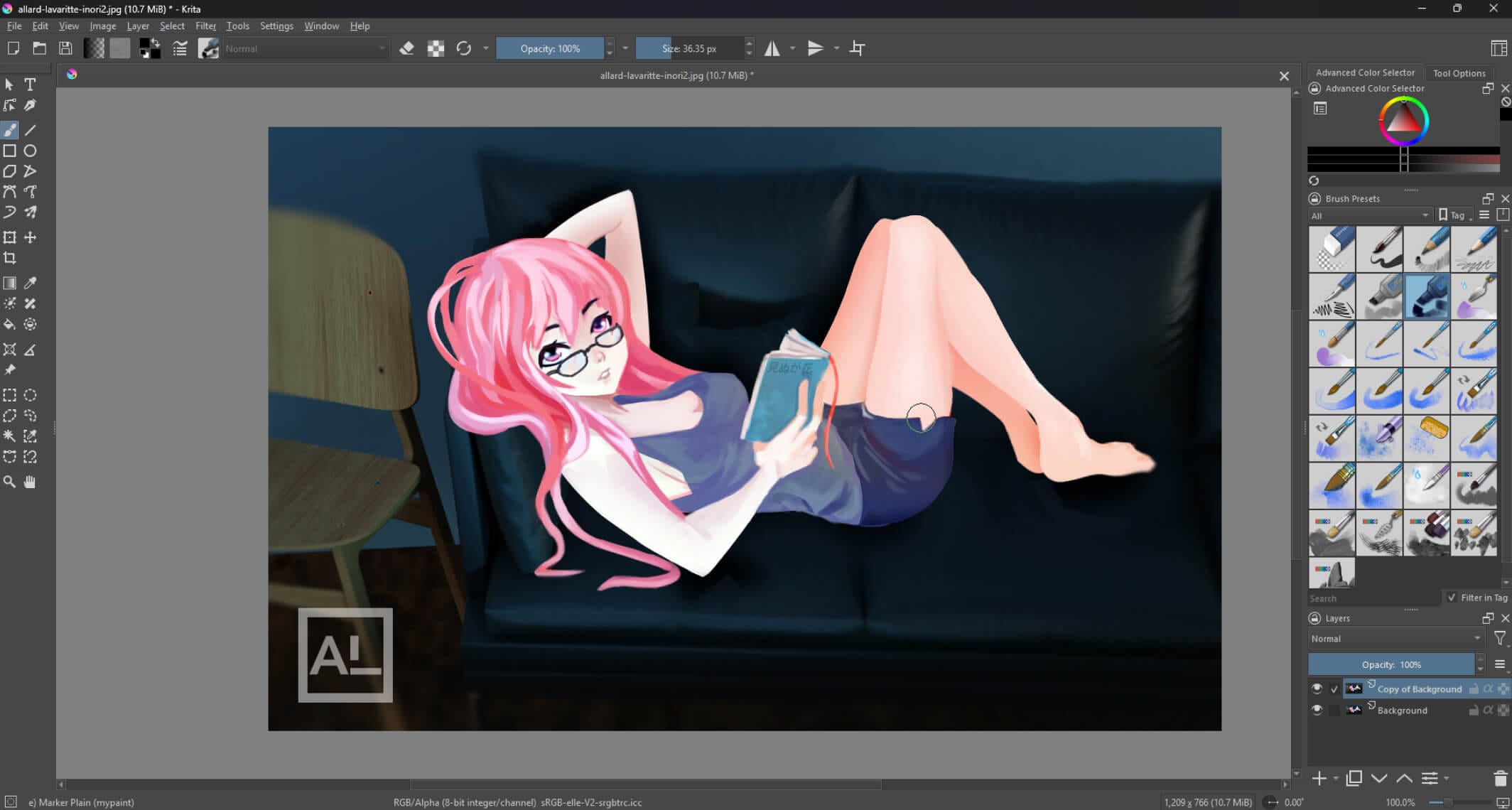
This was my first time opening Krita in a dedicated test session, and honestly — strong start.
The default brushes are fantastic. Like genuinely 10/10. There’s a huge selection, and they actually feel good to use — not just filler brushes that sit in the brush panel forever while you only use two of them. You get sketch brushes, inking pens, textured painting brushes, and a bunch of experimental ones that are surprisingly fun to play with. It immediately feels like a tool that was built by people who actually draw.
💬 From Allard:
Coming in from Photoshop, I had muscle memory working against me. Some things weren’t where I expected — panel layout, shortcut placement, workflow logic. But after a short time tweaking hotkeys, it started to feel natural. What surprised me was how quickly I was actually drawing comfortably. That adjustment speed is a real mark of good software design. And the brush engine — I’ll say it directly — is better than Photoshop’s for pure painting purposes. For a free program, that’s genuinely ridiculous. If I were starting over today, Krita would be my day-one software.
Krita has everything you need to do serious work:
- Layers
- Liquify
- Lasso tool
- Transform
- Pressure sensitivity
- Smart colorize features
- A command search tool (which is honestly genius — forget a shortcut? Just search it)
The downside: it tries to do everything, which means it can feel identity-less and slightly overwhelming. The learning curve is steeper than simpler free options. If too many features stress you out, expect a few days of adjustment before it clicks.
But overall? An incredible free option — especially if you want something you can grow with long-term.
MediBang Paint
MediBang feels lighter and more straightforward than Krita. The brush selection is strong — especially if you like manga-style inking. G-pen, mapping pen, turnip pen — it’s very clearly inspired by Japanese comic tools, and that shows in how good the inking experience is.
Pros:
- Intuitive layout — you can get drawing within minutes of opening it
- Good brush variety, excellent for linework and manga-style art
- Lightweight — runs well on older or weaker machines
- Cloud storage for your work across devices
Cons:
- No liquify (only mesh transform)
- Login prompts and ads interrupt the experience
- Slightly cluttered brush panel with duplication
💬 From Allard:If you’re the type of person who opens complex software and immediately closes it out of stress, MediBang is probably a better first choice than Krita. The interface is genuinely friendly in a way that Krita — despite being more powerful — isn’t immediately. The trade-off is the login friction and ads, which you’ll notice every session. It’s a small annoyance but a real one. Still S Tier because the core drawing experience is that good.
FireAlpaca
FireAlpaca is basically MediBang’s twin — same general vibe, similar interface logic, comparable brush quality.
The main difference? No login pop-ups. No ad interruptions. Just open it and draw.
If you want a simple interface, decent brushes, and lightweight performance without any of the friction that comes with MediBang’s cloud features — pick FireAlpaca.
💬 From Allard:
The choice between FireAlpaca and MediBang really does come down to one question: do you want cloud sync across devices? If yes, MediBang and its login requirement makes sense. If you just want to draw on one machine with zero interruptions, FireAlpaca is the cleaner experience. Same quality, less noise. Both are S Tier — this one just suits a specific workflow better.
Ibis Paint
Ibis Paint is clearly designed for tablets and phones first. And on mobile? It’s fantastic — tons of brushes, clean interface, intuitive controls, and excellent manga-style tools.
But on PC, it feels like a mobile app awkwardly stretched onto a desktop. Hotkey customization is limited. Some gestures feel weird with a mouse and keyboard. The interface logic makes more sense with a touchscreen than with a traditional setup.
💬 From Allard:
If you’re drawing on an iPad or Android tablet, bump this to S Tier immediately — it’s one of the best free options on mobile, full stop. But if your setup is a desktop PC with a drawing tablet, you’ll feel the friction of the mobile-first design every session. The core drawing tools are good; the desktop experience around them isn’t. For PC beginners, I’d still point you toward Krita, MediBang, or FireAlpaca first.
Photopea
Photopea runs entirely in your browser. No installation needed — that’s its biggest and most legitimate strength.
Feature-wise it actually has almost everything you’d expect: layers, layer blend modes, liquify, lasso, transform, and pressure sensitivity (though you have to enable it manually). It’s genuinely impressive for a browser app.
The problems:
- No real shortcut customization
- UI resets between sessions — your workspace doesn’t save
- Not optimized specifically for drawing; it’s closer to photo editing
- Performance can vary depending on your browser and machine
💬 From Allard:
As someone who lives in Photoshop, Photopea’s layout felt immediately familiar — it’s clearly modeled after Adobe’s UI, which is either reassuring or confusing depending on your background. But that familiarity only goes so far. The things that make Photoshop great for painting — the brush feel, the responsiveness, the customization — aren’t here. For quick edits when you’re away from your main machine? Fine. For seriously learning digital art? I wouldn’t build a practice on it.
Artweaver Free
Artweaver feels like it wants to compete with MediBang and Krita — and in some ways it gets close. The interface is intuitive, the brush variety is decent, and the general layout feels like a real drawing application.
But when I actually tried to use it:
- Pressure sensitivity wouldn’t configure correctly
- Liquify is missing entirely
- Some shortcut customization is locked behind a paywall
- Layer blending felt inconsistent in ways that were hard to predict
💬 From Allard:
This one genuinely frustrated me because the bones are good. The interface doesn’t overwhelm you, the brush variety is there, and it feels like a legitimate art tool. But the pressure sensitivity issue is a deal-breaker — that’s not a minor inconvenience, it’s the core mechanic of digital painting. When three S Tier free alternatives exist without these problems, I can’t recommend Artweaver to a beginner regardless of its other qualities.
GIMP
GIMP is not drawing software. It’s photo editing software that technically contains drawing tools if you dig for them.
Yes, it has layers, liquify, lasso, transform, and deep customization. But:
- The brush selection is limited and not designed for illustration
- Tablet compatibility can be inconsistent out of the box
- The default layout is genuinely chaotic
- The color wheel is confusing in ways that don’t improve with time
💬 From Allard:
This one gets recommended a lot in “free Photoshop alternative” threads, and I understand why — it’s powerful and genuinely free. But there’s a meaningful difference between “powerful for photo editing” and “good for learning to draw and paint.” GIMP is firmly the former. Every time I try to use it for actual illustration work, I’m fighting the interface rather than making art. If you want photo editing, GIMP makes sense. If you want to learn digital painting, it doesn’t — and three better free options exist that you should try first.
Blender (Grease Pencil)
Blender is incredibly powerful. You can animate, sculpt, paint, use 3D space, and do 2D illustration with Grease Pencil. The scope of what’s possible is genuinely impressive.
But recommending Blender to a digital art beginner is like teaching someone to drive in a spaceship cockpit. Everything is hidden. Nothing is intuitive. You’ll need dedicated tutorials before you can even navigate the workspace comfortably.
💬 From Allard:
I actually spent two years learning Blender — not for drawing, but for 3D modeling to fix problems in my 2D work. Blender changed how I think about composition and depth, and I genuinely recommend it for that purpose. But that recommendation comes after years of drawing experience, not before. For someone who wants to learn digital art from scratch, starting in Blender is choosing the hardest possible path when easier, better paths exist. Learn to draw first. Come back to Blender when you have a specific reason to — it’ll make much more sense then.
MS Paint
MS Paint technically has pressure sensitivity, a lasso tool, and some surprisingly decent oil brushes in its modern version. You can draw in it.
Should you start your digital art journey there? Probably not. The lack of layers alone makes learning significantly harder than it needs to be — layers are one of the fundamental tools of digital painting, and building habits without them will hold you back.
💬 From Allard:
E Tier is an honest rating, not a dismissal. MS Paint is charming in a specific nostalgic way — I drew in it as a kid, and there’s a legitimate creative challenge in working within severe constraints. Some artists make genuinely impressive work in it on purpose. But for a beginner trying to build transferable skills? The absence of layers is a real handicap. Everything you practice in MS Paint will need to be relearned the moment you move to any other software. Start in Krita, FireAlpaca, or MediBang and save MS Paint for a deliberate creative exercise later.
The Full Rankings at a Glance
| App | Tier | Best For | Biggest Weakness |
|---|---|---|---|
| Krita | S | Serious beginners, long-term use, painting | Steeper learning curve, feature overload |
| MediBang Paint | S | Manga/linework, stress-free onboarding | Login friction, ads, no liquify |
| FireAlpaca | S | Simple clean setup, no account needed | Fewer features than Krita |
| Ibis Paint | B | Mobile/tablet users (iOS, Android) | Awkward on desktop PC |
| Photopea | C | Browser-based quick edits | Not optimized for drawing, UI resets |
| Artweaver Free | C | — | Pressure sensitivity issues, missing liquify |
| GIMP | D | Photo editing (not drawing) | Wrong tool for illustration entirely |
| Blender Grease Pencil | D | Experienced artists with 3D workflow | Completely inaccessible to beginners |
| MS Paint | E | Nostalgia, deliberate constraint exercises | No layers, non-transferable habits |
My Honest Final Recommendations
If you’re just starting digital art and want the clearest possible answer:
✅ Start here:
Krita if you’re patient and want something you’ll never outgrow.
FireAlpaca
or
MediBang
if you want to be drawing within ten minutes of downloading. All three are free, all three are legitimate, and all three teach you transferable skills that will carry over to any paid software later.
📱 On mobile or iPad?
Ibis Paint is the answer. It’s purpose-built for touchscreen drawing and genuinely excellent at it. Everything changes when the software is designed for the device you’re actually using.
💬 From Allard — the honest context behind these ratings:
I went straight to Photoshop when I started taking digital art seriously, and I’ve used it as my primary tool ever since. I don’t have years of firsthand experience building finished work in Krita or MediBang the way I do in Photoshop. What I do have is 5+ years of knowing what good digital painting software feels like — what a brush engine needs to do, what workflow features matter, what gets in your way when you’re trying to make art. Testing these free apps with that experience behind me means I can tell you clearly when something falls short and when something genuinely impresses me. Krita impresses me. It’s not a “good for free” verdict — it’s just good.
At the end of the day, the best drawing software is simply the one that gets out of your way and lets you focus on the fundamentals. Because no drawing app will make you a better artist overnight. But the wrong one? Yeah — it can definitely slow you down.
No matter what program you use, the real progress comes from learning lighting, anatomy, and color. If you’re still figuring out how colors work together, start with my guide on Color Theory: A Guide for Beginner Artists — it’ll make your paintings look better regardless of which software you choose.
And once you’re comfortable sketching, the next step is learning how to turn those sketches into finished pieces. I break that process down in From Sketch to Render: A Beginner’s Guide to Painting in Photoshop.
If you’re completely new to the whole thing, start with What is Digital Painting — it covers the tools, workflow, and what to actually expect when getting started.
Frequently Asked Questions
Is Krita really as good as Photoshop for beginners?
For pure drawing and painting? Krita’s brush engine is arguably better than Photoshop’s. What Photoshop has over Krita is industry compatibility — studios and clients work in PSD format, and Photoshop integrates seamlessly into professional pipelines. For a beginner focused on building skills, that distinction doesn’t matter yet. Everything you learn in Krita transfers directly to Photoshop when you eventually need it. Start in Krita, learn to draw well, and upgrade if and when a professional reason appears.
Do I need a drawing tablet to use these apps?
Technically no — you can use a mouse. In practice, a drawing tablet makes a significant difference because of pressure sensitivity: the ability to vary line weight and opacity by how hard you press the stylus. Without it, every stroke comes out at the same weight, which removes one of the most natural and expressive aspects of drawing. A basic Wacom or Huion tablet in the $50–$80 range is enough to unlock the full capability of any software on this list. If you’re serious about learning, it’s the single best investment you can make early on.
Can I switch software later without losing my progress?
Your skills are always yours — they transfer completely regardless of what software you move to. The only thing that doesn’t transfer is muscle memory for shortcuts and interface layout, which takes a week or two to rebuild. Don’t let the fear of switching hold you back from starting on free software. Every professional artist who uses Photoshop today learned most of what they know before they ever opened it.
What’s the difference between MediBang and FireAlpaca?
They’re closely related — FireAlpaca is the older sibling. MediBang added cloud sync, a larger brush library, and a more active community, but also login requirements and occasional ads. FireAlpaca dropped the cloud features and account requirement in exchange for a cleaner, simpler experience. If you draw on one device and don’t need your work synced across multiple machines, FireAlpaca’s frictionless experience makes it the slightly more pleasant option. If cloud backup and a larger brush community matter to you, MediBang is worth the minor login friction.
Should I learn on free software or just start with Photoshop?
If you can afford Photoshop’s subscription cost and you’re committed to digital art long-term, starting on Photoshop isn’t a bad choice — you’ll learn industry-standard workflows from day one and never need to migrate. But the subscription cost is real, and there’s no meaningful skill advantage to learning on paid software versus free software. The fundamentals — anatomy, color theory, light and shadow, composition — are the same regardless of tool. If the cost is a barrier, start on Krita. The skills you build there are exactly the skills that matter.
Which of these apps is best for anime-style illustration?
MediBang and FireAlpaca are the most naturally suited to anime and manga-style work — their brush sets are heavily influenced by Japanese comic tools, and the G-pen and mapping pen tools in particular are excellent for clean anime linework. Krita also handles anime style well with the right brush set, and its stabilizer is strong. Ibis Paint is the top choice if you’re on mobile. For anime character work on PC, MediBang or FireAlpaca for linework, then Krita for painting and rendering, is a workflow that makes a lot of sense.
Is there a free version of Photoshop?
Adobe doesn’t offer a free desktop version of Photoshop. Adobe Express is free but is a simplified, web-based tool not designed for illustration. Photopea (reviewed above) is the closest free browser alternative in terms of UI layout — it’s modeled after Photoshop’s interface and can open PSD files. For genuine Photoshop functionality without the cost, Krita is the closest equivalent in terms of overall power, even though the interfaces look very different.
What to Read Next
- What Is Digital Painting? — the full breakdown of tools, workflow, and what to expect when you’re just getting started
- Color Theory Made Simple — the most impactful skill to build regardless of which software you use
- From Sketch to Render — once you’ve picked your software, this is how to actually start making finished pieces
- How to Find Your Art Style in 3 Steps — once you’re drawing consistently, this is the next question everyone asks
- Complete Anime Drawing Guide for Beginners — if character art is your direction, start here after you’ve got your software sorted
Pick one app from the S Tier, download it today, and make one sketch — anything. That first sketch is the only thing standing between you and actually learning digital art. The software debate ends the moment you start drawing. 🖊
Discover More Posts
Keep exploring stories, insights, and creative notes from my journey as an artist. Check out the latest blog entries and find topics that inspire your own process.
5 Hidden Art Career Killers That Stop Most Artists Before They Even Start — And How to Beat Them
Learn to draw anime-style clouds with this easy, step-by-step cloud tutorial. You’ll pick up tips on shapes, color, and composition—plus get free cloud brushes to use in your own art.

Sketching vs. Drawing: 5 Powerful Insights Every Artist Should Know
Learn the key differences between sketching and drawing—how detail, speed, tools, and intent separate the two and when to use each in your art practice.
How to Find Your Art Style in 3 Simple Steps
Learn how to find your unique art style through a clear three-step process. Discover how to collect inspiration, analyze your influences, and build your own signature look with deliberate practice.