

The title of this post covers the three excuses I hear most from people who want to start digital art but haven’t yet. I know they’re real because I had versions of all three of them myself.
I grew up drawing in Davao, Philippines — traditional art, pen and paper, borrowed oil pastels from art competition competitors because my family couldn’t afford them. I drew manga in high school with a ballpoint pen. Digital art felt like something for people with expensive equipment and proper training. Neither of which I had.
Then a college friend bought a cheap graphics tablet. He let me borrow it. Everything changed.
That’s the real origin story of my digital art practice. Not a moment of inspiration. Not a course I took. A borrowed cheap tablet and a few hours of figuring out what it could do. If you’re waiting for something more dramatic than that to get started — you’re going to be waiting a long time.
This guide addresses every excuse directly, then gives you the actual steps to start. Not the inspirational version. The real one.
Part 1 — The Three Excuses (And Why They’re Wrong)
❌ Excuse 1: “I Need Expensive Equipment to Start”
This is the one I believed most strongly before my friend proved it wrong. I thought you needed a Wacom Cintiq or some high-end setup before you could do anything meaningful in digital art. That belief kept me from starting for longer than it should have.
💬 From Allard:
My friend bought a cheap graphics tablet — not expensive, just an entry-level thing — and he let me borrow it. That borrowed cheap tablet is where my digital art practice started. I didn’t buy my Wacom Intuos Pro until years later, with my first paycheck as a web developer. The cheap borrowed tablet was enough to learn on. It was enough to get amazed. It was enough to start.
The truth: You can start digital art with a budget entry-level tablet (Huion or Wacom Intuos Small, both under $80–$100) and free software like Krita. The skills you build on that setup are identical to the skills you’d build on a $2,000 Cintiq. The expensive equipment doesn’t teach you to draw — it just makes the experience more comfortable once you already know what you’re doing.
Buy the minimum viable setup. Learn to draw on it. Upgrade when the tool becomes the limiting factor — not before.
❌ Excuse 2: “I’m Not Talented Enough”
Let’s be honest about something: if you start something new, you’re going to be bad at it at first. That’s not a reflection of talent — that’s just what beginning looks like. Every person who is good at digital art was once bad at digital art. Every single one.
The word “talented” implies that some people are born with an ability they didn’t earn. In ten years of drawing, I’ve never met an artist whose skill came from talent rather than repetition. What looks like talent from the outside is almost always accumulated practice that happened before you were watching.
💬 From Allard:
The first step is always the hardest. Not because it requires the most skill — it requires the least. But it requires you to accept being a beginner, which is uncomfortable for most people. Feeling untalented when you start is not a sign that you’re wrong for this. It’s a sign that you’ve started. Those are different things.
The truth: There are children — literal children — who produce extraordinary digital art. Not because they were born with special ability, but because they started early and practiced consistently without the self-consciousness that adults bring to new skills. Your age and your “talent level” are not the barriers you think they are. Starting is.
❌ Excuse 3: “I Started Too Late / I’m Too Old”
I hear this from people in their twenties. Sometimes their late twenties. Occasionally their thirties. As if the window for becoming a digital artist closes at some age that they’ve already passed.
I came back to digital art seriously after a CS degree and a first job as a web developer. I bought my Wacom Intuos Pro with my first professional paycheck — not as a teenager, not as an art student, but as a working adult who missed making things and wanted to come back to it. That tablet is still on my desk today.
The truth: The skills required for digital art — observation, understanding of light and form, practice with tools — do not have an age ceiling. What changes as you get older isn’t your ability to learn; it’s the competing demands on your time. Manage your time deliberately, protect a consistent drawing practice, and the learning happens regardless of when you started.
The best time to start was earlier. The second best time is now.
Part 2 — What You Actually Need to Start (And What You Don’t)
What You Need
1. A Drawing Tablet (Not Expensive)
A tablet that converts pen pressure into digital input. This is the one tool with no free substitute — drawing with a mouse is possible but genuinely difficult and teaches you nothing transferable to real digital art workflow.
Entry-level options that are genuinely good enough to start:
- Huion Inspiroy H430P — Under $30. Tiny, basic, functional. The absolute floor of usable tablets.
- Huion H610 Pro — Around $60–$80. Better drawing area, more comfortable. The recommendation for most beginners.
- Wacom Intuos Small — Around $80–$100. Industry-trusted brand, excellent pen sensitivity. Worth the slightly higher price if budget allows.
If you’re in the Philippines: all of these are available on Lazada and Shopee, often with promotions. You don’t need to import.
You do not need a pen display (Cintiq-style screen tablet) to start. Those are for artists who already know what they’re doing and want a more comfortable experience. A regular graphics tablet is how the vast majority of professional digital artists work.
2. Software (Free Options Are Genuinely Good)
The software you use matters less than how much you practice with it. Here are the honest options:
| Software | Cost | Platform | Best For |
|---|---|---|---|
| Krita | Free | Win/Mac/Linux | Best free option — full-featured, great brush engine, active development |
| Clip Studio Paint | ~$25–$50 or subscription | Win/Mac/iPad/Android | Industry standard for anime/manga — the one most artists eventually use |
| Procreate | $12.99 one-time | iPad only | Most intuitive app if you have an iPad + Apple Pencil |
| Photoshop | $20+/month subscription | Win/Mac | Industry standard overall but expensive and overkill for beginners |
My recommendation for most beginners: start with Krita (free, no financial risk) and move to Clip Studio Paint once you’ve confirmed you’re going to stick with digital art long-term. Photoshop is not necessary to start and is one of the most expensive ways to begin.
3. A Computer That Can Run the Software
You don’t need a dedicated art computer. Any reasonably modern laptop or desktop that can run your chosen software handles beginner digital art comfortably. The specs that matter most are RAM (8GB minimum, 16GB preferred) and an SSD (for fast file loading). A dedicated GPU is helpful but not required for 2D digital art.
If you have a laptop you already use for work or school, it’s almost certainly sufficient to start. Don’t use “I don’t have the right computer” as a reason to delay — if it runs Chrome and YouTube, it probably runs Krita.
What You Don’t Need
- An expensive graphics tablet. Already covered — the cheap one is enough to learn on.
- A specific “best” brush. More on this in Part 4 — this is the trap that keeps more beginners from starting than almost anything else.
- A formal art education. I didn’t go to art school. My process is self-taught and looks “wonky” to some classically trained artists. It still produces work I’m proud of.
- Permission from anyone. You don’t need to be good enough yet. You don’t need to have a plan. You need a tablet, software, and an open canvas.
Part 3 — The First Digital Artwork: What to Expect
📖 Allard’s Story: OC Characters, Photoshop, and the Yuumei Inspiration
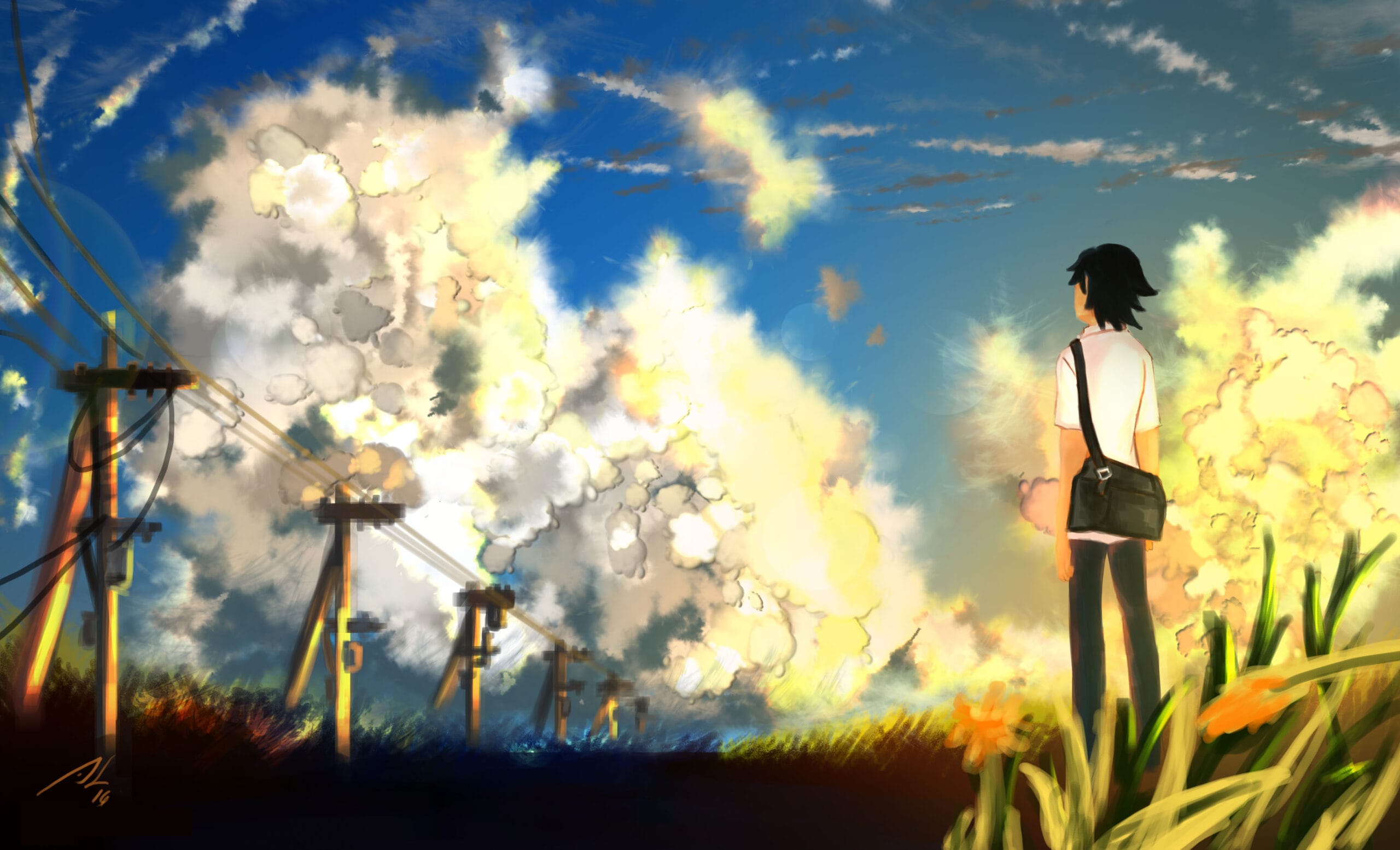
My first serious digital artwork after getting access to a tablet was a recreation of my original characters from high school. Characters I’d been drawing in my manga — the unlucky hero who always ended up in a pile of trash, and the people around him. I wanted to place them in a scene: standing, with a sky and clouds behind them. The inspiration was yuumei — the artist Wenqing Yan, who draws her characters in scenes with incredible atmospheric depth. I wanted to try something like that. I used Photoshop, which I already had access to. Here’s the honest version of that first session: I was not used to the graphics tablet at all. My lines were wobbly. My hand kept moving differently than I expected because the pen-to-screen hand-eye connection was new. Sometimes I switched back to the mouse for the finer linework because my pen control wasn’t there yet. I went back and forth between pen and mouse for longer than I’d like to admit. But the piece was mine. My characters, my scene, my attempt at something I admired. It looked nothing like yuumei’s work. It looked like me trying to do something I couldn’t fully do yet. And that was the right place to start.
I tell you that story specifically because I want to set a realistic expectation for your first piece: it won’t look the way you want it to. The gap between what you can see in your head and what comes out through a tablet you’ve never used before is real and frustrating. That gap is not a sign you’re bad at this. It’s a sign you’re at the beginning, which is exactly where you’re supposed to be.
The hand-eye coordination of drawing on a tablet takes time. Most artists adjust in 1–3 weeks of consistent use. Your lines will stop feeling as wobbly. Your confidence with the stylus will grow. What feels unnatural now will feel automatic later.
The only way through that adjustment period is through it — drawing, badly, until it starts feeling better.
Part 4 — The Brush Trap: The #1 Mistake That Keeps Beginners From Starting
I want to address this specifically because it’s the most concrete, most avoidable mistake I see beginners make — and it’s one that nobody else frames quite this way.
“Asking what brush some artist used — that is the trap.”
Here’s how it plays out: someone wants to start digital art. They open their software and immediately feel like they need to figure out the perfect brush before they can begin. They start researching. They find forums and Discord servers and YouTube comments where people debate which brushes are best. They get pulled into arguments: this brush for lineart, that brush for skin, this one that some professional artist uses. They spend hours — sometimes days — researching, downloading brush packs, comparing options.
They never open a blank canvas and draw.
💬 From Allard:
you can use one or two brushes and it will get the job done. One hard round brush and one soft round brush can carry an entire finished illustration. The brush doesn’t make the art. The artist makes the art, and the brush is just the tool that transfers it to the screen. Some people get so deep into “what is the perfect brush” or “how many layers should a painting have” that instead of starting digital art they end up in arguments online about which brush is best for XYZ. They’re getting into drama instead of just doing it. Don’t be that person. Use the default brushes. Draw something. The brush conversation can wait until you’ve made enough work to have an opinion worth sharing.
This applies beyond brushes. The same trap exists with software (“should I use Krita or Clip Studio?”), with canvas size (“what’s the optimal resolution?”), with layer count (“how many layers do professional artists use?”). All of these are real questions with real answers — but none of them matter until you’ve opened a canvas and made marks on it.
The research phase feels like progress because it’s comfortable. You’re doing something art-adjacent without facing the discomfort of making something bad. But research is not practice. Only drawing is practice.
💡 The rule:
You are not allowed to research brushes, software, or settings until you have made at least five finished drawings on whatever tool you currently have. After five drawings, you’ll have real questions based on real problems you encountered. Those questions will be worth researching. Before five drawings, you’re just avoiding starting.
Part 5 — Your First Week: A Realistic Plan
Here’s what actually starting looks like — not an aspirational plan, but a realistic one for someone with a full life and limited time.
Day 1 — Set Up and Make Your First Mark
Install your software. Connect your tablet. Open a blank canvas (2000 × 2000 px is fine to start). Use the default round brush. Draw a circle. Draw a square. Draw a face — any face, as bad as it wants to be. The goal is not quality. The goal is one session with the tools in your hands.
The tablet will feel strange. That’s normal. Draw for 20–30 minutes. Close the software. You’ve started. That’s the whole goal of Day 1.
Days 2–3 — Line Control Exercises
Open a blank canvas. Practice drawing straight lines from one point to another — long confident strokes, not short scratchy ones. Practice drawing circles of different sizes. Practice drawing curved lines that start and end at specific points. This is boring. Do it anyway.
Line control is the first skill that separates tablet drawing from mouse drawing. Your lines will be wobbly at first. They get less wobbly with deliberate practice. This is the unglamorous work that no one posts on Instagram but everyone who draws well has done.
Days 4–5 — Copy Something Simple

Find a simple reference — a face from a tutorial, a character pose from a reference site, anything simple that you genuinely want to draw. Don’t aim for an exact copy. Aim to produce a version of it using the tools you now have some familiarity with.
This is where I tried to recreate a yuumei-inspired character scene. Your attempt will be imperfect. That’s the point — imperfect attempts teach you more than studying the reference ever could.
Days 6–7 — Draw Something From Your Own Imagination
Draw a character, a scene, an object — anything that comes from inside your own head rather than from a reference. It doesn’t matter if it looks bad. What matters is the experience of translating an internal image into marks on a digital canvas using the tools you now have some basic familiarity with.
This is where your relationship with digital art actually begins — not the setup day, not the line exercises, but the first moment you try to make something that didn’t exist before you sat down.
Part 6 — The Software Setup: What to Actually Do When You Open It for the First Time
Opening a new piece of creative software for the first time is genuinely overwhelming. Here’s the minimum you need to configure before your first drawing session — nothing more.
In Krita (Free)
- Go to File → New. Set width and height to 2000px each. Resolution to 150 DPI. Color model: RGB/A. Click Create.
- In the brush preset panel on the right, find “Basic-5 Size” — this is your main brush for everything to start.
- Set your foreground color to black using the color selector.
- Draw something. That’s it. Everything else in Krita can be learned as you encounter a reason to learn it.
In Clip Studio Paint
- Go to File → New. Choose “Illustration.” Set canvas to 2000 × 2000 px at 150 DPI. RGB color. Click OK.
- In the Sub Tool panel, select the Pen category → G-pen. This is your main brush.
- Open the Layer panel (Window → Layer) and confirm you have one layer to draw on.
- Draw something.
In Procreate (iPad)
- Tap the + button → Create Custom Canvas → 2000 × 2000 px, 150 DPI → Create.
- In the brush library, go to Sketching → HB Pencil. This is your starting brush.
- Draw something.
✅ The rule for all software:
Configure the minimum required to make a mark on a blank canvas. Draw for 30 minutes. Then — and only then — look up how to do one specific thing you wanted to do but couldn’t figure out. Learn one thing per session. That pace of learning is sustainable. Learning everything before you start is not.
Part 7 — Understanding Layers (The One Concept Worth Learning First)
I said to ignore most settings and just draw. The one exception is layers — because understanding layers unlocks a fundamentally different way of working that traditional art never offered, and knowing about it from day one saves you from problems later.
Think of layers like transparent sheets of film stacked on top of each other. You can draw on each sheet independently. Things on higher sheets appear in front of things on lower sheets. You can hide, delete, or rearrange any sheet without affecting the others.
The basic layer structure for any digital drawing:
- Top layer: Linework. Your clean outlines. Nothing else on this layer.
- Middle layer(s): Colors and shading. Your flat colors and shadow/highlight layers sit here, below the linework.
- Bottom layer: Background. A solid color or gradient that sits behind everything.
You don’t need to use this structure perfectly from day one. But knowing it exists — knowing you can sketch on one layer and ink cleanly on another without destroying the sketch — will save you from the beginner frustration of ruining your linework while trying to add color.
Part 8 — Artists Worth Studying When You’re Starting Out
When I was learning digital art, I studied yuumei (Wenqing Yan) — specifically her ability to place characters in atmospheric scenes, creating a sense of mood and story in a single image. That study informed the first piece I ever made: my OC characters standing in a scene with a sky behind them. It was a bad imitation of something I admired. That’s exactly the right place to start.
Studying artists you admire isn’t copying. It’s how every artist in history learned — by looking hard at work that’s better than theirs and trying to understand what decisions were made and why. The goal is not to replicate their style permanently. It’s to understand principles through their work that you can then apply in your own.
Some artists worth studying specifically if you’re interested in anime and digital illustration:
- yuumei (Wenqing Yan) — atmospheric scenes, character emotion, storytelling through environment. Her work has a luminous, emotional quality that’s worth studying closely.
- Guweiz (Gu Zheng Wei) — composition, color, and character design at a high level. His artbook is worth owning if you can afford it.
- WLOP — painterly digital art, lighting and atmosphere. Studying how he handles light sources teaches you more than most tutorials can.
- Marc Brunet — he also teaches on YouTube, which is rare for artists at his level. His process videos are practical and worth watching.
Study them. Don’t compare yourself to them. Those are different activities.
Part 9 — The Single Layer Challenge: Learning Digital Art the Hard Way (On Purpose)
Here’s an advanced approach I use now that might surprise you: sometimes I work on a single layer, without undo, mimicking how traditional art works.
This is not the standard recommendation for beginners. It’s something you do after you’ve mastered the basic workflow and want to push your decision-making and commitment. When you can’t undo and can’t separate elements into different layers, every mark counts. You develop confidence and intentionality that the safety net of unlimited undo can occasionally prevent.
I bring this up not as a Day 1 recommendation, but as a destination — proof that the goal of digital art practice isn’t just to get comfortable with digital tools, but to develop the same discipline and decisiveness that the best traditional artists have. Digital offers you freedoms. The art is in knowing when not to use them.
You can see this approach in my YouTube videos if you want to watch how the dark-to-light, single-layer method actually looks in practice.
Frequently Asked Questions
Can I start digital art with just a mouse — no tablet?
Technically yes, practically no. I spent time drawing in Microsoft Paint with a mouse before I had a tablet, and the experience taught me mostly how frustrating it is. A mouse has no pressure sensitivity, meaning every line has the same weight regardless of how you move it. The resulting artwork looks mechanical and the workflow teaches you nothing transferable to real digital art. An entry-level tablet ($30–$80) is the minimum viable tool for digital art. If you genuinely cannot afford one right now, traditional drawing practice on paper is a better use of your time than mouse drawing in digital software.
How long does it take to get used to drawing on a tablet?
The hand-eye disconnect — drawing on a flat pad while looking at a screen — takes most people one to three weeks to stop noticing consciously. In the first few sessions, lines feel wobbly and disconnected from your intention. This is normal and temporary. Daily practice of even 20–30 minutes shortens the adjustment period significantly. Most people look back at the adjustment phase as shorter than it felt at the time. The key is drawing consistently rather than drawing for long sessions occasionally — frequency builds the spatial recalibration faster than volume.
Do I need to know how to draw traditionally before starting digital art?
No — you can start with digital art directly. The foundational skills (proportion, value, composition, line quality) can be built in either medium. That said, if you’ve been drawing on paper and have some existing foundation, it transfers directly and you’ll find the digital learning curve is mostly about the tools rather than the art itself. If you’re starting from absolute zero with no drawing experience at all, expect a longer journey — but the journey is the same regardless of medium.
What should my first drawing actually be?
Something you genuinely want to draw. Not a sphere to practice shading. Not a geometric exercise. Something that means something to you — a character you’ve imagined, a scene from something you love, an OC you’ve been sketching in notebooks. The technical exercises matter, but the emotional investment in the subject is what keeps you coming back to the screen after the first frustrating session. My first piece was my OC characters in a scene inspired by an artist I admired. It was bad. But it was mine, and that made me want to make the next one.
Is Krita really as good as paid software for a beginner?
Yes, genuinely. Krita is open-source software maintained by a dedicated development team with professional-grade features: a powerful brush engine, full layer support including blend modes, animation capabilities, and regular updates. The interface is less polished than Clip Studio Paint and the learning curve is slightly steeper, but the core functionality is more than sufficient for years of serious digital art practice. I started with Photoshop because I had access to it, but if I were starting today with no existing software, Krita would be my Day 1 recommendation.
How many layers should I use in a digital painting?
This is one of those questions that has an answer but the answer isn’t as important as you think. A basic workflow: one sketch layer, one linework layer, one flat color layer per major element, one shadow layer (Multiply blend mode), one highlight layer (Screen blend mode). That’s maybe 8–12 layers for a character illustration. Some professional artists use 50+ layers. Some work on 3. The number that’s right is the number that gives you the control you need without creating so many layers that you can’t manage them. Start with fewer and add layers when you identify a specific need for more control.
What’s the best brush for beginners?
The default hard round brush. That’s it. In Krita it’s called Basic-5 Size. In Clip Studio Paint it’s the G-pen or the Default Pencil. In Procreate it’s the HB Pencil or Inking brush. You don’t need a special brush to start. You don’t need to download a brush pack. You need to make marks on a canvas and develop control over the tool you have. The “best brush” question is a displacement activity — it feels like productive research but it’s actually avoidance. Draw with whatever brush opens by default. When you’ve made 20 drawings and have a specific problem that the default brush can’t solve, then search for a different brush. Not before.
Is digital art harder than traditional art?
Different, not harder. Digital art has a specific additional learning curve: adjusting to the tablet, understanding software interface and features, and managing the hand-eye disconnect. Traditional art has its own specific challenges: no undo, material costs, the physical feedback of different media. Both require the same underlying skills — proportion, value, color, composition, line quality. Neither is objectively harder. The one that feels harder is usually the one you’re less familiar with. Give both a genuine try before deciding which works for you.
I started but my art looks terrible. Should I keep going?
Yes. Always. Looking terrible when you start is not a sign you’re wrong for this — it’s a sign you’ve started, which is the hardest part. Every artist whose work you admire made terrible art when they started. The terrible phase is not optional and there are no shortcuts through it. The only variable is how long it lasts, and that’s determined by how consistently you practice. Keep a folder of your early work. In six months, comparing it to where you are then is one of the most genuinely motivating things you can do for your creative practice.
Can I make money from digital art as a beginner?
Eventually yes, not immediately. Building the skill level required to charge for work and deliver it reliably typically takes one to two years of consistent practice. The path there: build your skills, build a small portfolio of your best work, find the community where your specific style has an audience, and start with small commissions at modest prices to build experience and testimonials. There’s a full guide on this: How to Know If You’re Good Enough to Take Art Commissions. The short answer: you’re closer to ready than you think, but the skill has to come before the money.
What to Read Next
You’ve decided to start. Here’s the path forward:
- Digital Art for Beginners: Tools, Setup, and Fundamentals — the deep-dive companion to this post: layers, brushes, canvas setup, and your first complete digital workflow explained in full
- Canvas Size for Digital Art — the one technical decision you need to make before starting every piece, explained simply
- Complete Anime Drawing Guide for Beginners — if anime-style illustration is your goal, this is the structured skill-building roadmap from head construction to full character
- Color Theory Made Simple — the color knowledge that makes your work look intentional rather than accidental
- How to Stay Motivated to Draw — because the hardest session isn’t the first one. It’s the one after you’ve made something bad and need to come back anyway
The first step is always the hardest. Not because it requires the most skill — it requires the least. But it requires you to begin. Open the software. Plug in the tablet. Make a mark. Everything after that is just the next mark. 🖊
Hi, I’m Allard Lavaritte
I’ve been sketching, painting, and building worlds on paper and screen for over a decade. What started with messy anatomy studies and fan art turned into something much bigger—a career I shaped with consistency, curiosity, and a stubborn refusal to quit.
Now, I’m designing, illustrating, and writing this blog to share what I’ve learned. Not just the polished stuff, but the real process. The burnout. The small wins. The mindset shifts that helped me go from staring at blank pages to creating work I’m proud of.
This space is for artists, beginners, and creative builders who want to get better without drowning in noise. If you’re into progress over perfection, and learning by doing, you’re in the right place.

Discover More Posts
Keep exploring stories, insights, and creative notes from my journey as an artist. Check out the latest blog entries and find topics that inspire your own process.
How to Draw Stunning Anime Clouds
Learn to draw anime-style clouds with this easy, step-by-step cloud tutorial. You’ll pick up tips on shapes, color, and composition—plus get free cloud brushes to use in your own art.
How to Paint Realistic Metal
Learn how to paint realistic metal with this step-by-step guide. From base colors to to lighting and reflections, get practical tips for your artwork shine, literally.
Color Theory Made Simple: A guide for Beginner Artist
New to Digital painting? This beginner-friendly guide breaks down hue, value, saturation, color harmonies, and practical tips to help you choose better palettes and level up your art.