
By:
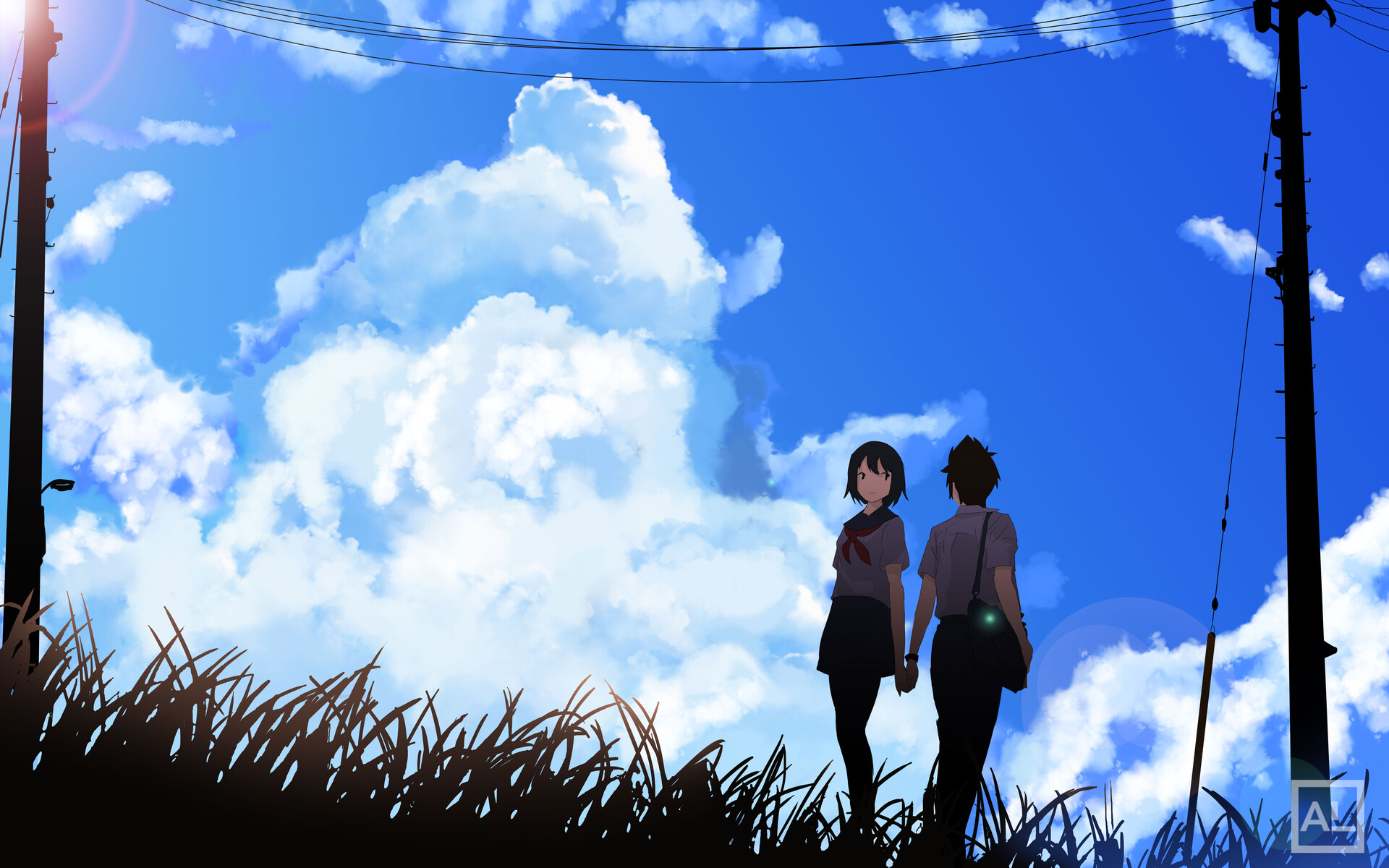
If you’ve ever paused an anime just to stare at the sky, you already understand what makes cloud art so powerful. A Makoto Shinkai sky isn’t just a background filler — it’s emotional weather. The clouds above Mitsuha and Taki’s story carry as much feeling as the characters themselves. Studio Ghibli clouds don’t just sit in the sky; they breathe, drift, and build tension or peace depending on the scene.
The good news: anime clouds are learnable. They follow real physical rules — the same lighting, shading, and form principles that apply to anything else you draw. What makes them distinctively “anime” is a set of specific stylistic choices layered on top of that physical foundation: the softness of the edges, the warmth of the colors, the deliberate emotional tone of how clouds are placed in the composition.
This guide covers everything from the ground up — how real clouds form and why that matters for drawing them, all the major cloud types and their anime equivalents, the complete step-by-step painting process, color palettes for different times of day, how to build a full sky composition, common mistakes and fixes, and a structured practice plan. By the end you’ll have a repeatable process for drawing any kind of anime sky in any mood.
📌 What you’ll need:
Any digital art software — Clip Studio Paint, Procreate, or Krita all work perfectly. You’ll use a soft round brush, a hard round brush, and optionally a cloud texture brush for some steps. And to make things easier, there’s a free downloadable sky brush you can grab to speed things up. Not sure what canvas size to use? Check the Canvas Size guide first.
Part 1 — Why Understanding Real Clouds Makes You Better at Drawing Anime Clouds
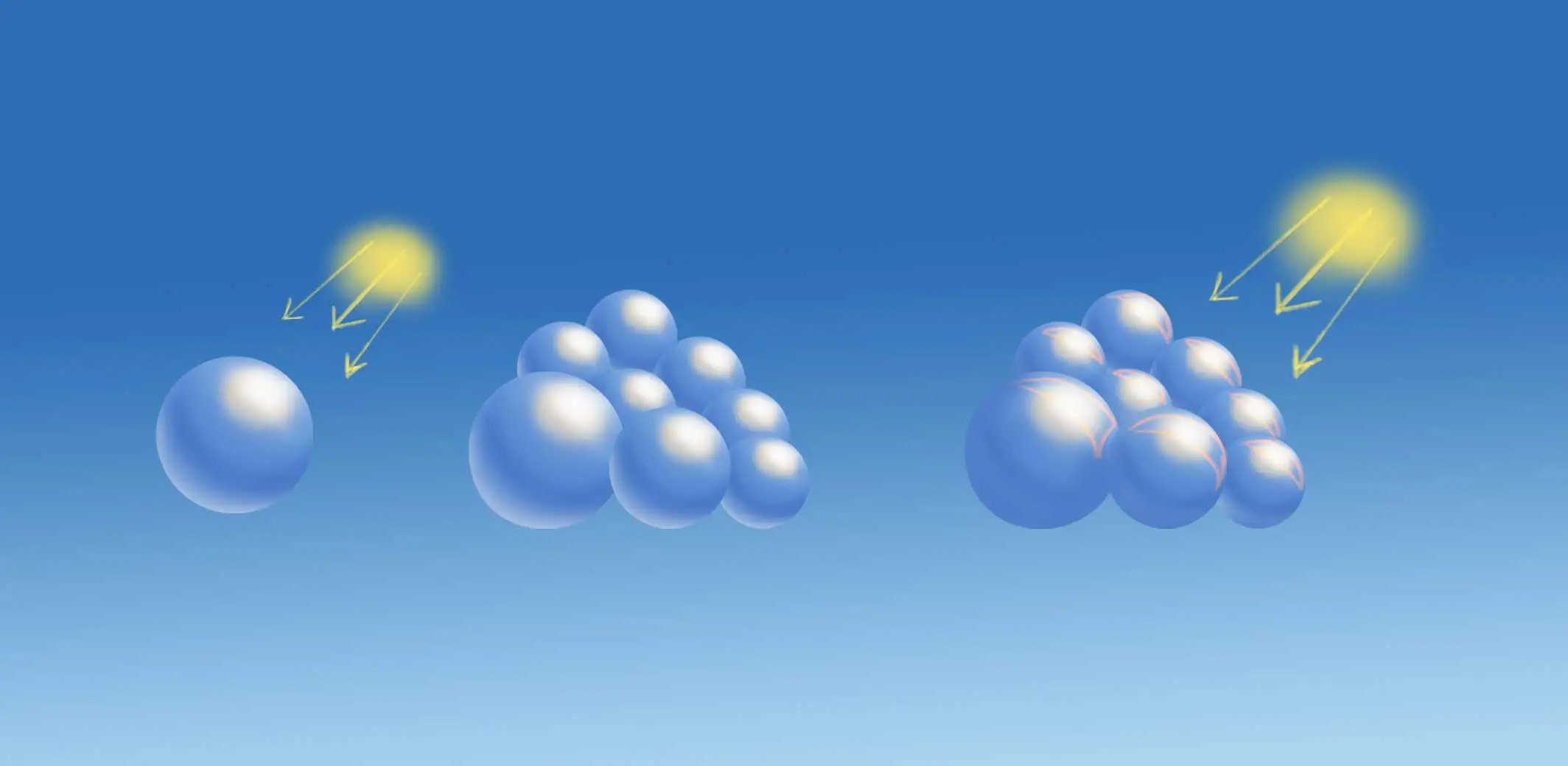
Before you jump into painting, it helps to understand how clouds behave. They might look soft or surreal, but they still follow the same lighting and shading principles as any other object. Depending on how dense they are, clouds can appear translucent or reflect light in unexpected ways. If you’re new to light and form, I recommend checking out a few basic lighting tutorials to build a solid foundation.
- Study lighting basics (I’ll create lighting tutorials soon!)
- Look at real cloud references before you paint — I’ve put together my own collection of coastal Philippine sky photos, organized by cloud type, so you don’t have to search randomly. Grab the Cloud Reference Pack here →
- Practice outlining different cloud types: cumulus, cirrus, nimbus, etc.
Anime clouds are stylized — but they’re not invented. The best anime sky artists don’t paint random fluffy shapes. They understand the underlying physics of how clouds form and behave, then apply deliberate stylization on top of that foundation. The result looks both fantastical and believable at the same time.
How Clouds Actually Form
Clouds form when warm, moisture-laden air rises, cools, and the water vapor condenses into tiny droplets or ice crystals around microscopic particles. The altitude, temperature, and humidity of the air mass determine what kind of cloud forms. This sounds like meteorology, not art — but it directly shapes how clouds look:

- Clouds at different altitudes have different densities. High-altitude clouds (cirrus) are thin, wispy, and made of ice crystals — they don’t block much light and appear almost transparent. Low-altitude clouds (cumulus, stratus) are thick, dense water droplets that block light significantly and cast strong shadows on themselves.
- Clouds are lit from above. The tops of clouds face the sun and are brightly lit. The undersides face away from the sun and fall into shadow — often a cool blue-grey or purple-grey. This top-bright, bottom-dark structure is what gives cumulus clouds their characteristic rounded, three-dimensional appearance.
- Clouds have internal shadow and light. Within a large cumulus cloud, the interior is darker than the surface edges facing the light. This is because light scatters through the edges of the cloud but is partially blocked by dense water droplets before reaching the interior.
- Clouds reflect the colors around them. At sunset, clouds glow orange and pink because they’re reflecting the warm low-angle sunlight. At midday, cloud shadows take on a cool blue-grey from the sky overhead. This color-borrowing from the environment is the same phenomenon we discussed in the metal painting guide — just applied to water droplets instead of reflective surfaces.
You don’t need to memorize meteorology. You need to understand one core thing: clouds are 3D objects lit from above, with bright tops and darker undersides, and their colors come from the light sources and sky colors around them. Apply that understanding and every cloud you draw will feel physically grounded, no matter how stylized the rest of the execution is.
Part 2 — Cloud Types and Their Anime Equivalents
Real clouds are classified by altitude and shape. For anime art, you don’t need to memorize all ten official cloud genera — but knowing the major families and their visual characteristics gives you a vocabulary to work with deliberately rather than just painting vague shapes.
☁️ Cumulus — The Classic Anime Cloud
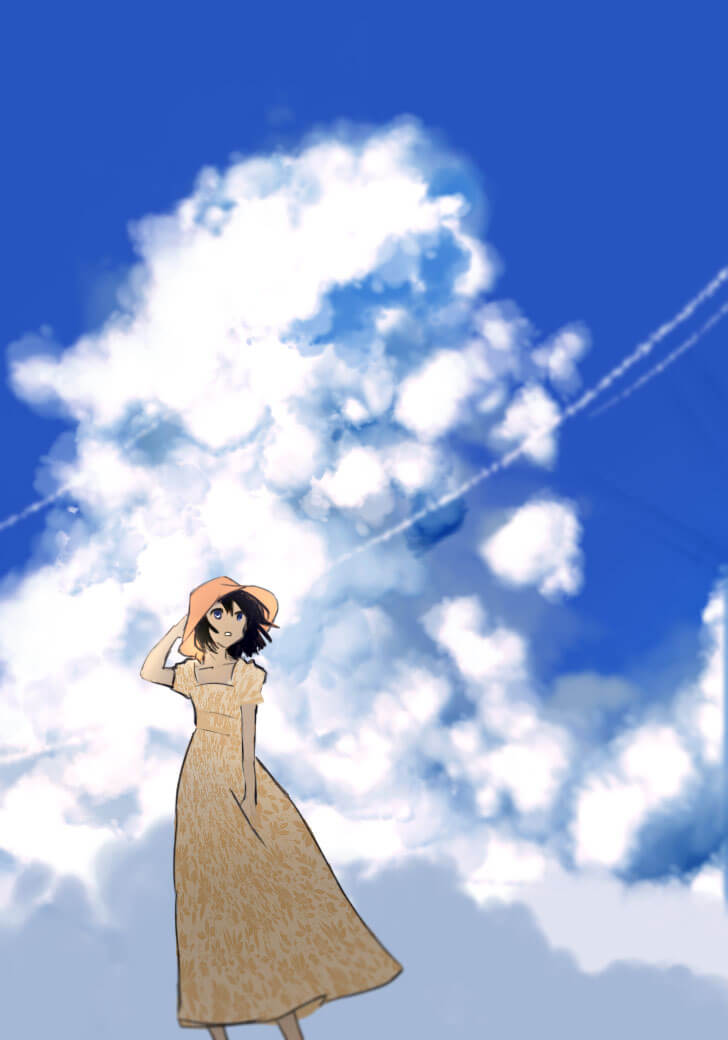
What they are: Puffy, cauliflower-shaped clouds that develop vertically. They form in warm, rising air and have well-defined edges — distinct rounded lobes on top with a flat base.
In anime: The most common cloud type in anime art — the iconic fluffy white clouds that drift across blue skies in slice-of-life series and peaceful scenes. They’re dramatic enough to be visually interesting but soft enough to not dominate the mood.
Visual characteristics: Rounded, bumpy top silhouette built from overlapping lobes. Flat or gently curved base. Bright white on the sun-facing surfaces. Blue-grey to purple-grey on the underside. Strong three-dimensionality — they look like solid objects, not flat shapes.
Anime mood: Peaceful, nostalgic, warm afternoon energy. The default cloud for happy or contemplative scenes.
⛈️ Cumulonimbus — The Drama Cloud
What they are: The tallest cloud type — massive vertical storm clouds that can reach from low altitude all the way to the tropopause. Their tops spread into a characteristic anvil shape where they hit the stable air above.
In anime: Used for pre-battle scenes, climactic moments, approaching danger, and emotional weight. A cumulonimbus towering at the horizon communicates threat and scale better than almost any other visual element.
Visual characteristics: Towering vertical scale — they dwarf everything beneath them. Dark, heavy base with lighting flashes visible within. Upper anvil spreads dramatically horizontally. Strong contrast between the dark bottom and the bright, illuminated upper portions.
Anime mood: Tension, danger, approaching conflict. Also used for dramatic reveals and emotional climaxes. If you want the sky to feel like something is about to happen, cumulonimbus is your cloud.
🌫️ Cirrus — The Delicate Sky Wisp

What they are: High-altitude ice crystal clouds that appear as thin, wispy streaks or curls across a blue sky. They’re at 20,000+ feet and so thin they’re partially transparent.
In anime: Cirrus clouds add airiness and depth to skies without demanding attention. They’re the clouds you paint when you want the sky to feel alive and real without making clouds the focal point of the composition.
Visual characteristics: Thin, feathery, almost weightless. Soft, diffuse edges with no hard boundaries. Streaky or swept shapes following upper-atmosphere wind patterns. Often slightly luminous — catching light that makes them glow faintly.
Anime mood: Calm, dreamy, early morning, peaceful. They suggest a gentle world with no immediate threat.
🌥️ Altocumulus — The Textured Mid-Sky Layer
What they are: Mid-altitude clouds that form in layers or patches of small rounded puffs arranged in regular patterns — like a textured blanket across the sky.
In anime: Altocumulus patterns are stunning at sunset and golden hour, when the individual puffs catch warm light and cast cool shadows on each other, creating richly textured skies.
Visual characteristics: Regular, repeating pattern of small rounded puffs. Individual elements are smaller than cumulus but more numerous. At sunset, alternating warm-lit and shadow-cooled elements create a dramatic textured pattern.
Anime mood: Atmospheric, cinematic, transitional. Perfect for sunset/golden hour scenes or moments of quiet reflection.
🌁 Stratus — The Overcast Layer
What they are: Low, uniform, flat cloud layers that cover the sky like a grey blanket. Associated with overcast, flat-light days with diffuse illumination.
In anime: Used deliberately to create a flat, emotionally subdued mood — melancholy, post-rain, uncertain. A stratus sky removes the dramatic character of the sky and places full emotional weight on the characters and ground-level story.
Visual characteristics: Flat, uniform, minimal internal detail. Value variation is subtle. The interest in a stratus sky comes from any breaks or thin patches, and from the light it creates on objects beneath it — diffuse, directionless, even.
Anime mood: Sadness, uncertainty, quiet introspection, post-emotional-climax calm.
| Cloud Type | Altitude | Shape | Edge Quality | Anime Mood |
|---|---|---|---|---|
| Cumulus | Low–Mid | Puffy rounded lobes, flat base | Clear, defined | Peaceful, warm, nostalgic |
| Cumulonimbus | Low to very high | Towering, anvil top | Dramatic, turbulent | Tension, drama, danger |
| Cirrus | Very high | Wispy streaks and curls | Soft, diffuse, transparent | Calm, dreamy, airy |
| Altocumulus | Mid | Layered puff patterns | Soft but structured | Cinematic, golden hour |
| Stratus | Low | Flat uniform layer | Diffuse, undefined | Melancholy, overcast, still |
Part 3 — The Complete Step-by-Step Process: Painting Anime Cumulus Clouds
We’ll start with cumulus clouds — the most common and most versatile type. Master this process and you can adapt it to every other cloud type with modifications.

Step 1 — Paint the Sky Gradient

Before painting any clouds, establish the sky itself. The sky is not a flat blue — it’s a gradient that shifts in both value and hue from top to bottom.
- Top of sky: Deeper, more saturated blue (less atmospheric interference at higher angles)
- Toward horizon: Lighter, less saturated, shifting slightly toward cyan or grey-white
On a new layer, use a large soft brush to paint this gradient. You can also use the gradient tool in your software for a smooth base. This gradient is the foundation that everything else sits in front of. Getting it right makes even rough clouds look believable.
For a midday clear sky: deep cerulean blue (#2a6db5) at the top, lighter cyan-white (#a8d4f0) at the horizon. For golden hour: deepen to orange-gold at the horizon, deep blue-purple at the top. For dusk: deep indigo-purple at top, warm orange-pink at horizon.
Step 2 — Block In the Cloud Silhouette

On a new layer above the sky, use a hard round brush at full opacity to paint the basic silhouette of your cloud — a rough white or light-grey shape that captures the overall position and scale of the cloud. Don’t worry about the bumpy lobe details yet; just establish the footprint.
Think about the cloud’s base (flat, sits at a consistent altitude) and its general top (rounded, taller than wide for cumulus). The base should be roughly horizontal — clouds form at a specific atmospheric temperature/humidity level, so their bases all sit at the same altitude across the sky. A cloud base that tilts dramatically in perspective reads as wrong.
At this stage the cloud will look like a rough blob. That’s exactly right — you’re building form, not detailing.
Step 3 — Build the Lobe Structure
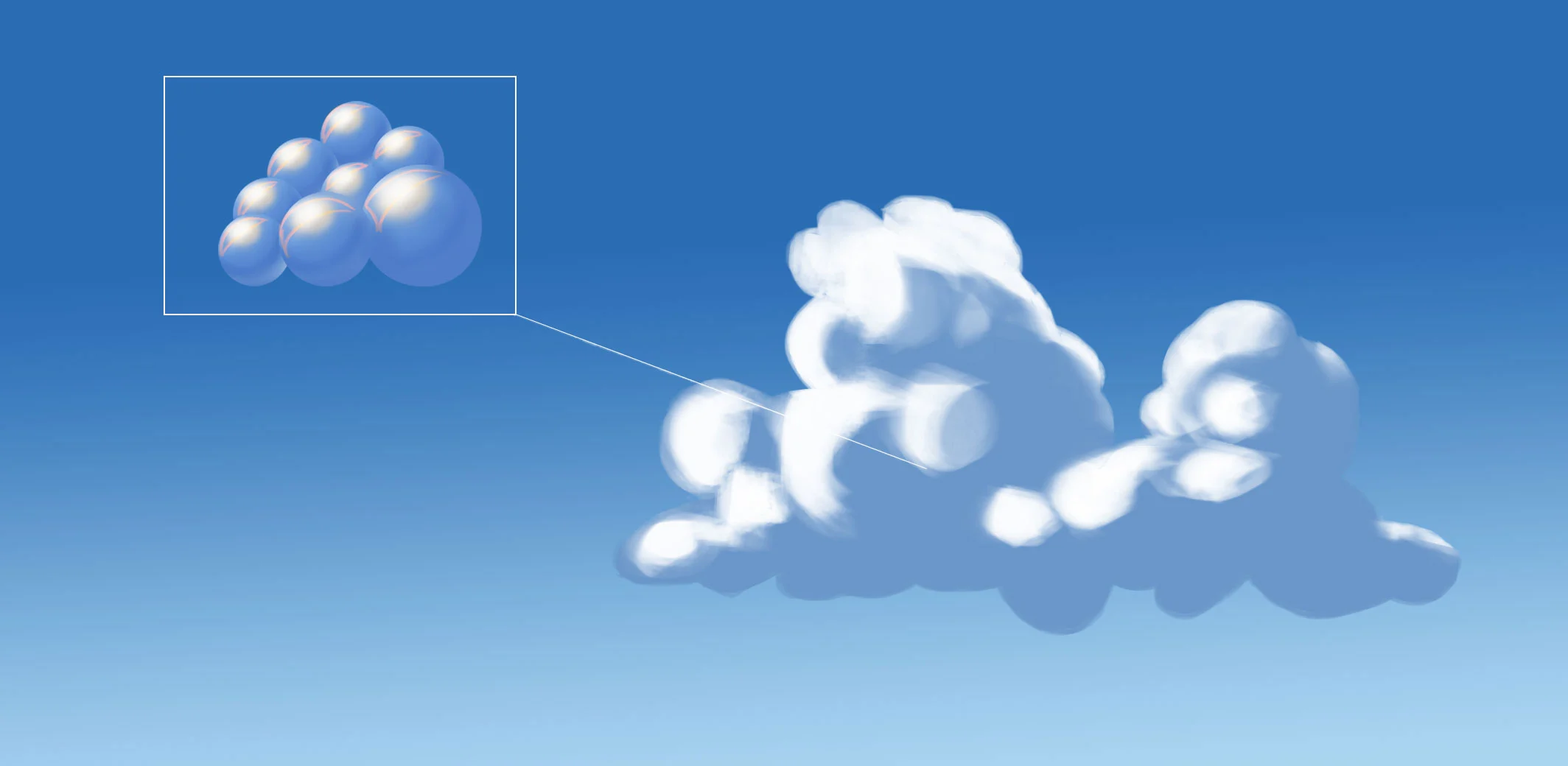
This is the defining step for cumulus clouds. Using a soft round brush, build the characteristic rounded lobe structure across the top and sides of the cloud silhouette.
Think of each lobe as a sphere partially obscured by adjacent spheres — they overlap and stack, with each one slightly behind and below the one in front. The lobes at the very top of the cloud face the sun directly and are the brightest. The lobes at the sides face the sun at an angle and are slightly dimmer. The lobes at the bottom of the cloud face away from the sun and are the darkest.
Paint the lobes using overlapping circular strokes, starting from the brightest (top) and working toward the shadowed areas. Use a slightly darker value for the trough between each lobe — this is where one lobe casts a shadow on the adjacent one.
The most common beginner mistake at this stage: making all the lobes the same size. Real cumulus clouds have variation — some lobes are larger and dominant, others are smaller and sit between the large ones. Vary your lobe sizes for a more natural, organic appearance.
Step 4 — Add the Shadow Underside
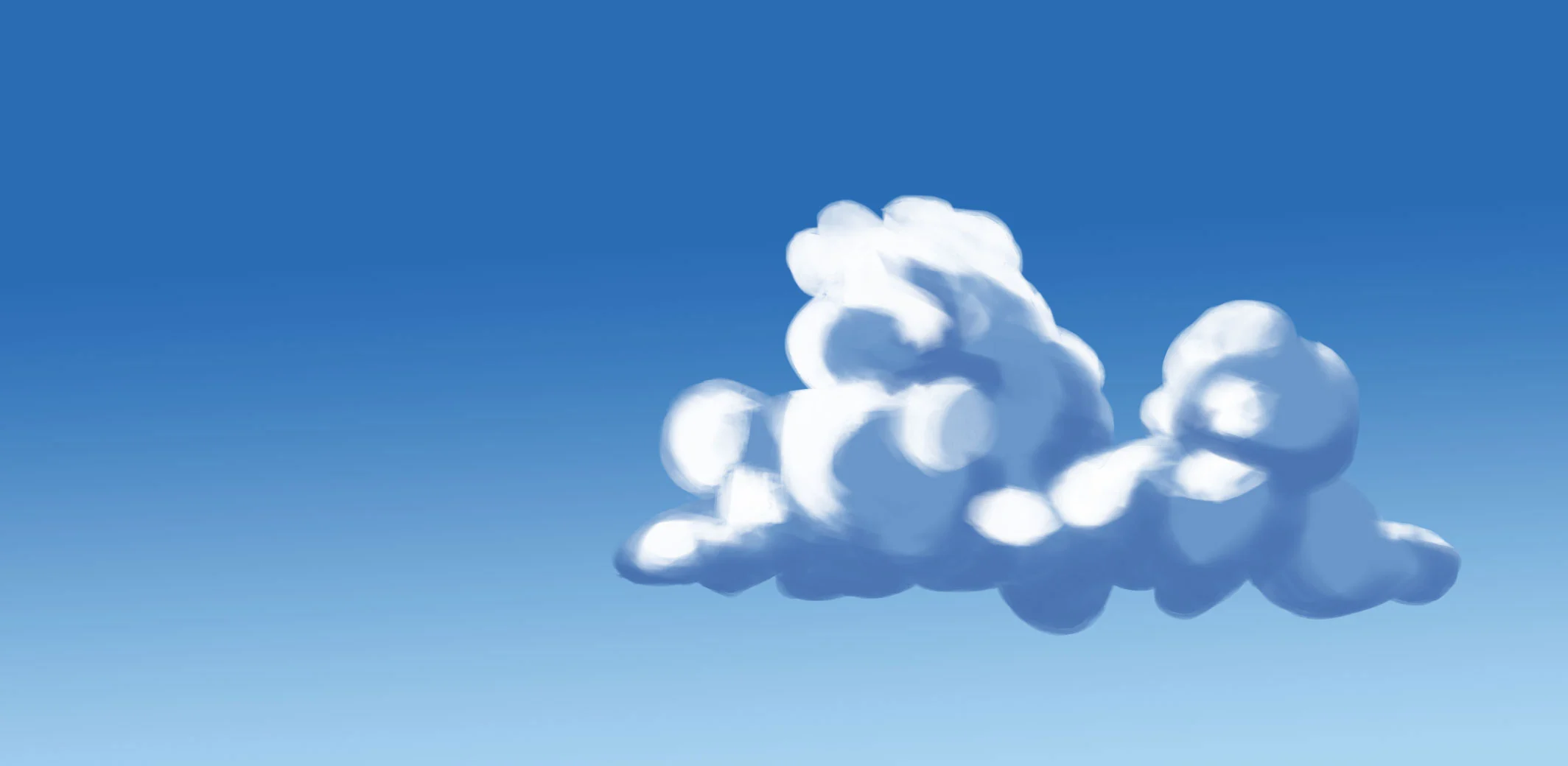
On a Multiply layer clipped to the cloud shape, paint the shadow on the cloud’s underside. This shadow is what transforms a flat white blob into a three-dimensional object.
The shadow sits at the bottom of the cloud, roughly where the flat base is, and extends up the sides slightly. It’s not a uniform dark — it’s darker at the very base and lightens as it moves up the sides toward the lit portion. The color of this shadow is crucial:
- Midday: Cool blue-grey to blue-purple (#8090b0 range), reflecting the blue sky
- Golden hour / sunset: Warm purple-grey to mauve (#907090 range), where cool sky blue mixes with warm low-angle light
- Overcast: Neutral grey (#909090 range)
- Storm / dark sky: Deep blue-grey to near-black (#404560 range)
The shadow edge should follow the lobe structure — it’s not a straight horizontal line, but a wavy, irregular boundary that dips and rises with the individual lobes of the cloud.
Step 5 — Add Ambient Sky Color Bounce
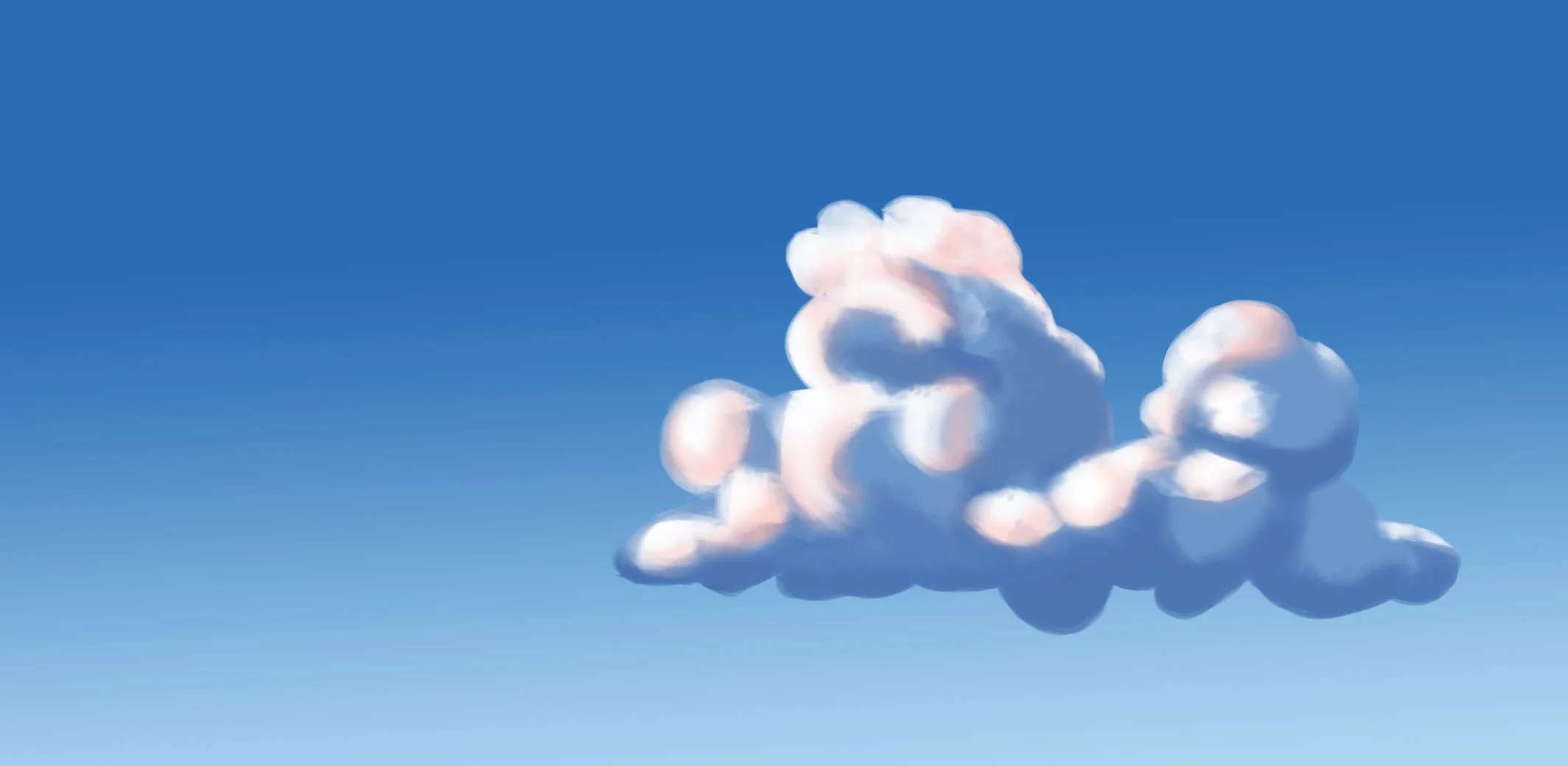
One of the elements that makes anime clouds feel warm and luminous rather than stark is sky color bounce — the blue of the sky reflecting into the shadow areas of the cloud, and sometimes visible at the very edges of the lit portions.
On a Normal layer at 20–40% opacity, use a soft brush to add a hint of sky blue into the darkest shadow areas of the cloud’s underside. This seems counterintuitive — why add blue to a shadow? — but it’s physically accurate and visually it adds depth and atmospheric integration. The cloud feels like it exists in air rather than floating in a vacuum.
Also, along the edges of the cloud where it meets the sky, use a soft eraser or a soft brush at low opacity to slightly soften and blur the boundary. The atmosphere between the observer and the cloud means very edges are never perfectly sharp — especially on large, distant clouds.
Step 6 — Paint Highlights on the Lit Lobes
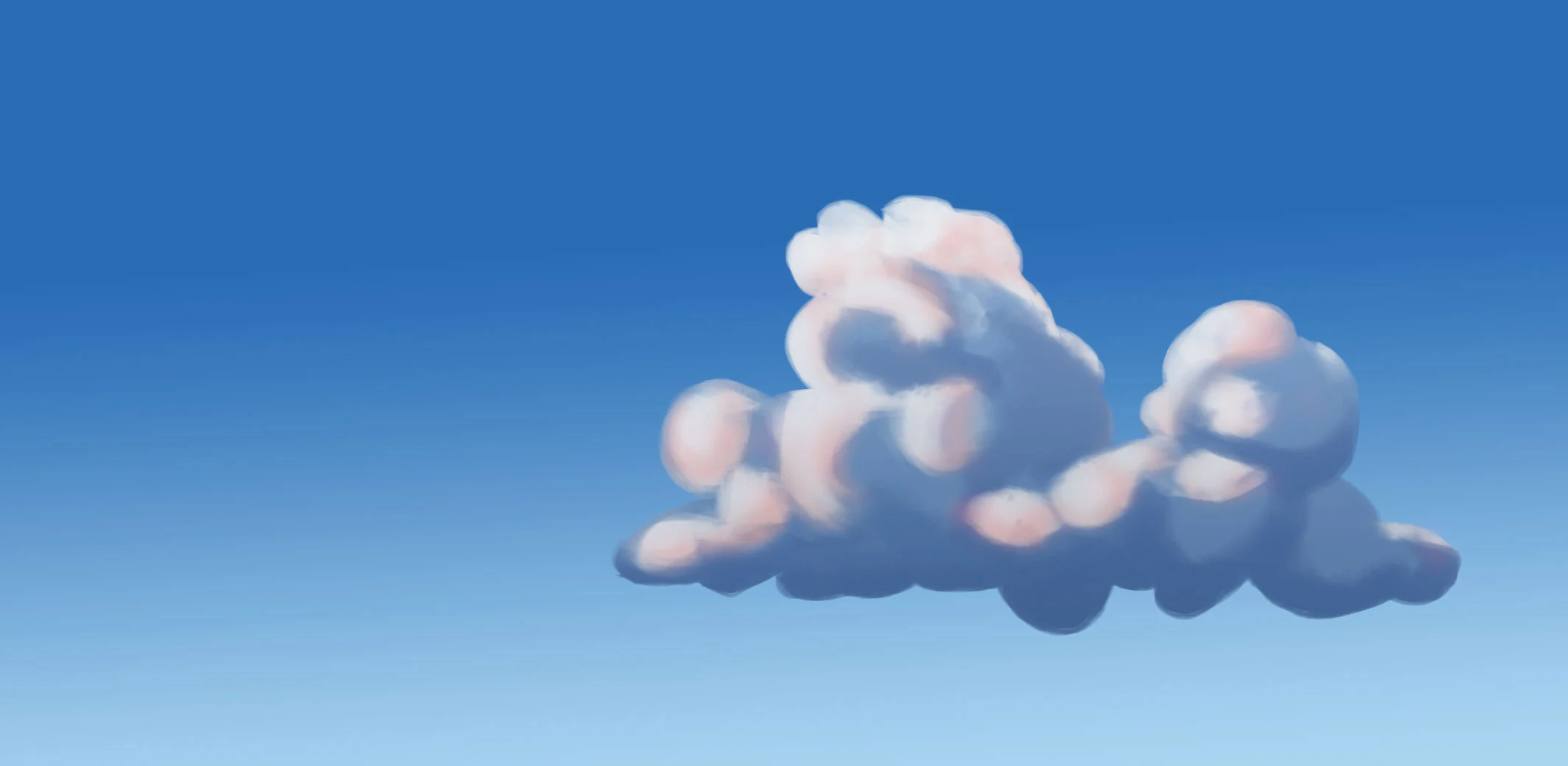
On a Screen or Add layer, or using a near-white color at Normal blend mode, add bright highlights to the most directly lit surfaces of the cloud — the very tops of the highest lobes that face the sun most directly.
Cloud highlights are different from metal highlights: they’re broader, softer, and not as sharply defined. Use a soft brush and build up the brightness gradually in layers rather than committing to a single bright stroke. The highlight should feel luminous and glowing, not harsh.
For extra realism and the signature anime cloud glow: add a very subtle, very soft warm glow (slightly yellow-white) at the very apex of the cloud — the topmost point facing the sun. This rim of luminosity is visible on real cumulus clouds in bright sunlight and gives anime clouds their characteristic warm, almost magical quality.
Step 7 — Refine Edges and Add Atmospheric Haze
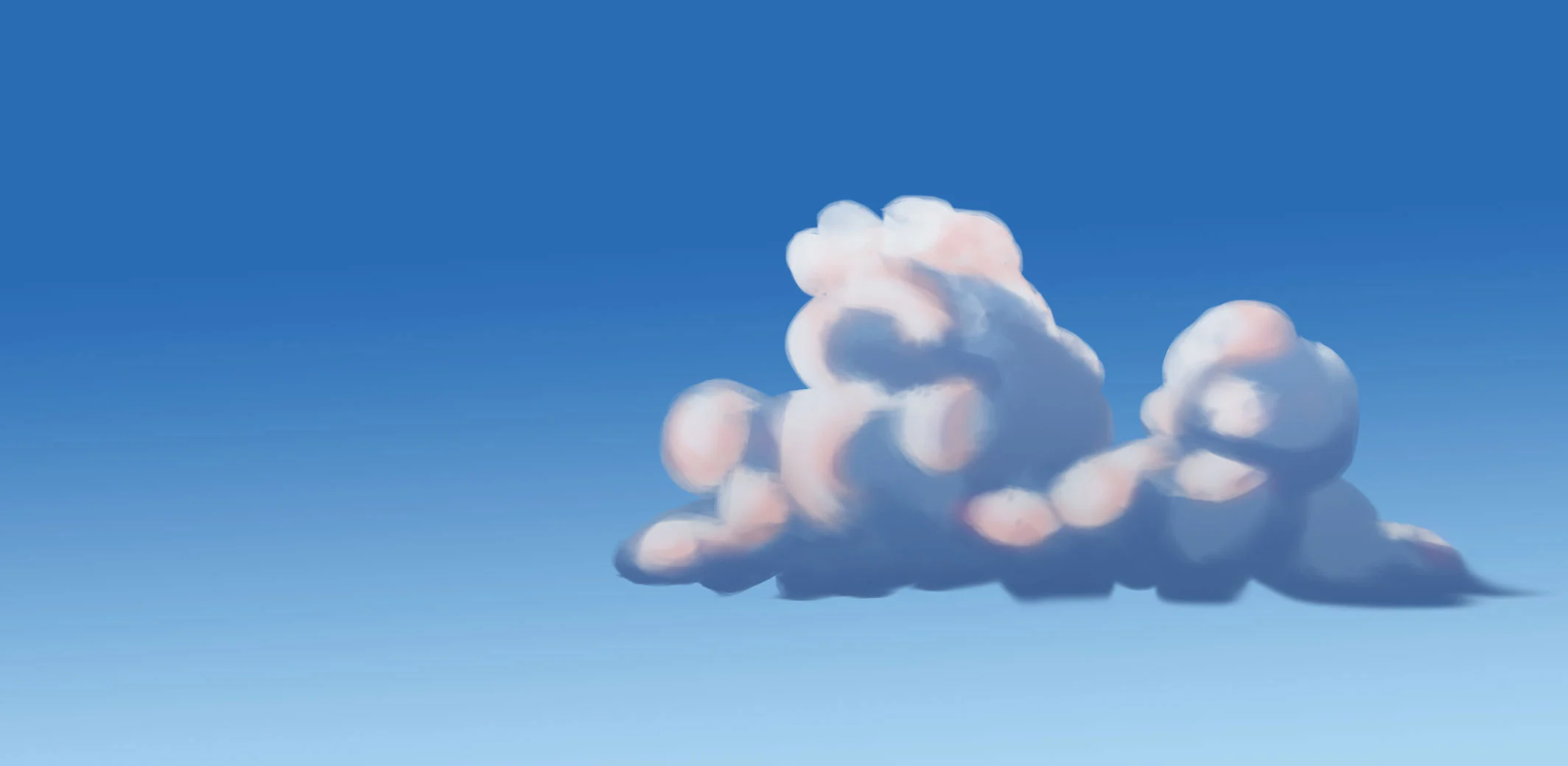
Step back and evaluate the cloud’s edges. The top edge (facing the sun, clearly defined) should be the crispest part of the cloud. The bottom edges and sides should be slightly softer — use a soft eraser at very low opacity to gently fade these edges into the sky rather than cutting them off sharply.
For distant clouds: increase the softness of all edges and reduce the contrast between light and shadow areas. Atmospheric haze (the scattering of light between the observer and distant objects) means far-away clouds have less value contrast, warmer/lighter colors, and softer edges than close clouds. This depth cue — crisp nearby clouds, soft distant clouds — is one of the most powerful ways to build convincing sky depth.
Step 8 — Adjust Colors and Add Final Polish
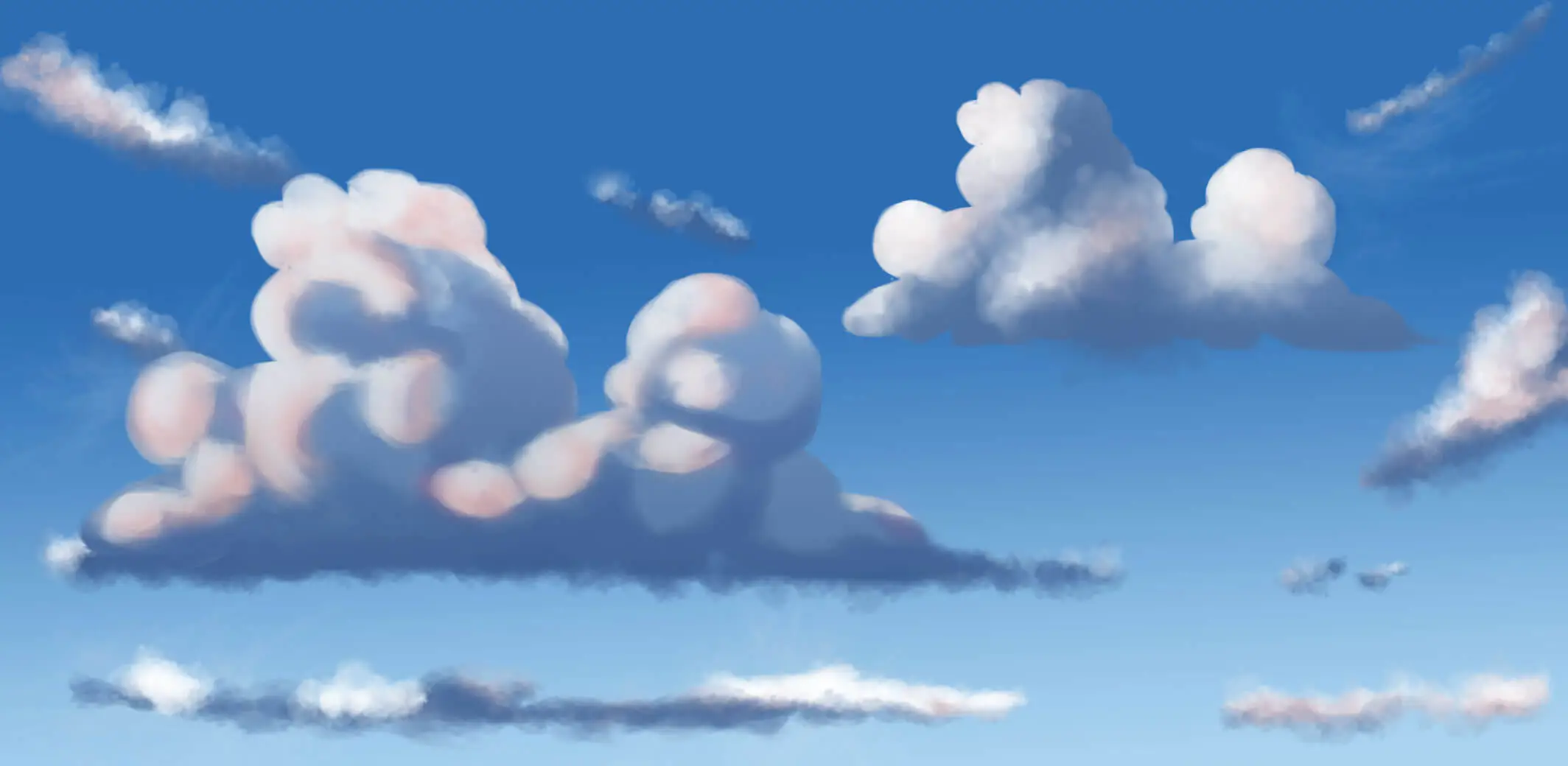
Once the cloud structure is finished, take a moment to evaluate the overall color harmony of your painting. Even well-rendered clouds can look flat if the colors feel disconnected from the sky.
Start by checking the relationship between your sky and cloud colors. On a clear day, clouds often reflect some of the sky’s color, especially in the shadow areas. Adding a subtle blue tint to shadows can help the cloud feel more naturally integrated into the environment.
If the lighting feels too harsh, use a low-opacity brush or adjustment layer to gently soften transitions between highlights and shadows. You can also slightly warm the sunlit areas with hints of yellow, orange, or pink, depending on the time of day.
For extra realism:
- Add cooler tones to shadow areas.
- Introduce warmer colors to sunlit edges.
- Slightly reduce saturation in distant clouds.
- Increase contrast only on your focal cloud.
- Avoid pure white highlights except in the brightest areas.
Finally, zoom out and view the painting as a whole. The goal is not to make every cloud equally detailed, but to guide the viewer’s eye toward the most important part of the composition. Small color adjustments at this stage can dramatically improve depth, atmosphere, and realism.
Bonus Tip — Compose Multiple Clouds for a More Realistic Sky
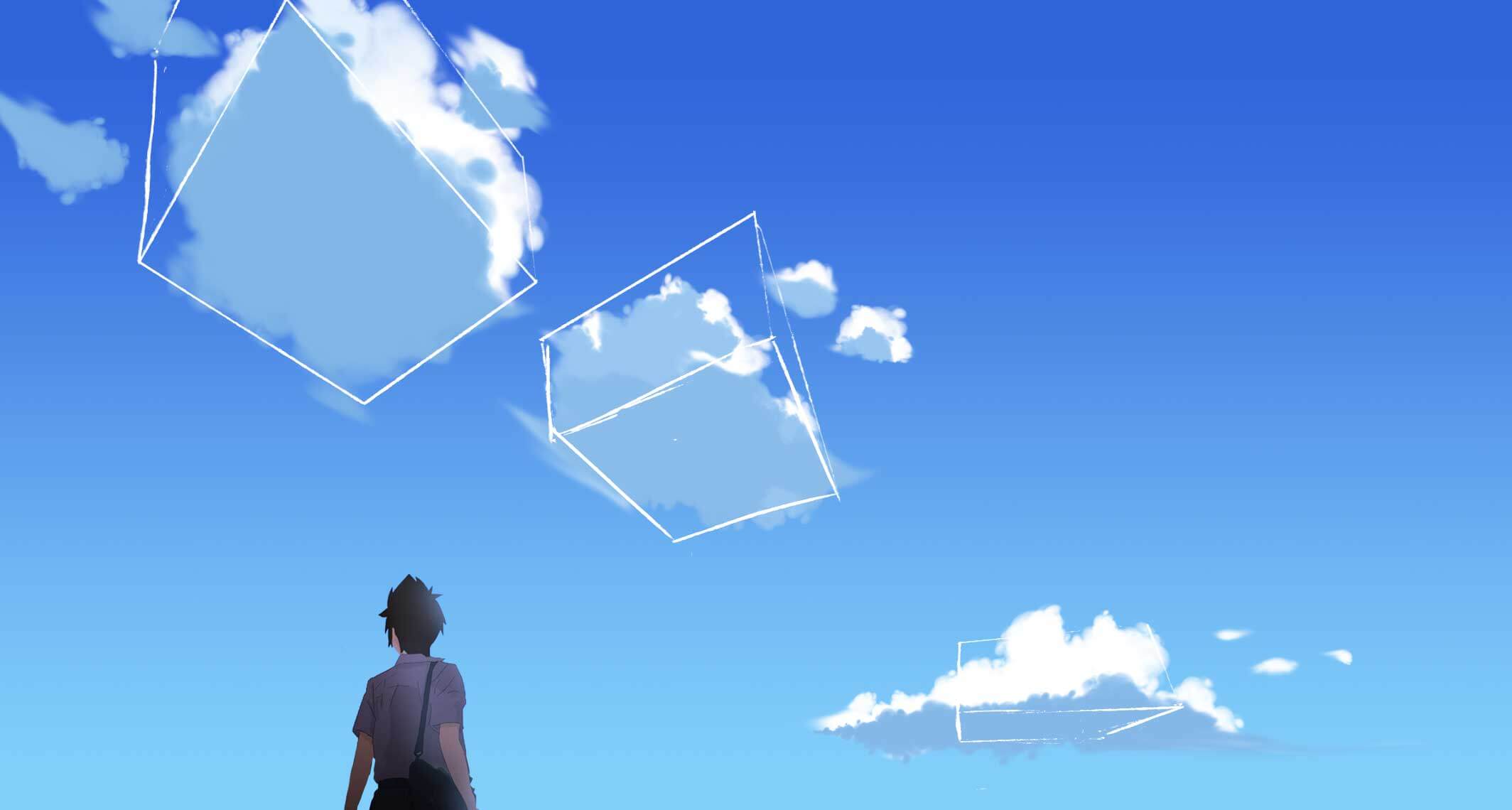
Real skies rarely contain a single isolated cloud. Adding clouds at different sizes and distances helps create depth and makes the scene feel more natural.
- Size diminishes with distance. Clouds near the horizon appear much smaller than clouds overhead, even if they’re the same size in reality. This is basic perspective — apply it to clouds just as you would to objects on the ground.
- Bases align at the horizon level. All cumulus clouds in the same weather system have bases at roughly the same altitude — which in perspective means they all sit at approximately the same horizon line.
- Cluster don’t scatter randomly. Real clouds tend to form in clusters or patterns rather than being distributed evenly. Put your largest, most detailed cloud as the focal point, with secondary and tertiary clouds at various distances around it.
- Leave sky space. Empty sky between clouds is as important as the clouds themselves. A composition that’s entirely clouds looks crowded; one with generous sky between them gives the composition room to breathe.
Part 4 — Painting Different Cloud Types
The cumulus process above forms the foundation. Here’s how to adapt it for each of the other major cloud types:
Cirrus Clouds
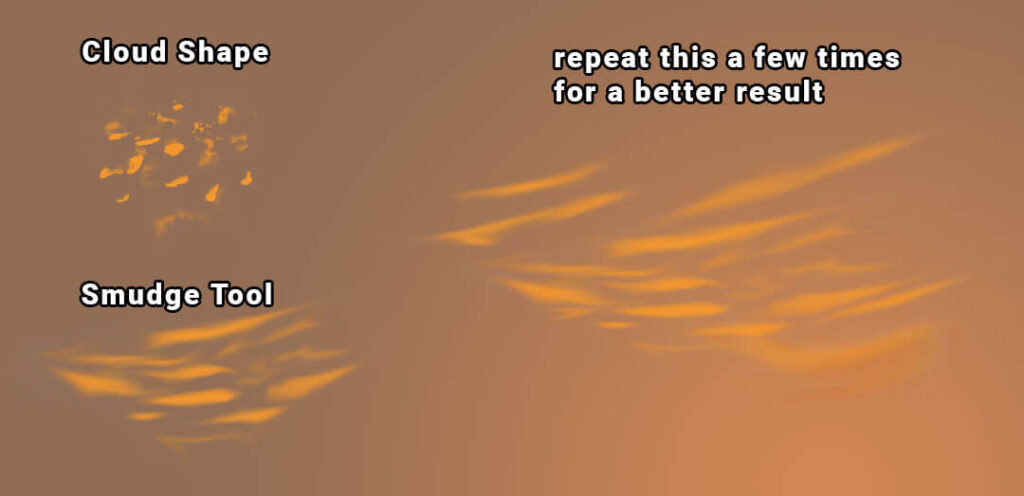
Switch to a very soft brush at extremely low opacity (5–15%). Use long, sweeping strokes in a consistent direction — following the upper-atmosphere wind flow. Build up the wispy texture gradually with multiple overlapping semi-transparent strokes. The result should look almost transparent — you can see the sky color through it. No hard edges anywhere. The color is very close to the sky color, just slightly warmer or slightly lighter. Use a soft eraser to feather the ends of each stroke into nothing.
Cumulonimbus Clouds
Follow the cumulus process but massively exaggerate the vertical scale. The lobe structure is more turbulent and irregular than cumulus — the updrafts inside a storm cloud are violent, producing more chaotic shapes. The underside shadow is much darker — deep blue-grey to near-black. The anvil top (if visible) spreads horizontally and has a slightly softer, more fibrous texture than the main body. Add lightning by painting thin, bright, branching lines within the dark interior of the cloud on a Screen or Add layer. Include rain streaks (thin, slightly diagonal grey lines below the cloud base) for a fully stormy effect.
Altocumulus (Mackerel Sky)
Paint many small cumulus-like puffs in a regular, tiled pattern across the mid-sky area. Each individual element is smaller than a standalone cumulus cloud and has less vertical development. At sunset, alternate warm-lit surfaces (facing the low sun) with cool-shadowed undersides (facing the blue zenith) across the pattern — this warm-cool alternation across a textured sky pattern is visually striking and characteristic of sunset altocumulus.
Stratus / Overcast Sky
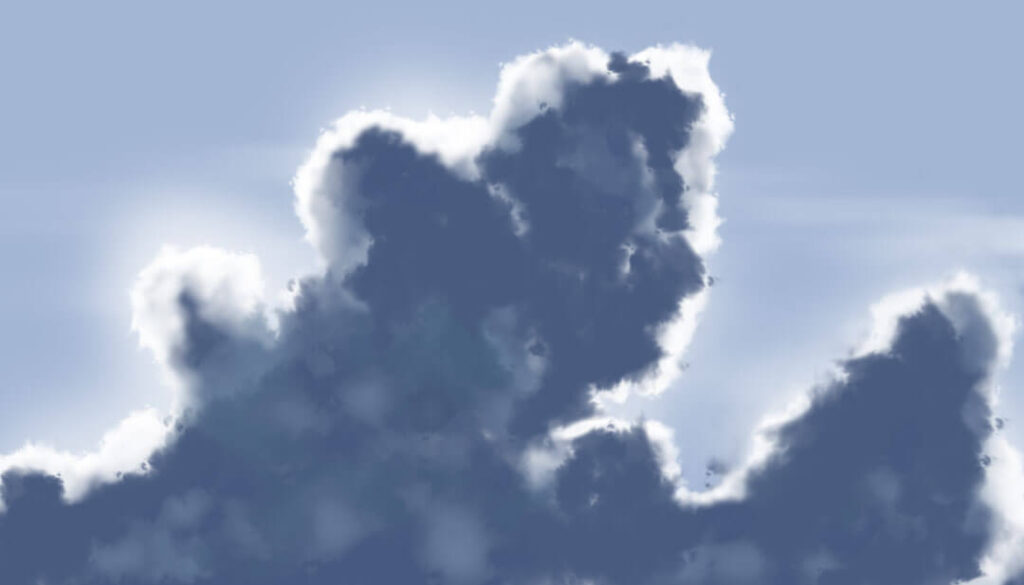
Paint a gradient that goes from slightly darker grey at the top to lighter grey-white near the horizon (the inverse of the clear sky gradient, since stratus blocks direct sunlight). The surface texture of stratus is subtle — not lobed like cumulus. Use a very large soft brush to paint subtle lighter and darker patches within the grey that suggest variation without creating obvious cloud shapes. Add subtle breaks in the layer near the horizon where distant sky occasionally peeks through.
Part 5 — Sky Color Palettes by Time of Day
The colors in your sky are determined almost entirely by the position of the sun and the amount of atmospheric scattering between the light source and the observer. Here are the key palettes for each major lighting scenario:
🌅 Dawn / Sunrise
Sky gradient: Deep blueat the zenith (#323d48) → warm peach-orange at the horizon (#d08770)
Cloud lit surfaces: Soft warm pink to peach (#f5c0a0)
Cloud shadows: Deep lavender to purple-grey (#3f4950)
Character: Soft, gentle, hopeful. Colors are warm at the horizon, cool overhead. Contrast is lower than midday — everything feels diffused by morning haze.
☀️ Midday / Clear Day
Sky gradient: Deep cerulean blue at zenith (#1a5490) → lighter cyan-blue at horizon (#a0cce8)
Cloud lit surfaces: Near-white (#f0f4ff), very slightly cool
Cloud shadows: Cool blue-grey (#8090b0)
Character: Bright, high contrast, energetic. The most dramatic value contrast between lit and shadow cloud surfaces. Clean, clear, and vivid — the default “good weather” sky.
🌇 Golden Hour / Late Afternoon

Sky gradient: Deep warm blue at zenith (#1a3a70) → warm golden-orange at horizon (#e8a040)
Cloud lit surfaces: Warm gold to orange-pink (#f0c060 to #f09060)
Cloud shadows: Warm purple-mauve (#907080)
Character: The most cinematically powerful sky time. Warm light on cloud surfaces against cool sky creates striking color contrast. Every Makoto Shinkai and Studio Ghibli sky leans heavily on golden hour palette choices.
🌆 Sunset
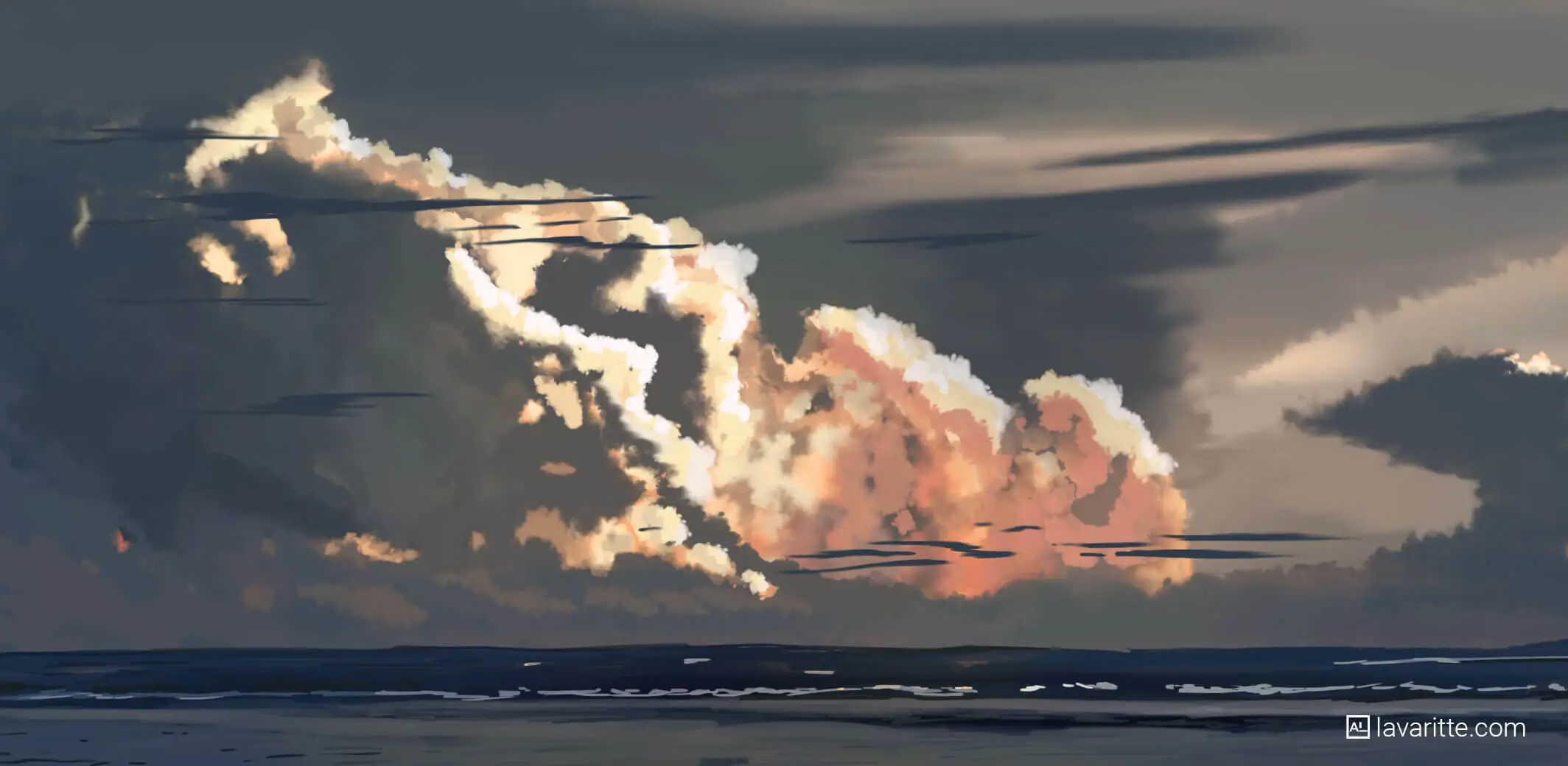
Sky gradient: Deep blue-purple at zenith (#201840) → deep orange-red at horizon (#d05020)
Cloud lit surfaces: Bright orange to deep magenta (#e07030 to #c04080)
Cloud shadows: Deep purple-indigo (#402060)
Character: Dramatic, emotionally loaded, bittersweet. The wide range of hues (orange, pink, purple, blue all visible simultaneously) creates rich visual complexity. Silhouetted objects against a sunset sky are instantly cinematic.
🌙 Dusk / Blue Hour
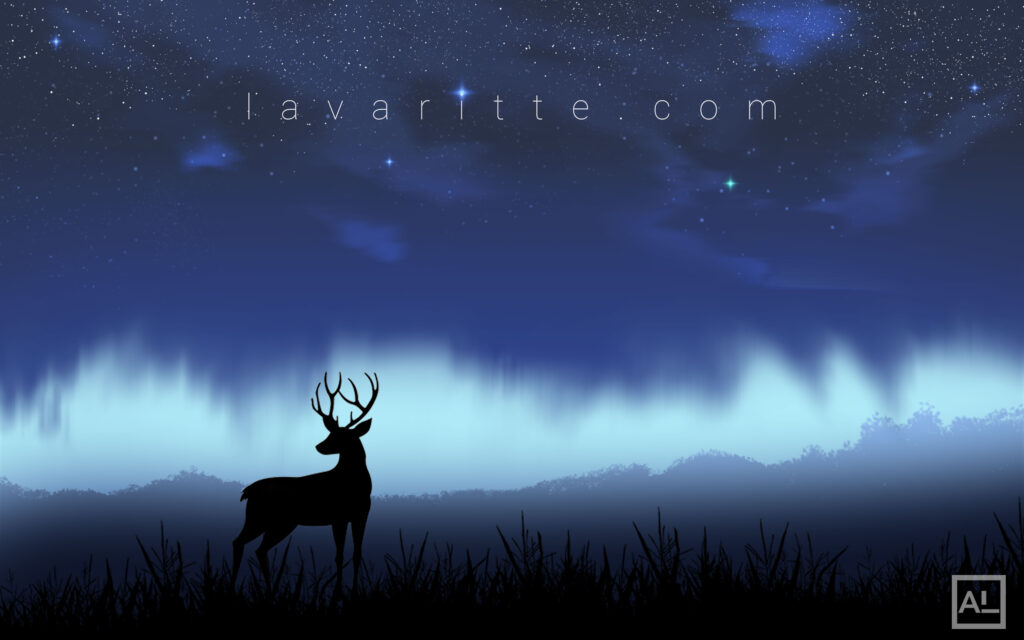
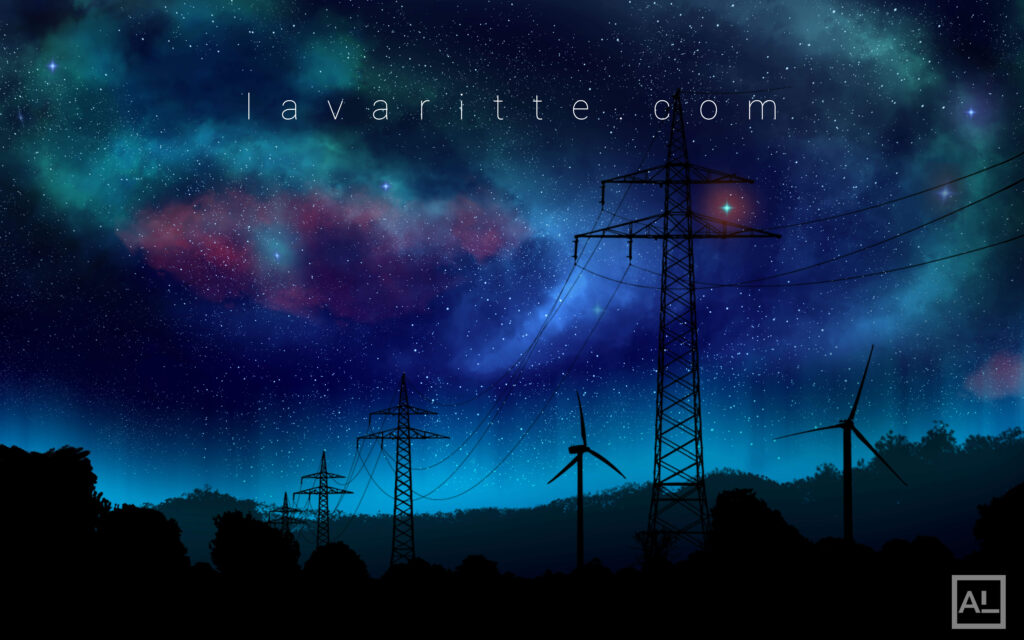
Sky gradient: Very deep indigo at zenith (#100830) → deep blue-teal at horizon (#1a3050)
Cloud lit surfaces: Cool blue-purple (#6070a0) — no warm direct light remaining
Cloud shadows: Very dark blue-purple (#201830)
Character: Quiet, melancholy, mysterious. The sky transitions from day to night with every color draining toward cool blue. Stars may begin to appear at the zenith.
⛈️ Stormy / Pre-Rain
Sky: Heavy grey with underlying blue-green cast (#304040 to #506070)
Cloud lit surfaces: Lighter grey-white where breaks in cloud cover allow some light through (#b0c0c0)
Cloud shadows: Very dark grey to near-black (#202830)
Character: Oppressive, tense, foreboding. The dramatic value contrast within storm clouds — dark base, lighter upper reaches — creates visual weight. Green-grey undertones in the sky are a real phenomenon before some severe weather and read immediately as threatening.
Part 6 — Anime-Specific Cloud Techniques
Beyond the realistic foundation, anime clouds use specific stylistic techniques that give them their characteristic look — the quality that makes you recognize a Ghibli sky or a Shinkai sky instantly.
The Ghibli Cloud Technique
Studio Ghibli clouds have a hand-painted warmth that comes from a specific approach: the lit surfaces of clouds are painted with visible brushwork — soft, directional strokes that follow the form of each lobe rather than being blended to a smooth gradient. The result looks like a traditional painting in motion. In digital art, you can replicate this by using a textured brush with slightly reduced opacity for the lit cloud surface, making individual strokes visible rather than blending them out entirely. The shadows are softer and more blended than the lit areas, which creates a specific warm-top, soft-shadow aesthetic.
The Shinkai Cloud Technique
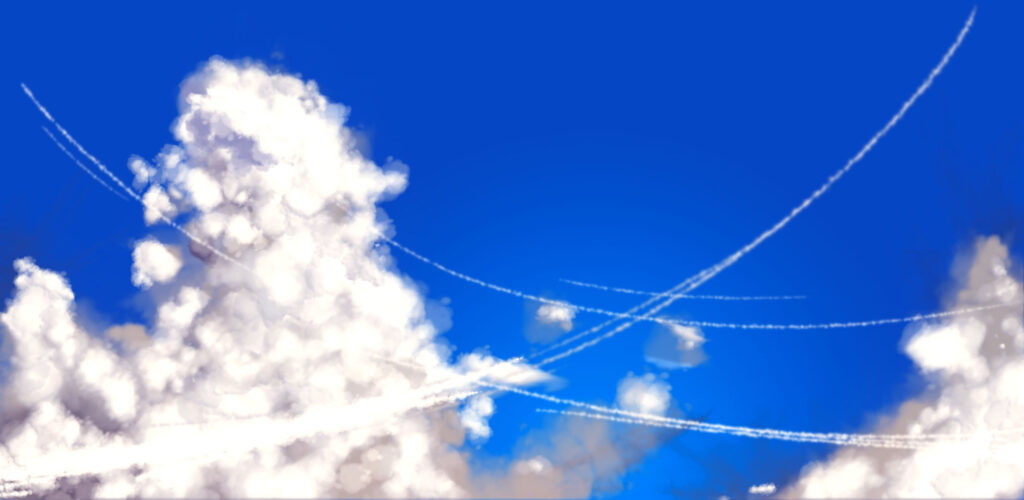
Makoto Shinkai’s skies are photorealistic but heightened — more saturated, more luminous, and more dramatically lit than real skies, while still following all the correct physical rules. The key Shinkai techniques: rim lighting on cloud edges (a very subtle bright outline where the cloud edge meets the sky, created by backlighting effects), extremely high color saturation in the sky gradient, and visible light rays (crepuscular rays — the “god rays” visible when sunlight passes through gaps in clouds). For light rays: on a Screen layer, use a very soft brush and a warm near-white color to paint thin, diagonal rays emanating from the direction of the sun, through gaps in the clouds, spreading toward the observer.
Cel-Shaded Anime Clouds (Clean Style)
For a cleaner, more graphic anime style (as opposed to painterly Ghibli or Shinkai approaches), clouds use the cel-shading technique: flat, hard-edged shape for the shadow zone on a Multiply layer, flat white for the lit surface, and a single hard-edged highlight stripe on the topmost lobes. This approach is faster, works great for backgrounds in character-focused illustrations, and reads clearly even at small sizes in manga-style compositions.
Fantasy / Otherworldly Clouds
For fantasy settings, you can depart from physical reality while maintaining the underlying light logic. Common approaches: unusual cloud colors (deep purple storm clouds in a magical sky, iridescent clouds with color shifts across the surface), luminous glowing clouds that produce their own light (on an Add layer with soft glow effects), or dramatically stylized shapes (angular, crystalline clouds in a surreal world). The key is maintaining the light-source consistency and the top-lit, bottom-shadowed structure even when the colors are fantastical — this keeps the clouds feeling three-dimensional and real even in an impossible sky.
Part 7 — Composition: Building a Full Sky Scene
Individual beautiful clouds don’t automatically make a beautiful sky scene. Composition — how you arrange clouds within the frame — determines whether the sky reads as a background element or becomes a character in its own right.
The Rule of Thirds in Sky Composition
Apply the rule of thirds to your sky as you would to any other composition. Place your dominant cloud formation at one of the power points (the intersections of the third lines) rather than dead center. Leave the other two-thirds of the frame to secondary clouds and open sky. A dominant cloud in the upper-left, with open blue sky in the upper-right and smaller clouds across the lower third, creates a dynamic, balanced composition that gives the eye a natural path to follow.
Foreground, Midground, Background Clouds
Just like a landscape composition, a rich sky scene has depth — clouds at different distances. Establish three zones:
- Foreground clouds: Largest, most detailed, highest value contrast, sharpest edges. These may even be partially cropped by the frame.
- Midground clouds: Medium size and detail, slightly softer edges, slightly reduced value contrast due to atmospheric haze.
- Background clouds: Small, very soft edges, nearly merged with the sky gradient in color and value. These create the sense of a sky stretching to infinity.
The Horizon Line and Sky-to-Ground Ratio
Where you place the horizon line is the most powerful compositional decision in a landscape or sky scene. A low horizon line (horizon near the bottom third of the frame) gives the sky dominance — the image becomes about the sky and its emotional weather. A high horizon line (horizon near the top third) gives the ground dominance — the sky becomes a context element. For scenes where the sky is meant to carry emotional weight, a low horizon with 2/3 of the frame given to sky is the most common choice in anime backgrounds.
Using Clouds to Guide the Eye
Clouds can function as leading lines — directing the viewer’s attention toward a specific point in the frame. A diagonal band of clouds sweeping from corner to focal point creates movement and directionality. A gap in the clouds that frames the sun or a key story element (a distant building, a figure silhouetted against the sky) creates natural visual hierarchy. Before painting your sky, sketch the basic cloud arrangement as simple shapes and check that the compositional flow guides attention where you want it to go.
Part 8 — Layer Setup for Anime Sky Painting
| Layer Name | Blend Mode | Opacity | Purpose |
|---|---|---|---|
| Light Rays / God Rays | Screen or Add | 20–40% | Crepuscular rays through cloud gaps |
| Atmosphere / Haze | Normal | 10–30% | Soft white haze at horizon for depth |
| Cloud Highlights | Screen or Add | 40–70% | Luminous bright edges and tops |
| Sky Bounce on Clouds | Normal | 20–40% | Blue sky color reflected into cloud shadow areas |
| Cloud Shadow (Multiply) | Multiply | 50–70% | Underside shadow and inter-lobe shadows |
| Cloud Base Color | Normal | 100% | Main white cloud body |
| Sky Gradient | Normal | 100% | Background sky color from zenith to horizon |
| Background / Canvas | Normal | 100% | Base canvas color |
Part 9 — Common Mistakes and How to Fix Them
❌ Clouds look flat — like white shapes pasted on the sky
✅ Fix: The shadow underside is missing or too light. Add a clearly darker shadow zone on the bottom of the cloud using a Multiply layer. The contrast between the bright lit top and the darker shadowed underside is what creates the three-dimensional, volumetric quality. Also check that you have some variation in value across the lit surface — the very top lobes should be slightly brighter than the side lobes, suggesting they face the sun more directly.
❌ Cloud edges are too sharp — the cloud looks cut out and pasted in
✅ Fix: Use a soft eraser at very low opacity (5–15%) to gently feather the edges of the cloud where it meets the sky. The atmosphere between the viewer and the cloud softens its edges — especially on the sides and bottom. Only the topmost lit lobes (where the edge between cloud and bright sky is most defined) should retain relatively sharp edges. Distant clouds should have softer edges than nearby clouds.
❌ The sky looks like a flat blue rectangle behind the clouds
✅ Fix: The sky gradient is missing or too subtle. The sky color changes from deeper, more saturated blue overhead to lighter, less saturated near the horizon — this gradient is essential for depth. Also ensure your distant clouds are lighter in value and lower in contrast than your nearby clouds, creating the atmospheric haze effect that separates them in space.
❌ All cloud lobes are the same size, creating an artificial, repetitive look
✅ Fix: Deliberately vary lobe size. A cumulus cloud is built from updrafts of different strengths — the result is organic variation in lobe size, with some larger dominant bulges and smaller ones nestled between them. Before painting detail, sketch the lobe silhouette as simple circles of different sizes, overlapping naturally. The variation in size is the most important element of a natural-looking cumulus silhouette.
❌ Cloud shadow color is just a darker version of white (grey), making it look dirty
✅ Fix: Cloud shadows should borrow color from the sky around them — primarily the blue of the sky overhead reflecting into the shadowed underside. Push your shadow color toward cool blue-grey or blue-purple rather than neutral grey. In warm lighting conditions (sunset, golden hour), the shadow can push toward warm purple or mauve. A shadow that has color temperature (either cool or warm) always looks more natural than a flat grey shadow.
❌ Multiple clouds all look identical — same size, shape, and detail
✅ Fix: Clouds in a real sky are never identical. Vary: the overall size of each cloud, the number and size of lobes, the height-to-width ratio, the level of development (some clouds are building, others are dissipating), and the level of detail (near clouds get more detail; far clouds get less). Create a “main character” cloud that’s the largest and most developed, with supporting clouds of different sizes around it. Think of it the same way you’d design a character lineup — variety and hierarchy.
Part 10 — Practice Plan for Anime Clouds
| Week | Exercise | Focus | Time |
|---|---|---|---|
| Week 1 | Paint a single midday cumulus cloud 5 times | Master the 8-step process — sky gradient, silhouette, lobes, shadow, bounce light, highlights, edges | 30–45 min each |
| Week 2 | Paint the same cloud in 4 different lighting conditions (midday, golden hour, sunset, overcast) | Understand how sky color determines cloud color — same shape, completely different palette | 30 min each |
| Week 3 | Practice cirrus and altocumulus cloud types separately | Learn how brush technique and edge quality change for different cloud families | 30 min each |
| Week 4 | Paint a full sky composition with 3–5 clouds at different distances | Depth through size variation, edge softness, and value contrast diminishing with distance | 60–90 min |
| Week 5 | Paint a storm sky with cumulonimbus | Dark drama, lightning, rain streaks — the full dramatic sky toolkit | 60 min |
| Week 6 | Paint a sunset sky with character silhouette | Integrating clouds with a full scene — sky as emotional context for a character moment | 90 min |
| Ongoing | Sky photo studies | Once per week: find a photo of a real sky that moves you and paint it in anime style. Real skies teach faster than any tutorial. | 30–45 min |
💡 The fastest way to improve at cloud painting:
Look at real skies and take photos of ones that interest you — sunsets, storm buildups, golden hour clouds. Then paint them in your anime style, using the photo as value and color reference. Real sky observation teaches things no tutorial can: how quickly clouds change, how light interacts with them in motion, and the infinite variety of forms they take. Ten minutes of real sky observation before a painting session consistently produces better results.
Frequently Asked Questions
What brush should I use to paint anime clouds?
You actually need very few brushes. A soft round brush handles 80% of cloud painting — the sky gradient, the cloud shadow, the lobe shaping, and the edge softening all work with a basic soft round at varying opacities. A hard round brush is useful for the initial cloud silhouette block-in. A cloud texture brush (like the free one offered on this site) speeds up the lobe-building step significantly — it creates natural, varied cloud texture in a single stroke rather than requiring you to build it stroke by stroke. In Procreate, the Soft Airbrush and the Cloud brush in the Elements pack are good starting points. In Clip Studio Paint, the “soft” watercolor brush and the default soft airbrush cover most needs.

That said, if you’re feeling stuck, it’s totally normal. Painting takes time, practice, and sometimes a little boost. I’ve put together a few custom brushes to help you get started faster:
How do I make clouds look like they’re glowing?
The glow effect comes from two techniques used together: first, paint the standard lit cloud surface slightly warmer and brighter than you think is necessary. Second, add a very soft, large Screen or Add layer glow around the very brightest parts of the cloud — particularly the topmost lobes closest to the sun’s direction. This glow layer should be so subtle you almost wonder if it’s doing anything; if it’s visible as a distinct element, it’s too strong. The combination of a bright surface plus a barely-visible soft glow layer creates the luminous, almost magical cloud quality seen in Makoto Shinkai’s work.
Why do my clouds always look like cotton balls?
Two causes: the lobes are too uniform in size, and the shadow contrast isn’t strong enough. Real cumulus clouds have varied lobe sizes — some large and dominant, others small and nestled between the big ones. Deliberate size variation immediately makes the silhouette more organic. The second cause is that the underside shadow isn’t dark or colored enough — without a convincing shadow, the cloud stays a flat round shape. Darken and cool the shadow, make sure it follows the lobe structure at its upper boundary (wavy, not a straight line), and add the reflected sky color bounce for the final naturalizing touch.

How do I paint clouds that look like they’re moving?
Movement in a still image is created through shape and edge quality rather than actual animation. Clouds that feel like they’re in motion typically have: asymmetric shapes (one side building upward, the other beginning to dissipate), slightly blurred or streaked trailing edges (as if the cloud is moving through the frame in one direction), and varying edge quality across the cloud (crisp leading edge, softer trailing edge). In an illustration, you can also suggest movement through the overall sky composition — a sweep of clouds across the frame in a consistent direction implies wind and motion even in a static image.
What’s the difference between painting day and night clouds?
Night clouds have the same physical structure as day clouds but are lit by much dimmer, cooler light sources — moonlight and stars. A moonlit cloud has the same top-lit, bottom-shadowed structure as a daytime cloud, but with a cool blue-white lit surface (#c0d0e0) and a very dark, nearly black shadow underside (#101525). The sky behind night clouds is deep navy to near-black with visible stars where the cloud gaps allow. The overall value range is compressed compared to daytime — even the lit surfaces of night clouds are relatively dark, and the shadows are much darker than day cloud shadows.
How do I paint the sun in an anime sky without it looking wrong?
Direct sun is usually implied rather than painted directly — staring at the actual sun disc in a painting usually looks harsh or artificial. Instead, suggest the sun through its effects: the sky around the sun’s position brightens and warms dramatically (a large, very soft white-yellow glow on a Screen layer centered at the sun position), clouds near the sun are backlit (very bright edges, darker interiors), and light rays (god rays) emanate from the sun’s position through cloud gaps. If you do paint the sun disc itself, keep it small, very bright, and soften its edge into the surrounding glow so it feels integrated rather than pasted in.
How do I add stars behind clouds for a night sky scene?
Paint your night sky gradient first (deep navy to near-black). Add stars on a new Normal layer — use a very small hard round brush to dot individual stars, varying their brightness (some near-white, some slightly dimmer). For a natural distribution, stars are denser in some areas than others — they cluster along the galactic plane. You can also use a custom star scatter brush for faster results. Then paint your clouds on layers above the star layer — the stars will appear only in the cloud gaps, correctly “behind” the clouds. For a very clear night, some stars may be visible through very thin cloud veiling — achieve this by painting the thin cloud at reduced opacity over the star layer.
How many clouds should I put in a sky composition?
Less than you think. The most common beginner mistake in sky composition is filling the sky with too many clouds, leaving no open sky between them. Open sky is as important as clouds — it’s the “rest” between the visual “notes” of the cloud forms. A composition with one dominant cloud formation, two or three secondary clouds at different distances, and generous open sky between them is almost always more satisfying than a sky packed edge to edge with clouds. As a starting exercise: limit yourself to a maximum of five cloud elements per sky composition and see how much more impact each one has when it has room to breathe.
Can I use photo reference for drawing anime clouds?
Absolutely — and you should. Real sky photos are invaluable for understanding cloud structure, light behavior, and color. The process: find a sky photo with the kind of cloud you want to paint, study the value structure (where is the darkest dark? the brightest light? how wide is the shadow band?), study the colors (what hue is the shadow — is it cool blue-grey or warm purple?), and then paint using that understanding as guidance while applying anime stylization on top. You’re not copying the photo — you’re extracting physical truth from it and then interpreting it through your style. This is how all the best background artists work.
How do I use clouds for storytelling in my illustrations?
Clouds are one of the most powerful emotional tools in an illustrator’s toolkit precisely because they carry emotional meaning without directly depicting anything. A few principles: use cumulus in peaceful, warm scenes and stormy/dramatic clouds in tense ones (obvious but effective); use the scale of clouds relative to characters to communicate power — a character dwarfed by a massive cumulonimbus feels small and threatened; use cloud color temperature to reinforce the scene’s emotional tone (warm golden clouds in hopeful scenes, cool grey clouds in sad or uncertain ones); and use cloud composition to direct the viewer’s eye toward or away from the character. The sky is always making an emotional statement — make sure it’s saying what you intend.
What to Learn Next
Clouds and skies are part of the broader background and environment skill set. Here’s where to build from here:
- Color Theory Made Simple — understanding why sky colors shift the way they do, and how to choose cloud shadow colors that feel physically correct
- Canvas Size for Digital Art — setting up the right canvas before painting a detailed sky scene
- How to Paint Realistic Metal — the same light-source logic and layer structure used for metal applies directly to cloud shading
- Complete Anime Drawing Guide for Beginners — clouds and backgrounds fit into the bigger picture of creating full anime scenes and character illustrations
- Digital Art for Beginners — if the blend modes and layer structure in this guide were unfamiliar, the beginner’s guide covers all the foundational concepts
Paint one sky today. Just one — a simple cumulus cloud on a blue sky gradient, following the eight steps above. Then paint another one tomorrow. Skies compound: each one teaches you something the last one didn’t, and within a few weeks you’ll find yourself looking at the sky outside and already planning how you’d paint it. If you want real skies to study while you practice, I put together a personal cloud reference pack — all photos taken by me along the Philippine coast, organized by cloud type. That’s when you know the skill has taken root. 🖊
Discover More Posts
Keep exploring stories, insights, and creative notes from my journey as an artist. Check out the latest blog entries and find topics that inspire your own process.
How to Draw Anime Hair: The Ultimate 6 Easy Steps
Learn how to draw anime hair step by step. This beginner-friendly guide covers sketching, shading, highlights, and popular styles for male and female characters. Perfect for artists who want to master flow, volume, and shine in their anime hairstyles.
How to Paint Realistic Metal
Learn how to paint realistic metal with this step-by-step guide. From base colors to to lighting and reflections, get practical tips for your artwork shine, literally.
Color Theory Made Simple
New to Digital painting? This beginner-friendly guide breaks down hue, value, saturation, color harmonies, and practical tips to help you choose better palettes and level up your art.