
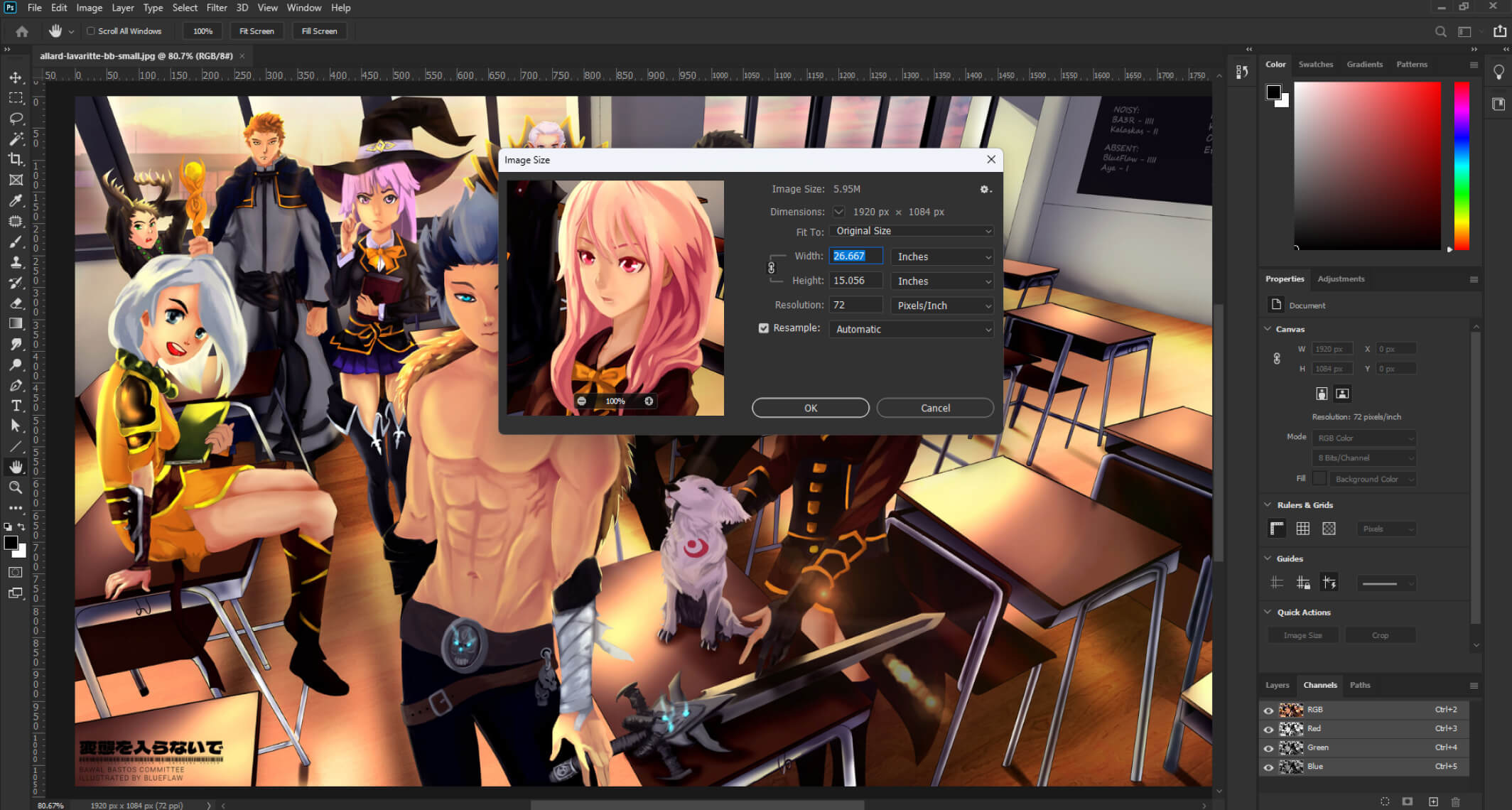
Every digital artist has been here: you open your art software, click “New Canvas,” and freeze. Width, height, DPI, resolution, color mode — a wall of settings you’re not sure about, and a nagging feeling that picking the wrong ones will ruin the piece before you’ve drawn a single line.
I’ve been there too. I’ve finished pieces only to realize the resolution was too low to print. I’ve created canvases so large my software lagged through every brush stroke. I’ve exported for social media and watched a sharp illustration turn muddy at the wrong dimensions.
All of those mistakes had simple, avoidable causes. This guide covers everything — what DPI actually means and when it matters, how to choose canvas dimensions for any use case, what the right settings are for print versus screen, how to handle performance issues on slower hardware, and how to set up your canvas in Clip Studio Paint, Procreate, and Krita specifically. By the end you’ll never have to guess at canvas settings again.
📌 In a hurry? Here’s the quick answer:
For online sharing only:
2000 × 2000 px at 72–150 DPI.
For print
:at least 2480 × 3508 px at 300 DPI
(A4 size). When in doubt, go bigger — you can always scale down, never scale up without quality loss.
Part 1 — The Core Concepts: Pixels, Resolution, and DPI Explained
Before choosing any numbers, you need to understand what these settings actually control. A lot of the confusion around canvas setup comes from conflating terms that mean different things.
What Is a Pixel?
A pixel (short for “picture element”) is the smallest individual dot in a digital image. A canvas that’s 2000 × 2000 pixels contains 4,000,000 individual colored dots arranged in a grid. The more pixels, the more detail your image can contain — and the larger it can be displayed or printed before becoming visibly blurry.
What Is Resolution?
Resolution refers to the total number of pixels in an image, usually described as width × height (e.g., 2000 × 3000 px). Higher resolution = more pixels = more detail = larger file sizes. Resolution determines how much information your canvas contains. It does not tell you how large the image appears on screen — that depends on your monitor’s pixel density.
What Is DPI — and Does It Actually Matter for Digital Art?
DPI stands for “dots per inch.” It describes how many pixels are printed per inch of physical paper. A 300 DPI image prints 300 dots into every inch of paper, which is dense enough that individual dots are invisible to the naked eye. A 72 DPI image prints only 72 dots per inch — visible as blurry or pixelated when printed at large sizes.
Here’s the thing most tutorials don’t explain clearly: DPI only matters when you print. On a screen, DPI is meaningless — screens display images pixel by pixel, and your canvas’s DPI setting has zero effect on how it looks on a monitor. If you’re creating art exclusively for digital viewing (social media, websites, portfolio sites, digital wallpapers), DPI literally doesn’t matter. Set it to 72, 96, or 300 — the on-screen result is identical.
DPI matters the moment you want to print. Set it to 300 for standard print quality. 150 DPI works for large-format prints viewed from a distance (banners, posters on walls). 72 DPI will look pixelated at almost any print size.
💡 The rule to remember:
DPI = print quality only.
For screen-only work, ignore DPI and focus on pixel dimensions instead. For print work, set DPI to 300 and let the pixel dimensions determine your physical print size.
How Pixel Dimensions and DPI Relate to Print Size
Here’s the simple math: divide your pixel dimensions by your DPI to get your physical print size in inches.
- 2480 px ÷ 300 DPI = 8.27 inches (the width of an A4 page at 300 DPI)
- 3508 px ÷ 300 DPI = 11.69 inches (the height of an A4 page at 300 DPI)
- 3000 px ÷ 150 DPI = 20 inches (a 20-inch wide print at banner/poster quality)
This relationship is why choosing your DPI and canvas dimensions together matters for print work — they determine the physical output size of your finished piece.
What Is Color Mode?
Color mode determines how your software mixes and stores color data.
- RGB (Red, Green, Blue) — Used for anything displayed on a screen. This is the correct mode for digital illustration, social media, online portfolios, and most digital art. Always use RGB unless you have a specific reason not to.
- CMYK (Cyan, Magenta, Yellow, Key/Black) — Used for professional offset printing. Some printers and print-on-demand services request CMYK files. Colors look slightly different (often duller) in CMYK than RGB. For most artists, staying in RGB and letting the print service handle conversion is fine.
Part 2 — Canvas Size Reference Tables
These are the canvas settings I actually use and recommend. Bookmark this section — it’s the one you’ll come back to most.
For Digital/Online Use (Screen Only)
| Use Case | Canvas Size (px) | DPI | Aspect Ratio |
|---|---|---|---|
| Instagram post (square) | 2000 × 2000 | 72–150 | 1:1 |
| Instagram portrait post | 1080 × 1350 | 72 | 4:5 |
| Instagram Story / TikTok | 1080 × 1920 | 72 | 9:16 |
| Twitter / X post image | 1200 × 675 | 72 | 16:9 |
| General illustration (recommended) | 2000 × 3000 | 150 | 2:3 |
| Character portrait (standard) | 2480 × 3508 | 150–300 | A4 |
| Desktop wallpaper (HD) | 1920 × 1080 | 72 | 16:9 |
| Desktop wallpaper (4K) | 3840 × 2160 | 72 | 16:9 |
| YouTube thumbnail | 1280 × 720 | 72 | 16:9 |
| ArtStation / portfolio showcase | 3000 × 4000+ | 150 | 3:4 |
| Comic/manga page (digital) | 2200 × 3100 | 150 | ~A4 |
For Print
| Paper Size | Canvas Size at 300 DPI | DPI | Notes |
|---|---|---|---|
| A6 (postcard) | 1240 × 1748 px | 300 | Small prints, sticker sheets |
| A5 (half A4) | 1748 × 2480 px | 300 | Zines, small posters |
| A4 (standard letter) | 2480 × 3508 px | 300 | Most common print size |
| A3 (double A4) | 3508 × 4961 px | 300 | Large poster, art prints |
| A2 | 4961 × 7016 px | 300 | Gallery prints |
| US Letter (8.5 × 11 in) | 2550 × 3300 px | 300 | Common in the US |
| US Tabloid (11 × 17 in) | 3300 × 5100 px | 300 | Large format US standard |
| 12 × 12 inch square | 3600 × 3600 px | 300 | Album covers, square prints |
| 18 × 24 inch poster | 5400 × 7200 px | 300 | Large poster print |
| 24 × 36 inch poster | 7200 × 10800 px | 300 | Event poster, very large format |
For Print-on-Demand Merchandise
| Product | Recommended Canvas Size | DPI | Notes |
|---|---|---|---|
| Redbubble / Society6 sticker | 2400 × 2400 px | 300 | Square base works for all sticker cuts |
| T-shirt print area | 4500 × 5400 px | 300 | Covers most POD platform requirements |
| Phone case | 1200 × 2208 px | 300 | Varies by case model |
| Art print (Redbubble) | 7632 × 10788 px | 300 | Maximum quality for all print sizes |
| Tote bag | 3200 × 3200 px | 300 | Most platforms accept this minimum |
| Mug wrap | 3300 × 2100 px | 300 | Check individual platform specs |
Always check the specific requirements of the print-on-demand platform you’re using — Redbubble, Society6, TeePublic, and Merch by Amazon all have slightly different preferred sizes. When in doubt, bigger is always safer than smaller.
Part 3 — Standard Canvas Sizes Explained in Detail
Here are the most commonly used canvas setups for digital illustration, with the reasoning behind each one:
🖼️ The All-Purpose Illustration Canvas
2480 × 3508 px — 300 DPI — RGB
This is the A4 equivalent at print quality — the canvas I start with for almost all character illustrations and finished pieces. It’s large enough to print at A4 size with no quality loss, sharp enough to display beautifully online at any size, and not so large that it causes performance issues on a reasonably modern computer. If you only remember one canvas setup, make it this one.
📱 The Social Media Canvas
2000 × 2000 px — 150 DPI — RGB
Square format works everywhere: Instagram, Twitter, Pinterest, Tumblr, ArtStation, and most portfolio sites. At 2000 × 2000 px it’s large enough to look sharp on high-density screens (Retina, AMOLED displays) without being so large it causes lag. The 150 DPI is irrelevant for screen display but makes the file usable for small-format print if needed. This is the fastest canvas to work on and the most universally compatible format.
📏 The Portrait Character Canvas
2000 × 3000 px — 150 DPI — RGB
A 2:3 aspect ratio is the natural format for portrait character illustrations — it’s taller than it is wide, which suits upright characters well and displays cleanly in most portfolio grid layouts. At 2000 × 3000 px it’s large enough for high-quality online display and small-format printing, without the performance demands of a full 300 DPI canvas. A good middle-ground option for artists on older or less powerful hardware.
🖥️ The Wallpaper / Landscape Canvas
3840 × 2160 px — 72 DPI — RGB
4K resolution in the standard 16:9 widescreen format. This is the canvas for desktop wallpapers, horizontal scene illustrations, and any artwork that will be displayed full-screen on modern monitors. At 72 DPI it’s optimized for screens rather than print. The 4K resolution ensures it looks sharp on any display up to and including 4K UHD monitors — the vast majority of screens in use today.
📖 The Manga/Comic Page Canvas
2480 × 3508 px — 600 DPI — Greyscale or RGB
Manga and comic pages use higher DPI than regular illustration because fine linework and screentones need to print crisply. Professional manga publishers typically require 600 DPI for black-and-white pages. The A4 pixel dimensions at 600 DPI are technically 4961 × 7016 px, but working at 2480 × 3508 px at 600 DPI in Clip Studio Paint is the standard workflow — the software handles the resolution correctly for manga output. If you’re working in greyscale for black-and-white manga, switch your color mode from RGB to Greyscale to halve your file size with no visual difference.
🖨️ The Large Print Canvas
4961 × 7016 px — 300 DPI — RGB
A3 size at full print quality. Use this when you’re creating art intended for large print sales — gallery prints, art fair prints, high-end merchandise. It’s a demanding canvas size and may cause performance issues on older hardware. If you experience lag at this size, use the performance techniques in Part 5 of this guide. Files at this size will be significantly larger (often 150–400 MB working files).
Part 4 — Software-Specific Canvas Setup
The concepts above apply to every digital art program, but the interface for setting up a canvas looks different in each one. Here’s exactly how to do it in the three most common tools.
Setting Up Canvas in Clip Studio Paint
- Go to File → New (or press Ctrl/Cmd + N)
- In the dialog, set your Width and Height in pixels
- Set Resolution to your DPI (300 for print, 72–150 for screen only)
- Set Color to RGB Color for most work, or Greyscale for black-and-white manga
- Leave Paper Color as white unless you prefer a tinted base
- Click OK
CSP tip: Register your most-used canvas sizes as presets. After setting up a canvas, click “Register to Presets” in the New Canvas dialog so you can access it in one click next time.
Setting Up Canvas in Procreate (iPad)
- On the gallery screen, tap the + icon in the top right
- Tap Create Custom Size at the bottom of the size list
- Enter your Width and Height in pixels
- Set DPI (Procreate calls it DPI directly — use 300 for print, 150 for general use)
- Note the Maximum Layers count shown — larger canvases at higher DPI have fewer available layers because of iPad RAM limits
- Name your canvas and tap Create
Procreate tip: The layer limit shown when creating a canvas is the maximum layers you’ll ever have in that document. If you need many layers (complex illustration with lots of detail), use a slightly smaller canvas or lower DPI to free up more layers. For example, a 2000 × 3000 px canvas at 300 DPI on an iPad Pro gives around 55 layers; at 150 DPI the same dimensions give over 100 layers.
Setting Up Canvas in Krita
- Go to File → New (or press Ctrl + N)
- Under Dimensions, set your Width and Height
- Make sure the unit is set to Pixels (not inches or cm)
- Set Resolution to your DPI value
- Under Color, confirm Model is set to RGB/A for color work
- Set Depth to 8-bit for most work (16-bit for professional print work with very smooth gradients)
- Click Create
Krita tip: Krita supports 16-bit color depth, which produces smoother gradients and better color accuracy for print work. For most beginner and intermediate artists, 8-bit is sufficient and produces smaller, faster file sizes.
Part 5 — Performance: What to Do When Your Canvas Is Too Slow
A large, high-resolution canvas is only useful if your computer can handle it. If you’re experiencing lag, slow brush strokes, or freezing when working on large canvases, here’s what’s actually happening and what you can do about it.
Understanding What Affects Performance
A common misconception: most people think their graphics card (GPU) is what makes digital art software fast. It’s not — at least not primarily.
- RAM — The most important factor. Your canvas and all its layers live in RAM while you work. A 300 DPI canvas with 30 layers can easily consume 2–4 GB of RAM. If you’re running 8 GB of RAM total, this leaves little room for the operating system and software overhead. Aim for 16 GB for comfortable digital art work, 32 GB for complex high-resolution illustrations.
- CPU — Handles brush calculations and layer blending. A faster CPU means faster brush response and quicker layer operations. This is the second most important factor.
- GPU — Handles canvas display — rendering what you see on screen, zooming, rotating. A decent GPU helps with display smoothness but has less impact on brush performance than RAM and CPU.
- Storage (SSD vs HDD) — Art software swaps data to disk when RAM is full. An SSD is dramatically faster than a hard drive for this swap, which is why the same computer with an SSD instead of HDD can feel dramatically more responsive with large canvases.
Practical Performance Solutions
Solution 1 — Work Small, Scale Up Later
Start your illustration at a smaller canvas size (e.g., 1600 × 2400 px) and do your rough sketching and blocking at that size. Once you’re happy with the composition and basic colors, use Image → Scale/Resize to increase to your final size (e.g., 2480 × 3508 px), then do your detail work at full resolution. This technique means you only pay the performance cost of the full-resolution canvas for the final 20–30% of the work, when you need the detail.
Solution 2 — Merge Layers Regularly
Every layer costs RAM. A canvas with 60 layers uses significantly more memory than the same canvas with 15 layers. Get in the habit of merging layers that are finished and no longer need to be separate. Keep experimental layers separate, but merge completed sections (e.g., all the flat color layers for the background) into single layers as you finalize them. In Clip Studio Paint, use Merge Visible to Folder to merge while keeping a non-destructive backup.
Solution 3 — Adjust Software Performance Settings
Most art software has internal performance settings worth checking:
- Clip Studio Paint: File → Preferences → Performance. Increase the RAM allocation slider to give CSP more memory. Enable “Use GPU for canvas display” if your GPU supports it.
- Krita: Settings → Configure Krita → Performance. Increase the memory limit. Enable GPU canvas acceleration under Display settings if available.
- Procreate: Performance is handled automatically — the main lever is canvas size and layer count at creation time (see the iPad canvas setup section above).
Solution 4 — Reduce Canvas Size for the Current Hardware
If you’re on older or lower-spec hardware, accept a smaller canvas size and optimize for it. A well-executed 2000 × 3000 px illustration looks significantly better than a lagged, rushed 4000 × 6000 px piece. Your output quality is determined more by skill and execution than by canvas resolution. Work within your hardware’s comfortable range and upgrade when the tool becomes the limiting factor, not before.
Part 6 — Exporting: Getting Your Canvas Out of the Software
Your canvas settings determine the starting quality of your work. Your export settings determine the quality people actually see. Getting both right matters.
File Format Guide
| Format | Best For | Quality | File Size |
|---|---|---|---|
| PNG | Sharing art online, transparent backgrounds, high-quality exports | Lossless — no quality loss | Large |
| JPG / JPEG | Photos, social media posts without transparency, smaller file sizes | Lossy — slight quality loss at low quality settings | Small–Medium |
| TIFF | Professional print delivery, archival storage | Lossless | Very Large |
| PSD / CLIP / KRA | Working files with layers preserved | Native quality | Very Large |
| Print delivery, comics/books, vector-compatible output | High (lossless when set correctly) | Medium | |
| WebP | Web use — smaller file than PNG with similar quality | Near-lossless | Small |
Export Settings by Destination
- Instagram / Social media: Export as JPG at 80–90% quality, or PNG if you need transparency. Social platforms compress uploaded images — don’t upload a huge PNG and expect it to stay that way. A clean 2000 × 2000 px JPG at 85% quality is smaller, uploads faster, and looks just as good after platform compression as a 5MB PNG.
- ArtStation / Portfolio: Export as PNG for maximum quality. ArtStation supports large files and displays them well. Upload the highest resolution version you’re comfortable sharing — recruiters and clients will zoom in.
- Print (home printer): Export as PNG or TIFF at 300 DPI, original pixel dimensions. Don’t scale up before printing.
- Print-on-demand (Redbubble, Society6, etc.): Export as PNG with transparency where relevant. Check each platform’s specific pixel dimension requirements — most publish them on their upload pages. TIFF is also widely accepted and preferred by some platforms.
- Client delivery: Export as TIFF (highest quality, universally compatible) or a high-quality JPG. Include the native working file (PSD/CLIP) if the client is likely to need to edit layers.
📌 Always keep your native working file.
Export formats are for sharing. Your .clip, .psd, or .kra file is your master — it preserves every layer, every adjustment, and the full resolution of your work. Never discard it after exporting. Storage is cheap; recreating lost work is expensive.
How to Resize for Social Media Without Quality Loss
If you’ve created a large canvas (e.g., 4000 × 6000 px) and need to export it at a smaller size for social media, always resize down, never up. In your software: go to Image → Resize/Scale, enter the target dimensions (e.g., 2000 × 3000 px), ensure “Resample” or “Bicubic” interpolation is selected for the smoothest result, then export. Never enlarge a small canvas to try to make it print-ready — scaling up adds no new information and creates visible blurring.
Part 7 — Common Canvas Mistakes and How to Avoid Them
- Starting too small and trying to scale up later. Digital art cannot be scaled up without quality loss. If you’re not sure whether you’ll want to print, start at 300 DPI / A4 dimensions (2480 × 3508 px). You can always export at a smaller size, but you can never add resolution you didn’t capture while drawing.
- Starting too large for your hardware. A canvas so large it lags during sketching leads to worse art, not better. Performance issues cost you fluidity and confidence. Match your canvas size to what your hardware handles smoothly, then upgrade as needed.
- Forgetting to check aspect ratio for the destination. A square canvas looks fine on Instagram but will have white bars when uploaded to YouTube thumbnails (16:9). Check the platform’s preferred aspect ratio before starting.
- Setting 72 DPI and then wanting to print. A 2000 × 2000 px canvas at 72 DPI will print at about 28 × 28 cm — at a size small enough to show visible pixelation at anything larger. DPI at creation time matters for print work. If you’re unsure, set 300 DPI from the start.
- Treating the canvas as the final size. Your canvas size is a starting point, not a constraint. You can crop, resize, and rearrange during the work. Don’t let canvas dimensions box you into a composition — think of it as a generous working space and crop to the final framing at the end.
- Using CMYK for screen-only work. CMYK colors look duller on screen than their RGB equivalents. If you work in CMYK and share your art online, viewers see a duller version than what the colors could be. Use RGB for digital work unless you’re delivering files specifically for professional offset printing.
Frequently Asked Questions
What canvas size should I use for my first digital illustration?
Start with 2480 × 3508 px at 300 DPI in RGB. This is the A4 equivalent at print quality, and it’s the most versatile starting point: large enough to print if you want to, sharp enough to share online at any size, and within the comfortable range of most modern computers. If you experience lag, step down to 2000 × 3000 px at 150 DPI — still a great canvas that covers most use cases. Don’t spend too long on this decision at the start. Pick a size, draw something, and adjust from experience.
What’s the difference between 72 DPI and 300 DPI on screen?
Absolutely nothing — on screen, there is zero visible difference between a 72 DPI image and a 300 DPI image at the same pixel dimensions. Screens display images pixel by pixel, and DPI is a metadata tag that only tells printers how densely to lay down ink. Two canvases that are both 2000 × 2000 px will look identical on any monitor, regardless of whether one says 72 DPI and the other says 300 DPI. DPI only becomes relevant when you print.
Can I change my canvas size after I’ve started drawing?
Yes — with some caveats. Increasing canvas size (adding more space around existing art) is always safe and doesn’t affect quality. Resizing the entire canvas larger (scaling up your existing artwork) degrades quality — the software has to invent pixels it doesn’t have, which creates blurring. Resizing smaller (downscaling) is fine — you’re discarding pixels you don’t need. The practical rule: if you realize mid-project that you need more canvas space, expand the canvas without scaling. If you realize you need higher resolution, that’s harder to fix — which is why starting at a safe, large size matters.
What canvas size should I use for printing on Redbubble or Society6?
For maximum compatibility across all product types on Redbubble, aim for 7632 × 10788 px at 300 DPI (their recommended maximum). This sounds enormous, but it ensures your art prints crisply at every product size from stickers to large art prints. If that’s too large for your hardware, 4500 × 6300 px at 300 DPI covers most product types well. Always check Redbubble’s current upload guidelines — they occasionally update requirements as they add new product types.
Why does my art look pixelated when I zoom in?
Zooming into any digital image shows individual pixels — this is normal and doesn’t mean your resolution is too low. What matters is how the image looks at 100% zoom (its actual display size) and at its intended viewing size (thumbnail, screen display, print). If your art looks pixelated at 100% zoom in your software, your canvas resolution may genuinely be too low. If it looks sharp at 100% but pixelated when zoomed to 400%, that’s just how raster art works — you’re seeing the pixels themselves, not a quality problem.
How many layers can I use on a large canvas in Procreate?
Procreate’s layer limit per document is determined by your iPad model’s RAM and the canvas size you chose at creation. A larger canvas at higher DPI leaves less RAM per layer, reducing the maximum layer count. An iPad Pro (with more RAM) handles more layers at any given canvas size than an older iPad. As a rough guide: on an iPad Pro, a 2000 × 3000 px canvas at 300 DPI allows around 55 layers; the same canvas at 150 DPI allows over 100 layers. If you need more layers, reduce canvas size or DPI. Procreate shows the maximum layer count in the canvas creation dialog before you commit — check it before creating a very large canvas.
What’s the best canvas size for anime character art specifically?
For a standalone character portrait: 2480 × 3508 px (A4) at 300 DPI. This is tall and narrow enough to suit upright characters well, sharp enough to print, and the standard size used by most professional illustrators for character work. For a full scene with character and background: the same A4 dimensions work, or go wider with a 3508 × 2480 px (landscape A4) or a custom 16:9 ratio canvas if you want a cinematic horizontal composition. For chibi or character lineup illustrations where you need multiple characters side by side: a wider format like 4961 × 3508 px (landscape A3) gives you room to work.
Should I work in 8-bit or 16-bit color?
For most digital artists — beginners through intermediate — 8-bit is the right choice. It produces smaller files, runs faster, and is fully sufficient for the color depth needed in most illustration and character art. 16-bit color stores more gradation between colors, which produces smoother gradients and gives you more headroom when making color adjustments without banding. It’s worth switching to 16-bit if you’re doing highly detailed painterly work, creating art specifically for high-end print output, or doing extensive color correction in post. Note: Procreate works in 16-bit by default; Clip Studio Paint and Krita let you choose at canvas creation.
My software lags badly on large canvases. What should I do first?
Start with these steps in order: first, close any other open applications to free up RAM. Second, in your software’s preferences, increase the memory allocation (available in CSP and Krita’s performance settings). Third, merge any layers you’ve finished working on — fewer layers use less RAM. Fourth, check whether GPU acceleration is enabled in your software’s display settings — this can significantly improve canvas rotation and zoom performance. If none of these solve the issue, reduce your canvas size. Work at 2000 × 3000 px instead of 4000 × 6000 px. The quality difference in the final shared image is minimal, and a smooth workflow produces better art than a laggy large one.
What’s the best format to save my working files in?
Always save your working file in your software’s native format: .clip for Clip Studio Paint, .procreate for Procreate, .kra for Krita, .psd for Photoshop. These native formats preserve every layer, blend mode, mask, and setting exactly as you created them. Export to PNG or JPG for sharing — but never use an export format as your only save of the working file. Also: save regularly and enable auto-save if your software offers it. Crashes happen, and losing hours of work to an unsaved file is a preventable disaster.
Quick Reference: Canvas Setup Cheat Sheet
| I want to… | Canvas Size | DPI | Color Mode |
|---|---|---|---|
| Draw characters to share online | 2480 × 3508 px | 300 | RGB |
| Post on Instagram (square) | 2000 × 2000 px | 72 | RGB |
| Post an Instagram Story or TikTok | 1080 × 1920 px | 72 | RGB |
| Make a desktop wallpaper (HD) | 1920 × 1080 px | 72 | RGB |
| Make a desktop wallpaper (4K) | 3840 × 2160 px | 72 | RGB |
| Print at A4 size | 2480 × 3508 px | 300 | RGB |
| Print at A3 size | 3508 × 4961 px | 300 | RGB |
| Sell on Redbubble / Society6 | 7632 × 10788 px | 300 | RGB |
| Draw manga/comic pages | 2480 × 3508 px | 600 | Greyscale / RGB |
| Make a YouTube thumbnail | 1280 × 720 px | 72 | RGB |
What to Read Next
Canvas setup is the foundation — now build on it:
- Digital Art for Beginners — the complete starting guide for tools, software, layers, and your first drawing
- Complete Anime Drawing Guide for Beginners — once your canvas is ready, here’s what to draw on it
- Color Theory Made Simple — understanding color so everything you put on that canvas looks intentional
- Digital Art Careers — how to turn your finished work into income
Canvas settings take thirty seconds to choose. Don’t let them take thirty minutes of anxiety. Pick a size from the tables above that matches your goal, hit Create, and start making art. 🖊
Discover More Posts
Keep exploring stories, insights, and creative notes from my journey as an artist. Check out the latest blog entries and find topics that inspire your own process.
How to Draw Stunning Anime Clouds
Learn to draw anime-style clouds with this easy, step-by-step cloud tutorial. You’ll pick up tips on shapes, color, and composition—plus get free cloud brushes to use in your own art.
How to Paint Realistic Metal
Learn how to paint realistic metal with this step-by-step guide. From base colors to to lighting and reflections, get practical tips for your artwork shine, literally.
Color Theory Made Simple: A guide for Beginner Artist
New to Digital painting? This beginner-friendly guide breaks down hue, value, saturation, color harmonies, and practical tips to help you choose better palettes and level up your art.