
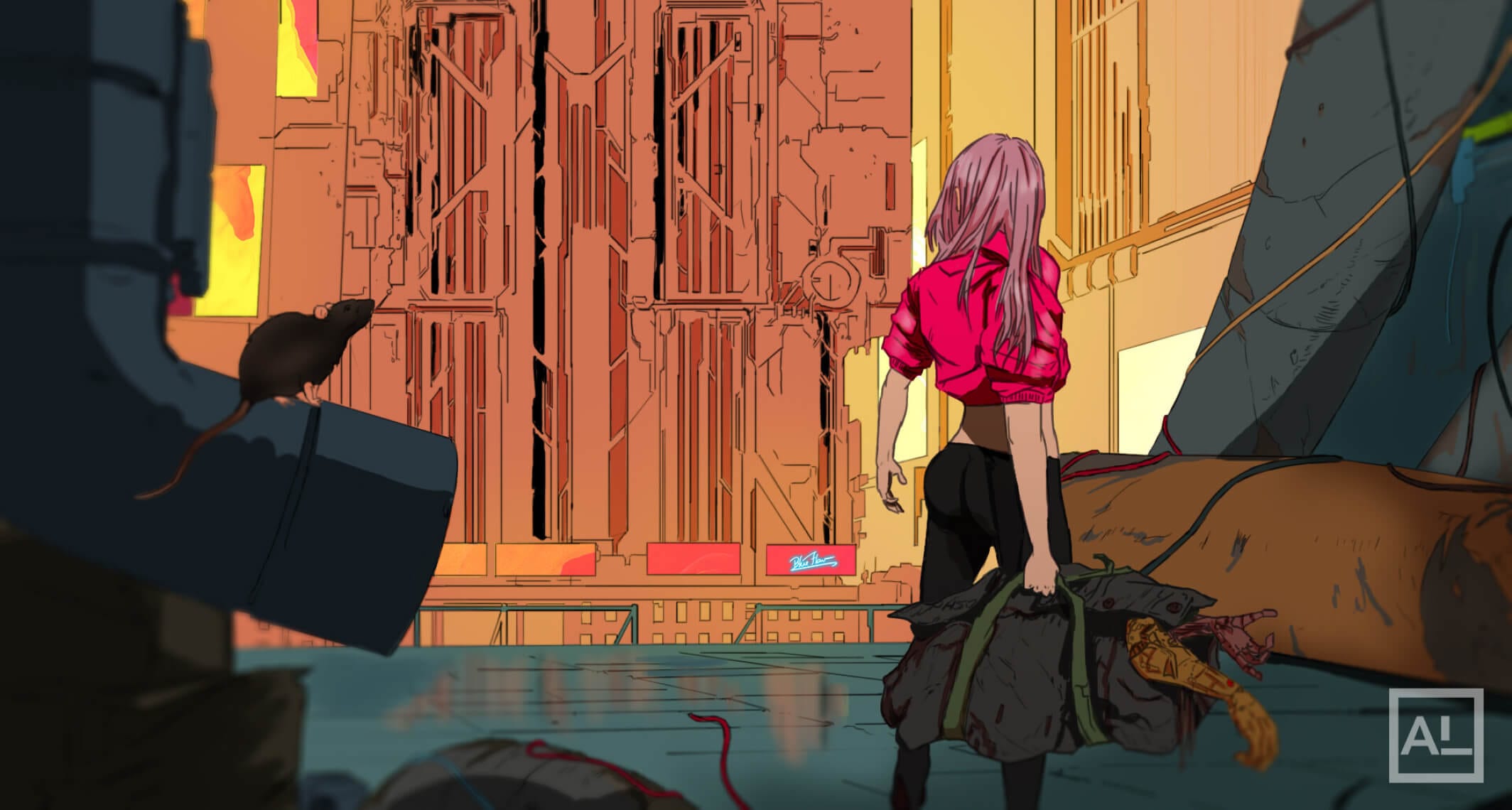
Getting into digital art can feel overwhelming. You open your software for the first time and you’re staring at 50 buttons, 200 brushes, a dozen panels you’ve never seen before — and suddenly that blank sketchbook on your desk looks very appealing.
I’ve been there. When I started, I spent more time wrestling with software than actually drawing. A lot of the confusion isn’t about skill — it’s about not knowing what to focus on first.
This guide fixes that. It’s a complete starting point for digital art — covering hardware, software, your first canvas setup, essential techniques, and how to build real skills over time. No fluff, no overwhelm. Just what you actually need to start creating.
🎯 Who this guide is for:
Complete beginners who have never tried digital art, and traditional artists making the switch to digital. If you already have a tablet but aren’t sure where to start, this is your guide.
Part 1 — What Is Digital Art, Really?
At its core, digital art is exactly what it sounds like: art made using digital tools instead of physical ones. Instead of paint and canvas, you use software and a screen. Instead of a brush, you use a stylus. The creative process — composition, color, light, shadow — is identical to traditional art. Only the tools are different.

Digital art is an umbrella term that includes a wide range of disciplines:
- Digital illustration — character art, concept art, book covers, fan art
- Digital painting — painterly scenes, landscapes, portraiture
- Pixel art — game sprites and retro-style artwork
- Photo manipulation — compositing, retouching, creative photo editing
- Graphic design — logos, posters, UI layouts
- 3D art — sculpting and rendering in software like Blender
- Motion graphics and animation — moving artwork, GIFs, video content
For this guide, we’re focusing on digital illustration and painting — the most common starting point for beginners who want to draw characters, scenes, or fan art.
Digital vs. Traditional Art — Which Should You Start With?
If you’re debating whether to start digitally or stick with traditional, here’s the honest answer: both have real advantages. Digital art gives you unlimited undo, no material costs after setup, and easy sharing online. Traditional art builds strong foundational skills and tactile sensitivity that translate well to digital later.
My recommendation: if you already draw on paper, don’t abandon it — bring those skills with you into digital. If you’re starting from scratch, digital is a perfectly valid starting point. The fundamentals of art (proportion, value, color, composition) are the same in both.

For a deeper comparison, I wrote a full breakdown here: Digital Art vs. Traditional Art.
Part 2 — Choosing Your Hardware
The most important hardware decision you’ll make is your drawing input device. This is what replaces your pencil or brush. There are three main options:
Option 1 — Graphics Tablet (Pen Tablet)
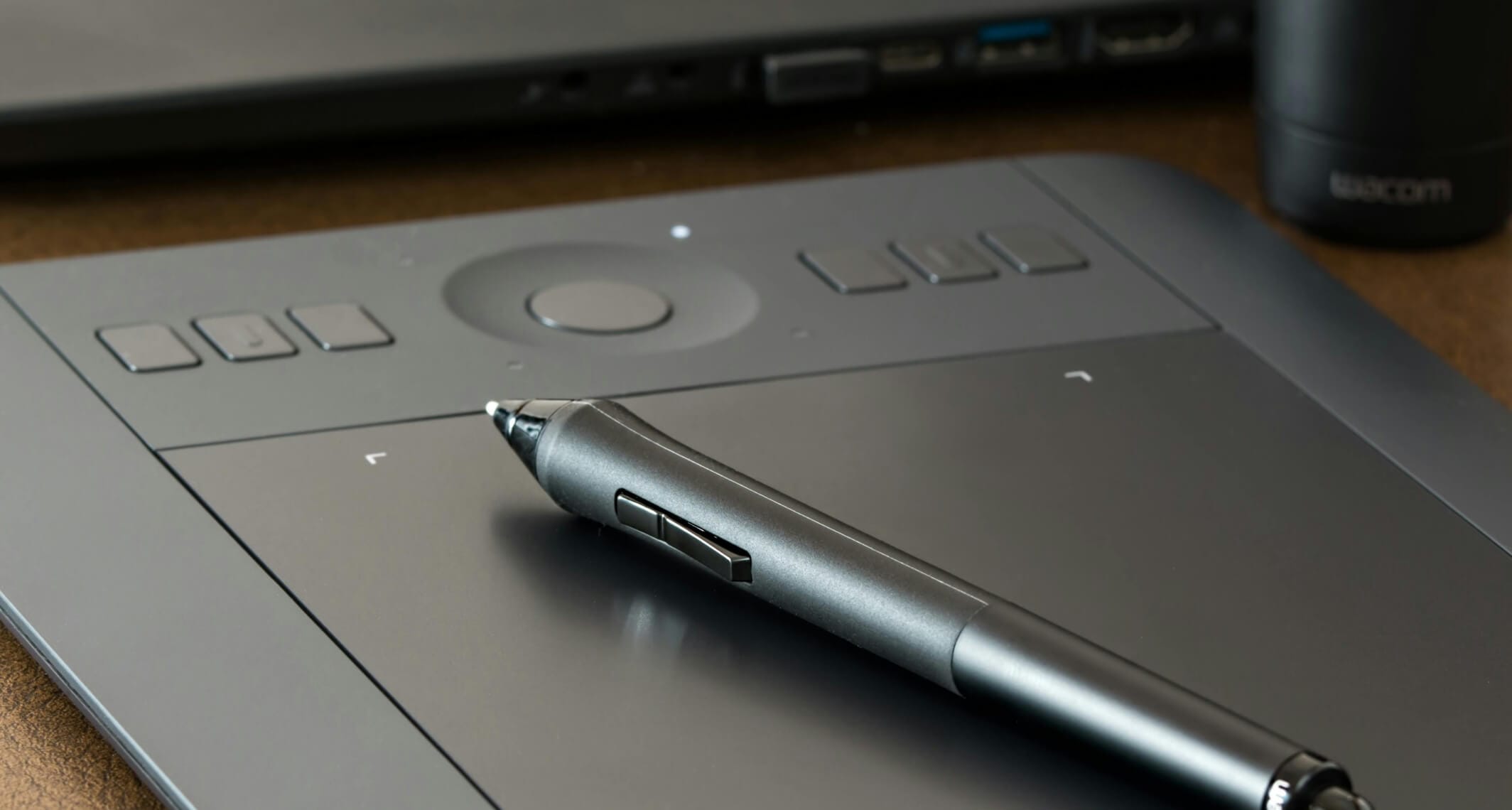
A graphics tablet is a flat pad you draw on with a stylus while looking at your computer monitor. It’s the most affordable entry point and the most widely used setup among professional digital artists.
- Best for: Beginners on a budget, artists who already own a PC or Mac
- Best entry model: Wacom Intuos Small or Medium (~$80–$120)
- Learning curve: Moderate — drawing while looking at a screen instead of your hand takes adjustment, usually 1–2 weeks
Option 2 — Pen Display (Screen Tablet)
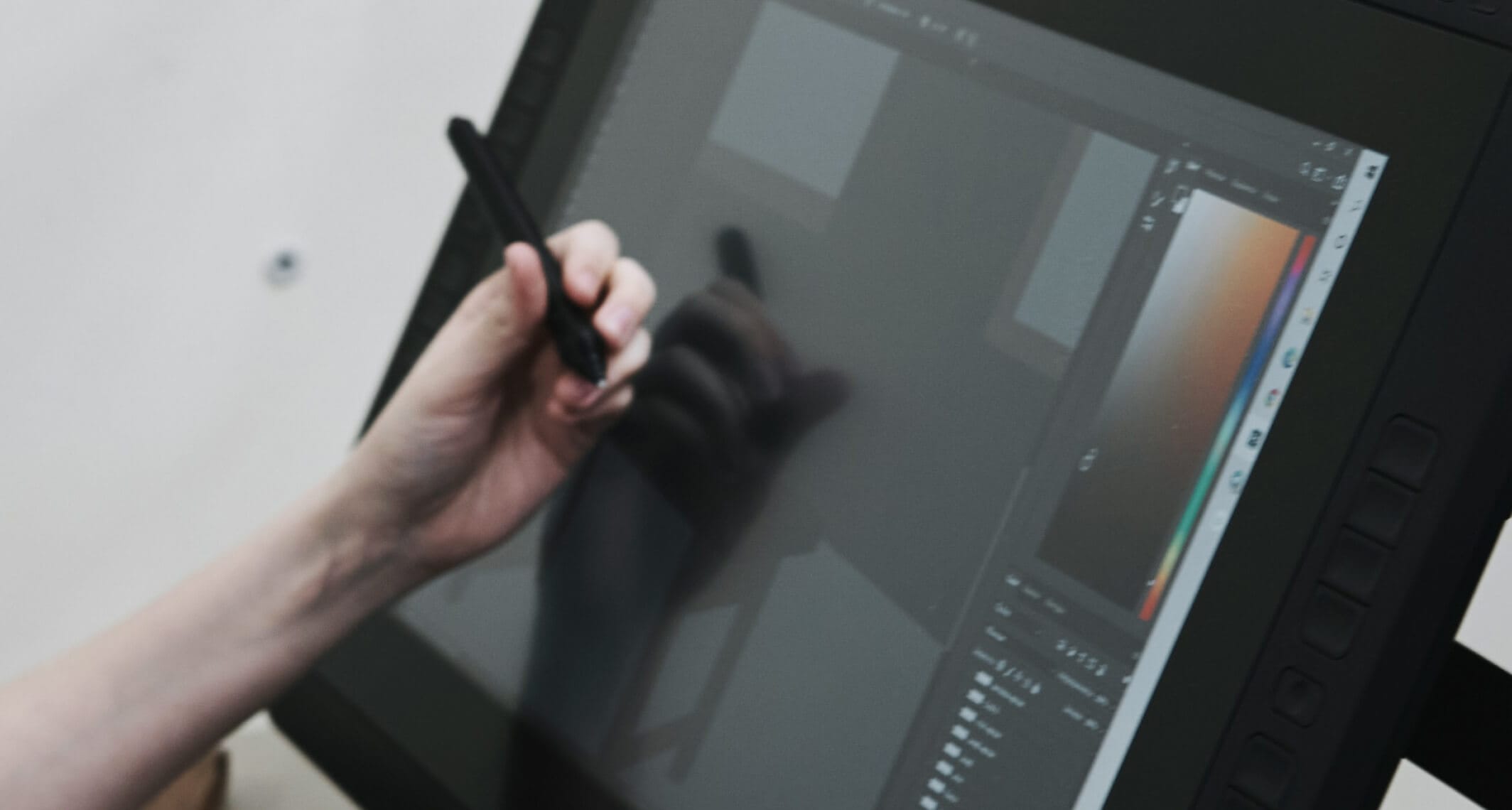
A pen display is a monitor you draw directly on. It feels much closer to drawing on paper since you’re looking at your hand while you draw. Popular brands include Wacom Cintiq and Huion Kamvas.
- Best for: Artists who struggled with the hand-eye disconnect of a regular tablet
- Entry model: Huion Kamvas 13 (~$200–$300)
- Learning curve: Low — very intuitive
Option 3 — iPad + Apple Pencil
An iPad Pro or iPad Air with an Apple Pencil is a fully self-contained digital art setup. No computer needed. Procreate (the most popular drawing app on iPad) is an incredibly capable tool, especially for illustration and character art.
- Best for: Artists who want to draw anywhere, beginners who already own an iPad
- Apps: Procreate ($13, one-time), Clip Studio Paint (subscription)
- Limitation: Procreate has fewer features than desktop software for complex work
| Device Type | Starting Cost | Best For | Portability |
|---|---|---|---|
| Graphics Tablet (Wacom Intuos) | ~$80 | Budget beginners with a PC/Mac | Low |
| Pen Display (Huion Kamvas) | ~$200 | Artists who want screen drawing | Low–Medium |
| iPad + Apple Pencil | ~$600+ | Portability, Procreate users | High |
💡 Beginner Tip:
Don’t wait for the “perfect” setup. A basic Wacom Intuos Small and Krita (free software) is enough to learn everything in this guide. Upgrade your tools after you’ve built real skills — not before.
Part 3 — Choosing Your Software
Your drawing software is your studio. The good news: most beginner-friendly software is either free or very affordable, and the core skills you learn in one program transfer to any other.
Clip Studio Paint — Best Overall for Illustration
Clip Studio Paint (CSP) is the industry standard for anime-style illustration and comic/manga art. It has purpose-built tools for linework, panel layouts, 3D pose references, and perspective rulers. It’s available on Windows, Mac, iPad, and Android.
- Cost: ~$4.49/month or ~$49.99/year (often on sale)
- Best for: Anime/manga art, illustration, comics
- Free trial: Yes — 3 months free
Krita — Best Free Option
Krita is a free, open-source painting program that’s genuinely excellent. It has powerful brush engines, a clean interface, and strong support for digital painting workflows. Many professional artists use it as their primary tool.
- Cost: Free
- Best for: Beginners on a tight budget, digital painting, concept art
- Platform: Windows, Mac, Linux
Procreate — Best for iPad
Procreate is the most intuitive drawing app available, with a clean interface and fast performance. The brush library is excellent, and the time-lapse recording feature is great for content creation. Limited compared to CSP for complex illustration work, but outstanding for sketching, character art, and painting.
- Cost: $12.99 one-time (iPad only)
- Best for: iPad users, beginners, artists who create content for social media
Adobe Photoshop — Industry Standard for Photo Work
Photoshop is the gold standard for photo manipulation and is widely used for digital painting too. However, it’s expensive ($20+/month), complex, and overkill for most beginners. I’d recommend starting with CSP or Krita and moving to Photoshop only if your work requires it.
| Software | Cost | Platform | Best For |
|---|---|---|---|
| Clip Studio Paint | ~$4.49/mo | Win / Mac / iPad | Anime, manga, illustration |
| Krita | Free | Win / Mac / Linux | Painting, beginners |
| Procreate | $12.99 once | iPad only | Sketching, portability |
| Adobe Photoshop | $20+/mo | Win / Mac | Photo editing, pro work |
Part 4 — Setting Up Your First Canvas
One of the most confusing moments for beginners is staring at the “new canvas” dialog. Width, height, DPI, resolution — what does it all mean, and what should you pick?
Understanding DPI and Resolution
DPI stands for “dots per inch.” It controls how sharp your image looks when printed. For digital-only work (social media, sharing online), DPI doesn’t matter much — set it to 72 or 96. For print work (posters, merchandise, physical prints), you need at least 300 DPI to avoid pixelation.
Recommended Canvas Sizes for Beginners
| Purpose | Canvas Size | DPI |
|---|---|---|
| Social media / online sharing | 2000 × 2000 px (square) or 2000 × 1200 px | 72–150 |
| Character illustration | 2480 × 3508 px (A4 equivalent) | 300 |
| Portrait / headshot | 2000 × 3000 px | 300 |
| Wallpaper / desktop art | 3840 × 2160 px (4K) | 72 |
| Print poster (A4) | 2480 × 3508 px | 300 |
When in doubt, go bigger than you think you need. You can always scale down a high-resolution image, but scaling up a small image creates blurry, pixelated results. I have a full guide on canvas sizes here: Canvas Size for Digital Art.
Color Mode
For digital illustration, use RGB color mode. This is the color space for screens. If you’re creating work for professional print, you’ll eventually work in CMYK — but RGB is the correct starting point for beginners.
Part 5 — Understanding Layers (The Most Important Concept in Digital Art)
If there’s one concept that separates digital art from traditional art, it’s layers. Understanding layers will immediately make your workflow faster and your art more flexible.
Think of layers like stacking transparent sheets of glass on top of each other. You can draw on each sheet independently — and whatever is on a higher sheet appears in front of whatever is on a lower sheet. You can add, hide, reorder, or delete any layer without affecting the others.
A Basic Layer Structure for Character Art
Layer 1 (Bottom) — Background
A flat color or background scene. This sits at the bottom of everything. Often filled with a neutral mid-tone gray during the sketch phase so you can see both light and dark marks.
Layer 2 — Flat Base Colors
One layer (or one layer per color zone) filled with the base colors of your character — skin, hair, clothing. No shading yet, just flat fills. This makes selecting color zones easy later.
Layer 3 — Shadow Layer
Set this layer to Multiply blend mode and clip it to your base color layer. Paint shadows here. The Multiply mode darkens whatever is beneath it — so you get colored shadows automatically without losing the base color underneath.
Layer 4 — Highlight Layer
Set this layer to Add or Screen blend mode. Paint bright highlights here — on the hair, shoulders, nose bridge. This layer brightens everything beneath it.
Layer 5 (Top) — Linework
Your clean outlines sit on top of everything. Keeping linework on its own top layer means you can adjust, recolor, or erase lines without touching your colors underneath.
📌 Key Layer Modes to Know:
Normal
— standard painting.
Multiply
— darkens, used for shadows.
Screen
— brightens, used for soft light.
Add
— strong brightening, used for glows and sharp highlights.
Overlay
— boosts contrast and saturation, great for color adjustments.
Part 6 — Essential Brushes and When to Use Them
Beginners often download hundreds of brushes before learning to draw. This is a trap. You need far fewer brushes than you think — and using too many too early prevents you from developing sensitivity with any of them.
Here are the only brushes you need to start:

The 4 Brushes That Cover Everything
- Hard round brush — Your workhorse. Use it for sketching, linework, and painting flat areas. Clean edges, full opacity. This single brush can carry 80% of a finished piece.
- Soft round brush — Used for blending, soft gradients, and atmospheric effects. Same shape as the hard brush but with a feathered edge. Lower opacity for subtle transitions.
- Textured/chalk brush — Adds natural texture to skin, clothing, or backgrounds. Great for avoiding that “too smooth” digital look.
- Smudge/blend brush — Blends existing color together. Use sparingly — heavy blending is the most common mistake beginners make. Real paint blends at the edges, not all over.
Master these four before adding anything else. Once you understand why you’d reach for each one, adding specialty brushes becomes intuitive rather than overwhelming.
Part 7 — The 5 Fundamental Skills Every Digital Artist Needs
Regardless of style or subject matter, all great digital art is built on the same five fundamentals. These are not software features — they’re artistic skills that take time and repetition to develop.
1. Line Confidence
Digital art rewards confident, decisive lines. Beginners often draw with short, scratchy strokes — building a line from many tiny marks. Instead, practice drawing long, smooth strokes in one motion from shoulder or elbow, not just the wrist. Use the “undo” function strategically: one confident wrong stroke, undo, try again — rather than scratching and correcting.
2. Value (Light and Shadow)
Value means the range from light to dark. This is the single most important skill in all visual art. Before worrying about color, practice rendering objects in greyscale — understanding where light hits, where shadows fall, and how to create the illusion of 3D form using only dark and light. Good value structure makes even simple color choices look professional. Bad value structure makes even beautiful colors look flat.
3. Color Theory
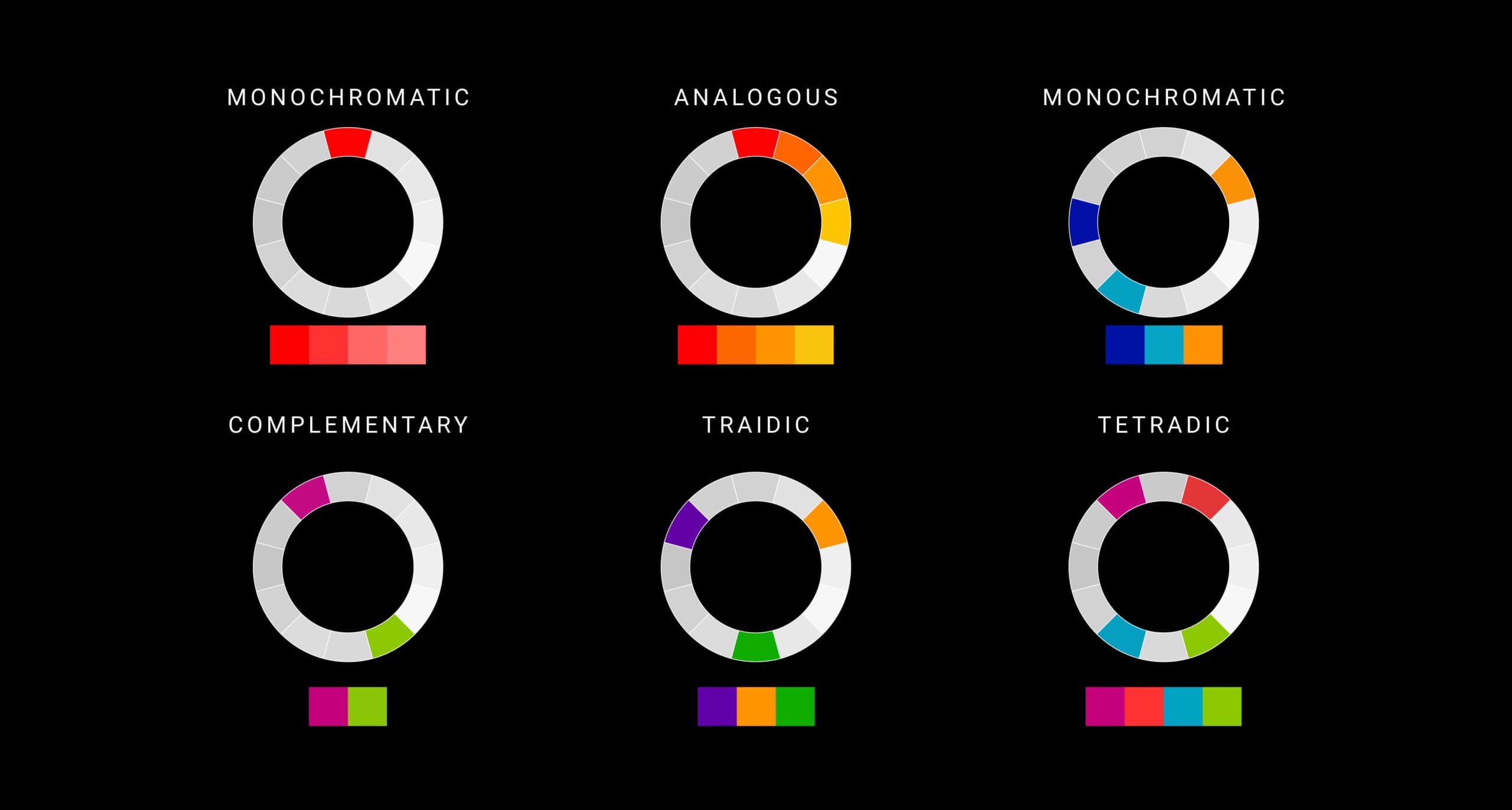
Color isn’t random — it follows rules. Learning the basics of hue, saturation, value, and color temperature will transform your work. The most important concept for beginners: shadows are not just a darker version of the base color. In real life (and in great digital art), shadows shift toward cooler, more saturated hues. I cover this in depth in my Color Theory guide.
4. Proportion and Perspective
Whether you’re drawing a character or a background, understanding basic proportion and perspective is essential. For characters, this means understanding how the head, torso, and limbs relate in size. For environments, it means understanding how objects scale and converge toward vanishing points. You don’t need to master technical perspective drawing — but you do need to understand the basic principles.
5. Composition
Composition is how you arrange elements within your canvas. A well-composed image guides the viewer’s eye, creates visual interest, and communicates your subject clearly. Key principles to learn early: the rule of thirds, leading lines, foreground/midground/background separation, and negative space. Even simple character portraits benefit from intentional composition.
Part 8 — Your First Digital Drawing, Step by Step
Theory is only useful when you apply it. Here’s a simple workflow to complete your first digital drawing — a character head — from start to finish.
Step 1 — Set Up Your Canvas
Create a new canvas at 2480 × 3508 px, 300 DPI, RGB. Fill the background layer with a neutral mid-gray (#888888). This gives you a neutral starting point that’s easier to judge values against than a harsh white.
Step 2 — Rough Sketch (Low Opacity)
On a new layer above the background, set your brush to about 30% opacity and sketch loosely. Don’t worry about clean lines — just find the basic shapes. Block in the head circle, the jaw, the eye line. Keep things light and exploratory.
Step 3 — Refined Sketch
Lower the opacity of your rough sketch layer to about 20–30%. Create a new layer above it. Now draw more carefully on top of the rough, using it as a guide. This is your refined sketch — still not final linework, but cleaner.
Step 4 — Flat Colors
Create a new layer below your sketch. Use the lasso selection tool to select each area (skin, hair, etc.) and fill with a flat base color. No shading yet — just get the color zones in place.
Step 5 — Add Shadows
Create a new layer above your flat colors, set to Multiply blend mode. Paint shadow shapes with a hard brush — wherever the light doesn’t reach. Keep shadows simple: one shadow tone is enough for a first piece.
Step 6 — Clean Linework
Create a new layer at the top. Draw your final, clean lines on this layer. Lower your rough sketch layer’s visibility to off. Now you should see clean lines over your colors.
Step 7 — Highlights and Final Details
Add a layer set to Screen or Add mode for highlights. Paint small, sharp white or near-white marks on the hair, eyes, and any reflective surfaces. Step back, check the overall balance, and make any final adjustments.
Step 8 — Export
Go to File → Export (or Save As) and export as a PNG for highest quality, or JPG if you need a smaller file size for social media. Keep your original project file (.clip, .kra, .psd) so you can go back and edit later.
Part 9 — Building Good Habits From Day One
The habits you build early in your digital art journey will either accelerate or slow down your progress for years. Here are the ones that matter most:
- Name and organize your layers — “Layer 14” tells you nothing. “Skin base,” “Hair shadow,” “Linework” tells you everything. This habit seems tedious early on but saves enormous time on complex pieces.
- Save constantly — Digital files can corrupt or crash. Save your working file every 15–20 minutes. Enable auto-save if your software supports it.
- Zoom out regularly — Most beginners get lost in details too early. Make a habit of zooming out to 50% or 25% every 10–15 minutes to check the overall composition and proportions.
- Flip your canvas horizontally — Mirroring your canvas reveals proportion errors your brain has learned to ignore. Most software has a “flip canvas” shortcut. Use it often.
- Use reference images — This isn’t cheating. Professional illustrators use references constantly. For poses, lighting, anatomy — reference is what separates accurate art from guesswork.
- Draw every day, even briefly — 20 minutes of consistent practice beats a 3-hour session once a week. Frequency builds muscle memory. Consistency builds improvement.
Part 10 — Where to Learn More
This guide is your foundation. Once you’ve worked through it, here are the natural next steps on this site:
- Complete Anime Drawing Guide for Beginners — If you want to draw anime-style characters specifically, this is your next read.
- How to Draw Anime Faces — A deep dive into head construction and facial features.
- How to Draw Anime Hair — Master the most expressive part of any character.
- Color Theory Made Simple — Level up your color choices with the principles behind them.
- Canvas Size for Digital Art — Get your setup right from the start.
The most important thing you can do right now is open your software, create a canvas, and draw something. It doesn’t have to be good. The first goal isn’t quality — it’s familiarity. Get comfortable with the tools, make mistakes, and build from there.
Digital art has a steep onboarding curve that flattens quickly once you’ve pushed through the first few weeks. After that, you’ll wonder how you ever worked without it. 🖊
Frequently Asked Questions
Can I learn digital art with no drawing experience at all?
Yes — but expect a steeper early curve. Digital art requires learning both the artistic fundamentals (proportion, value, color) and the software at the same time. This can feel overwhelming at first. The solution is to separate them: spend your first few weeks just getting comfortable with the tools and software before worrying about making “good” art. Line exercises, simple shapes, and playing with brushes builds the muscle memory you need before tackling full illustrations.
What’s the minimum budget to start digital art?
You can start for under $100. A Wacom Intuos Small (~$80) paired with Krita (free) gives you a fully capable digital art setup. If you already own an iPad, adding Procreate ($13) is even cheaper. The main cost is the tablet — everything else can be free or very inexpensive to start.
How long does it take to get good at digital art?
Most beginners see meaningful improvement within 3–6 months of consistent daily practice — meaning they can produce recognizable, intentional work. Getting genuinely skilled — fluid linework, confident color, polished finished pieces — typically takes 1–3 years depending on how often you practice and how deliberately you study. The pace varies, but consistent practice is the only real variable that matters.
Is Clip Studio Paint better than Procreate?
They serve different needs. Clip Studio Paint is more powerful overall — better for complex illustration, manga paneling, perspective rulers, and professional-grade workflows. Procreate is more intuitive, faster to learn, and better for sketching and casual art creation. If you’re on an iPad and want the simplest experience, start with Procreate. If you want the most complete tool for anime and illustration work, go with Clip Studio Paint.
Do I need to learn traditional art before digital?
No — you can start with digital art directly. However, traditional drawing does build strong foundational habits: line confidence, understanding of physical light and shadow, and the inability to “undo” (which forces more deliberate mark-making). If you already draw traditionally, bring those skills into digital. If you’re starting fresh, digital is a perfectly valid first medium.
Why do my digital lines look wobbly and unconfident?
This is the most common complaint from new digital artists, and it’s a muscle memory issue — not a talent issue. Drawing on a tablet while looking at a screen creates a hand-eye disconnect that takes a few weeks to adjust to. In the meantime, most software has a “line stabilizer” or “smoothing” setting that helps compensate. In Clip Studio Paint it’s called Stabilization; in Krita it’s Brush Smoothing. Set it to about 10–20 to start. As your natural line confidence improves, you can reduce it.
What’s the difference between raster and vector art?
Raster art (used in Photoshop, Procreate, Krita, Clip Studio Paint) is made of pixels. It looks great on screen and for illustration, but becomes blurry if you scale it up too much. Vector art (used in Illustrator, Inkscape) is made of mathematical paths that can be scaled to any size without quality loss. For digital illustration and painting, raster is standard. For logos, icons, and design work, vector is preferred.
How do I avoid the “too smooth” or “plastic” look in digital art?
This is caused by over-blending. Beginners often use smudge and blur tools to smooth every edge — which removes all texture and makes art look artificial. The fix: use a textured brush for your base painting, keep some edges hard and unblended, and limit your blending tool to transitions between major value zones only. Adding a subtle texture overlay on a low-opacity layer on top of your finished art also helps break up the smooth digital surface.
Should I use a mouse or a tablet for digital art?
A tablet is strongly recommended. Drawing with a mouse is possible but extremely limiting — you lose all pressure sensitivity, which means you can’t vary line weight naturally. Pressure-sensitive stylus input is what makes digital painting feel like traditional media. Even an entry-level tablet makes an enormous difference in line quality and control.
Can I make money from digital art as a beginner?
Eventually yes, but realistically not right away. Building the skills to produce work that others will pay for takes time — typically at least 1–2 years of serious practice. Once you have a portfolio, income paths include commissions, selling prints or digital downloads, creating tutorials or courses, freelance illustration work, and licensing artwork. I cover this in detail in the Digital Art Careers guide.
Discover More Posts
Keep exploring stories, insights, and creative notes from my journey as an artist. Check out the latest blog entries and find topics that inspire your own process.
5 Hidden Art Career Killers That Stop Most Artists Before They Even Start — And How to Beat Them
Learn to draw anime-style clouds with this easy, step-by-step cloud tutorial. You’ll pick up tips on shapes, color, and composition—plus get free cloud brushes to use in your own art.
Sketching vs. Drawing: 5 Powerful Insights Every Artist Should Know
Learn the key differences between sketching and drawing—how detail, speed, tools, and intent separate the two and when to use each in your art practice.
How to Find Your Art Style in 3 Simple Steps
Learn how to find your unique art style through a clear three-step process. Discover how to collect inspiration, analyze your influences, and build your own signature look with deliberate practice.